Orders tab: View your orders
Updated October 26, 2026
Orders in your dashboard lists every order your shop receives. Click an order to see its items, cost breakdown, profit, shipping timeline and tracking number.
The Orders page has two sections, Orders and Donations. If you've turned on Twitch gifting, a third section, Twitch gifts, appears there too. Under Orders in the sidebar you'll also find:
- Thank yous: the thank-you videos you've sent or still have to send. Learn more here: How do I send a thank you video to my customer?
- To be shipped: the orders you need to ship yourself. Learn more here: How to upload tracking numbers for self-fulfilled orders
Common questions
- How do I cancel or refund an order? See Cancel and refund an order.
- Why can't I see the cancel or edit option? See Why you don't see the cancel or edit option for your order.
- What does my order's status mean? See Order statuses.
- Why is profit blank on a new order? See Why is profit blank or showing an error? below.
Orders
Within the orders section, you will see all the orders received. At first glance, you will see the following details:

- Order date - based on your timezone selected. Learn more here:How to Set the Timezone for Your Fourthwall Dashboard
- Thumbnail/preview of the products in the order
- Customer name - for digital orders, it shows email as name is not required
- Status of the order. For what each status means, see Order statuses.
- Order total - this is the total paid by the customer for the order
- Profit - the profit you made in the order after all costs are considered. Profit can take some time to appear on new orders. See Why is profit blank or showing an error? below.
You can click on each order to see more details about it, including all the products ordered, a breakdown of costs, the shipping/fulfillment timeline, the tracking number, and many other order-specific details.

Search, filter, and download orders
Searching Orders
If you are looking for a specific order, you can use the search bar on the top right of the page to pull up any specific order. You can search using customer name, email, order number, and shipping address details such as city or country.

Filtering Orders
You can filter orders by status, sales channel, order source and disputed status. Click Filter, to the right of Export orders above the orders list, then pick a filter group:
- Status
- Sales channel: Fourthwall shop, TikTok shop, Meta shop, External marketplace or UCP / AI Agent
- Order source: Only internal orders, which lists your sample orders
- Disputed status: Active, Won, Lost or Requires action
For who responds to a payment dispute and what a lost dispute costs, see Chargebacks and payment disputes.

Downloading orders
To download a report of your orders, click Export orders (the download icon) between the search bar and Filter. This report gives you a high-level overview of each order, including: order date, email, product value in order, donation value in order, shipping amount, taxes, discount, promotion code, and refund of the order, along with shipping details.
Note: If you are looking to download orders for fulfillment, you need a different report. Check out this article instead: How to upload tracking numbers for self-fulfilled orders.

Orders per page
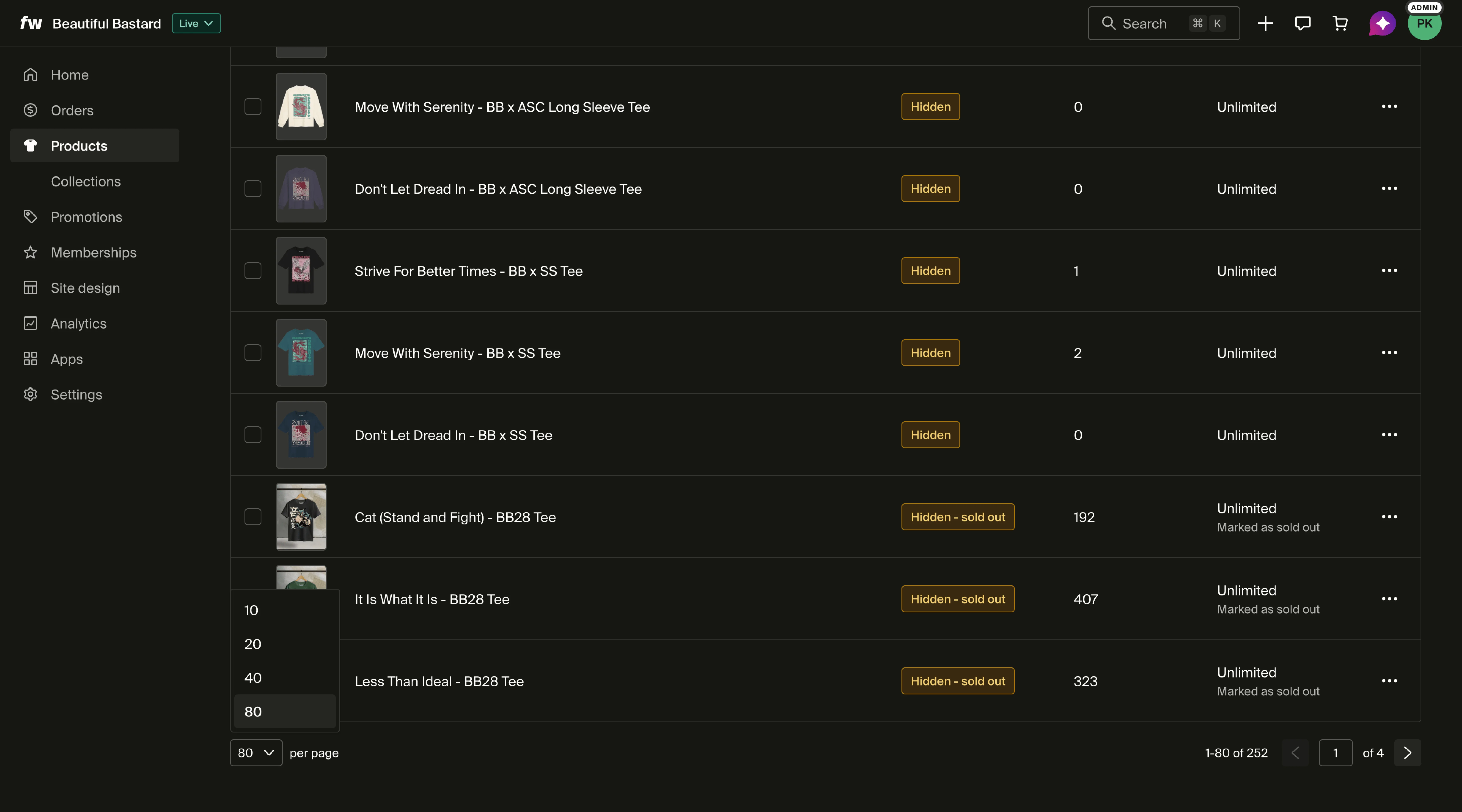
At the bottom of the orders list, you can choose how many orders display per page. Click the per page dropdown in the footer to select from available options. Your preference is saved and carries over the next time you visit the orders page.
Customize table columns
You can choose which columns appear in the orders table and in what order. Click the columns icon at the right end of the table's header row to open the Customize table menu, then:
- Show or hide a column by checking or unchecking it. Changes apply right away.
- Reorder columns by dragging them into the order you want.
- Reset view returns the table to its default columns and order.
Your column layout is saved in your browser, so it stays the same the next time you visit.
Donations
If you have donations active in your Fourthwall site and someone has placed a donation-only order, you will see these under the Donation section. You will see similar details as in the order section, but specific to the donation orders.

If a donation is added to a product order, it will not appear here but in the order details.
Twitch gifts
The Twitch gifts section appears only once you've turned on Twitch gifting. Learn more here: Twitch gifting. When you receive Twitch gift orders, you'll see them in this section. Here you will see the Twitch order details, but more importantly, the status and profit.
- Twitch gift status - it will show as gift and if it has been redeemed or not. If there are multiple Twitch gift in an order it will show you how many of those have been redeemed or not.
- Twitch gift profit - here you will see the profit from that gift. At first you will see the total net profit impact, but if you open the order to see breakdown by gift you will see a gift purchase and gift redeemed order
- Gift purchase - this order will always show positive profit as this is the purchase of the gift. If the gift is not redeemed, you keep that full profit.
- Gift redeemed - this order is once the winner claims their Twitch gift. This order will always show as negative profit as at this point is when you get charged the product costs and/or shipping costs for the order.

Frequently asked questions
Can I search orders by discount code?
No. The orders search bar matches customer name, email, order number, and shipping address details. It does not match discount or promotion codes.
To see which orders used a specific code, click Export orders above the orders list to download the orders report, then filter the Promotion code column in your spreadsheet app.
Why is profit blank or showing an error?
After a new order is placed, the Profit column in the orders list may show no value for a while. On the order detail page, profit can also display an Error badge along with a danger banner during the same window. This is expected: Fourthwall calculates profit after the order comes in, and the figure appears once that calculation finishes. This happens whether or not you've configured product costs.
If the Profit column or the order detail page still shows blank or an error after a couple of days:
- For self-fulfilled items, confirm you turned on Product costs in the product's Advanced settings (the … menu on the product page) and entered the cost on the product page, so the calculation has the data it needs.
- If costs are configured and the issue continues, email support@fourthwall.com with your shop URL and the IDs of the affected orders so the team can re-run the calculation on your account.