Add Google Analytics to your site
Updated October 7, 2025
Track traffic, behavior, and sales performance using Google’s free analytics tool
Connecting Google Analytics 4 (GA4) to your Fourthwall site gives you a deeper look into how customers find and interact with your shop. With this integration, you can track page visits, traffic sources, and conversion activity to help you improve your site’s performance.
What you’ll need
Before getting started, make sure you have:
- A Google Analytics 4 (GA4) account
- A GA4 property created
- A Web Data Stream created for your site
- Your Measurement ID (looks like G-XXXXXXX)
If you're new to GA4, you can follow Google’s guide to setting up GA4 to create a property and get your tracking ID.
Step 1: Find your GA4 measurement ID
- Sign in to your Google Analytics account.
- From the Admin section, select the correct GA4 property.
- Under Data Streams, click into your Web stream.
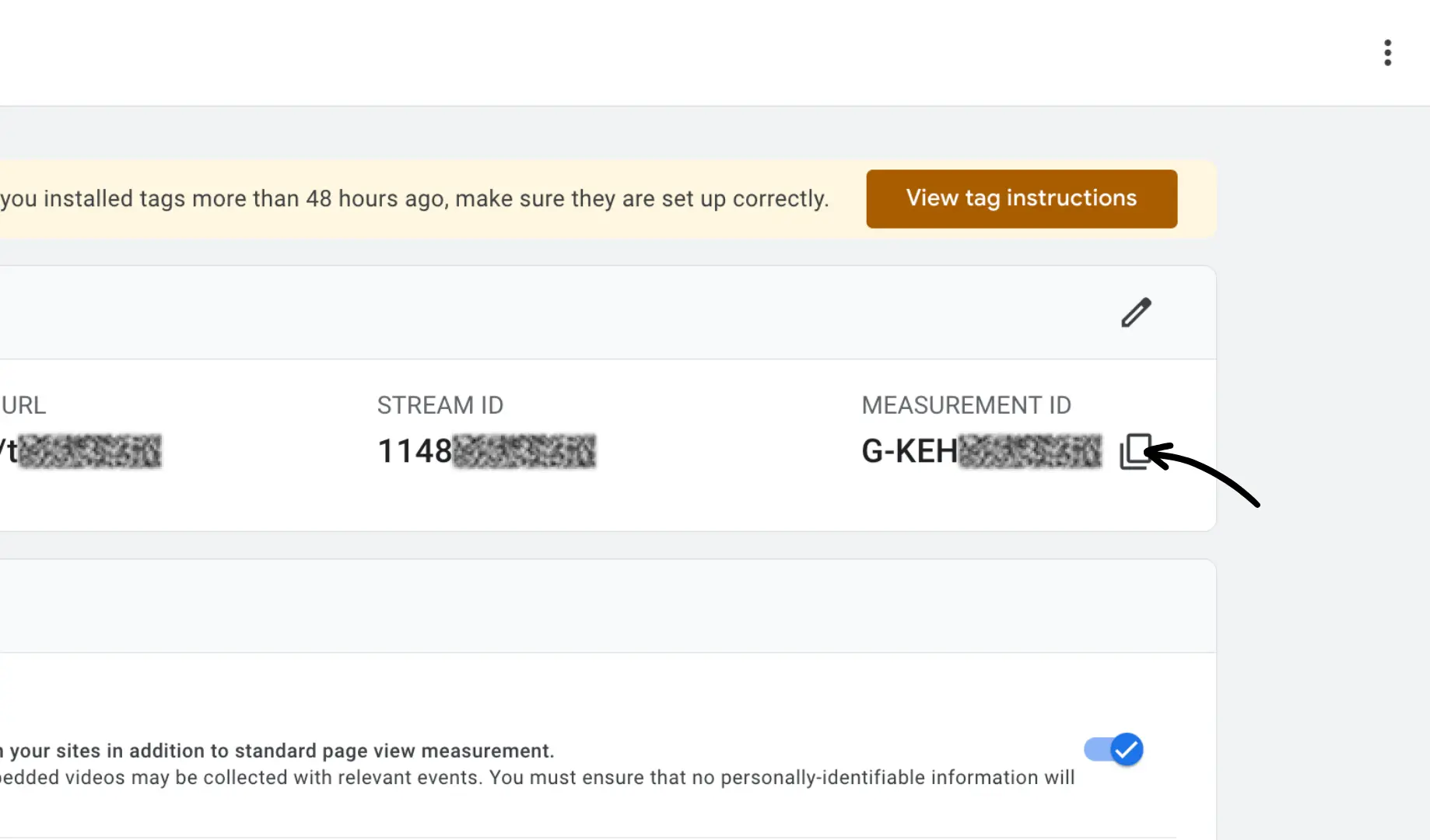
- Copy your Measurement ID (starts with G-).
Step 2: Add Google Analytics to your Fourthwall site
- Go to your Fourthwall Dashboard.
- Navigate to Analytics > click the ⋯ menu > choose Tracking pixels.
- Paste your GA4 Measurement ID into the "Google Analytics 4 Tracking ID" field.
- Click Save.

After you set up Google Analytics 4 ID, Google will start tracking various site and e-commerce events automatically.
It can take a few minutes for your data to show. Once it does, you’re all set.
Step 3: Connect Fourthwall with GA4
- Go back to the Analytics tab.
- In the Overview section, click the Connect for free button and follow the prompts for connecting your Google Analytics account with Fourthwall.
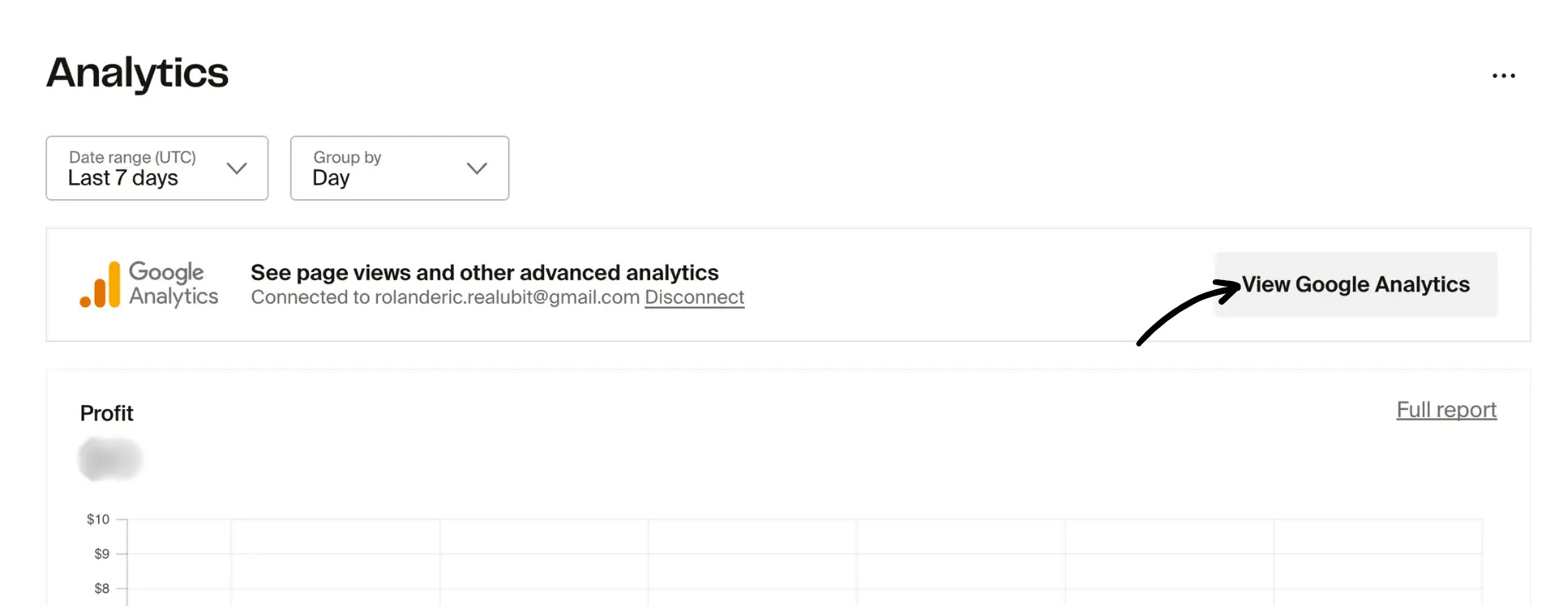
This gives you an easy way of going to your GA4 page to see how many people visit your site, along with other advanced analytics, by clicking the View Google Analytics Button.
Additional resources
- Move properties between accounts (For advanced users managing multiple Analytics accounts or consolidating properties)
- Switch between accounts and properties