Reset your password
Updated October 28, 2026
Forgot your Fourthwall password? Request a reset link from the login screen and set a new one in a few minutes.
If you sign in with Google, Apple, Twitch, or YouTube, that platform manages its own password. Reset it with that platform, then sign in to Fourthwall with it again. You can also use the steps below with your Fourthwall account email to create a Fourthwall password, so you can log in with email and password too. To see which platforms are connected to your account, see Manage Login Platforms.
Reset your password
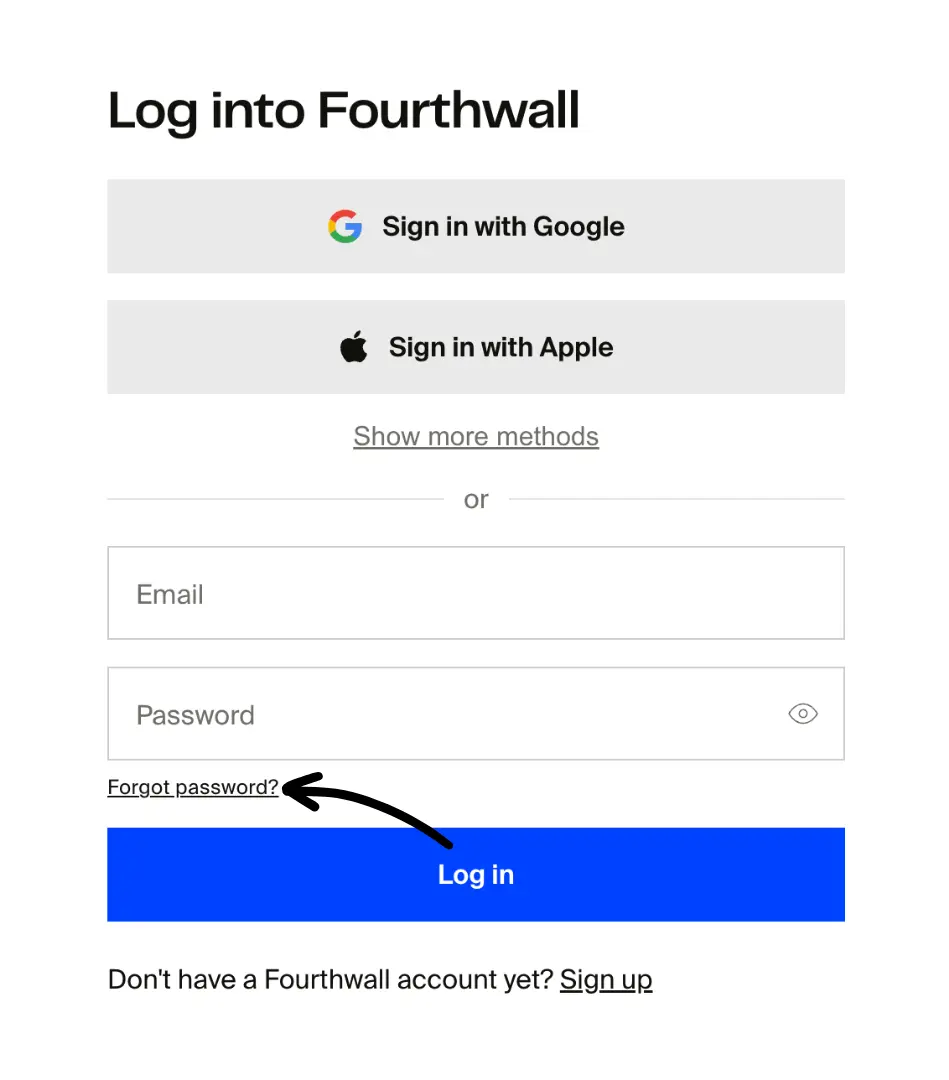
- On the login screen, click Forgot password? below the Password field.
-
Enter the email address associated with your Fourthwall account and click Reset password. The page doesn't show a confirmation message, so go straight to your inbox.
-
Open the email and click the link to the page where you can enter your new password. The reset link expires after 5 minutes, so use it right away.

If you don't see the email within a few minutes, check your spam or promotions folder.
- Enter your new password and click Confirm. You can also choose to log out of your other devices. This signs you out everywhere else, including the Fourthwall mobile app.

That's it! You can now log in with your new password.
If the reset doesn't work
- The link says it expired: Go back to the login screen, click Forgot password? again, and use the newest email right away. Links from older emails won't work.
- The email never arrives, even in spam: Your email provider may be blocking it. See The verification code isn't arriving for what to try.
- You can't access the email on your account anymore: A password reset can't help. Contact support@fourthwall.com with your shop URL and the email address on your account, and expect the team to verify your identity first. See Recover access to a locked account.