Multi-currency settings
Updated October 26, 2026
One of the most amazing things about cultivating a community as a creator is that you can reach customers all over the world. This means that when customers visit your site, they will want to see prices displayed in their local currency. Fourthwall automatically converts your product and membership prices to your customers' local currency. For products, you keep the same profit as in USD, so you don't have to worry about FX rates or adapting your margins. Membership tier prices stay fixed in each currency, so when members pay on your site in another currency, your USD earnings from them can vary with exchange rates. Product prices convert automatically to a supported local currency only when that currency is enabled for your shop. To enable local currencies, go to Settings > Checkout > Local currencies in your dashboard, select or deselect the currencies you want other than USD, and click Save. USD can't be disabled.
How does currency conversion work?
When a customer visits your Fourthwall site, it uses geolocation to identify the local currency of that customer's region. If the local currency is supported, the prices shown will automatically convert to the local currency. The customer will also be able to toggle between currencies. If the local currency is not supported, the prices will be shown in USD. This applies to both product listings and membership tiers, so customers can pay for subscriptions in their local currency.
Product listings show prices automatically in a supported local currency only when that currency is enabled for your shop.
What currencies are supported?
Your customers will be able to see products and membership tiers in your shop in one of 17 different local currencies: USD, EUR, CAD, GBP, AUD, NZD, MXN, SEK, NOK, DKK, PLN, JPY, SGD, MYR, BRL, INR, and CHF.
Product prices display automatically in a supported currency only when that currency is enabled for your shop.
How do I disable multi-currency for my product listings?
You can always disable multi-currency by navigating to your site's Settings > Checkout in your dashboard to the Local currencies section and deselect any currency you do not want to support. If you wish to disable it fully, just deselect all currencies, and it will automatically only show in USD. Please note that USD cannot be disabled since it is Fourthwall's base currency.

What are the benefits of showing prices in local currency?
Allowing customers to see prices and pay in their local currency makes them feel more comfortable as they navigate your site and will boost conversion rates with a better checkout experience. This is true for both one-time product purchases and recurring membership subscriptions.
Does this impact my profit or payouts?
Multi-currency doesn't change your profit on products. When product prices are converted, your profit stays the same as it is in USD. Membership earnings can change: when members pay on your site in another currency, the tier price stays fixed in that currency, so your USD earnings from them can vary with exchange rates (see Automatic membership tier pricing conversion). Your profit and your dashboard are shown in USD. Your shop balance also stays in USD.
Stripe Connect pays out in the local currency of your Stripe Connect country (for example, GBP for a UK account), so your USD balance is converted when it's paid out. See Payout currency.
Refunds
There is often a time gap between when a customer places an order and when a refund is requested/processed. As a result, the currency conversion rate will have changed. This is why the conversion rate has a buffer built into it, as mentioned above. Your customer will receive a refund in the same currency they paid with.
Product and Membership Multi-currency Details
There are some minor differences between multi-currency for product listings and memberships. To make it easier, we broke this out into two sections below:
- Product Multi-currency Overview
- Membership Multi-currency Overview
Product Multi-currency Overview
How are prices converted for my product listings?
To determine the prices to display in other currencies, we use openexchangerates.org rates for each currency, and we then add a buffer of 2% to protect against potential currency fluctuations. This buffer allows a margin for differences in exchange rates used by payment processors and future refunds as well. We built it this way so that you, as a creator, do not have to worry about currency fluctuations; you always get the same expected profit as you would in USD, and Fourthwall takes the currency exchange rate risk. You can see the formula used to convert prices here:
Product price x (Currency conversion rate + Conversion buffer) = Converted price
$10.00 USD x (0.93773598 + 0.0187) = €9.56
One thing to note is that your profit and all numbers on your dashboard will still be reflected as USD. You will see the order details, profits, and refunds in USD, even though they will be processed in the customer's local currency, as applicable.
Membership Multi-currency Overview
How are prices converted for my membership tiers?
There are two options for multi-currency conversion of your membership tiers:
- Automatic - the system does the tier pricing conversion for you using a formula we have developed
- Manual - you can set up the specific tier pricing in each currency
Automatic membership tier pricing conversion
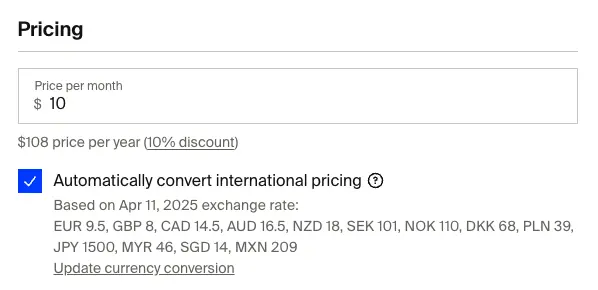
By default, when you create a membership tier, the price is automatically converted to other currencies using the exchange rate from that day. To determine the prices to display in other currencies, we use openexchangerates.org rates for each currency, then add a buffer of 7% to protect against potential currency fluctuations, and then round the price.
After your membership price is set, it stays fixed in each currency and will not fluctuate. This means your earnings in USD may change slightly month-to-month based on exchange rates. To help with this, we add a small exchange rate buffer higher than for product listings since subscriptions are recurring and span longer periods. Keeping tier prices fixed also ensures all members pay the same amount, no matter when they join. You can't change a tier's price in a currency while the tier has members paying in that currency. This includes members who cancelled but are still in their paid period and members with a failed or incomplete payment.
You can see the formula used for the automatic conversion here:
Tier price x (Currency conversion rate + Conversion buffer) = Converted price without rounding
$10.00 USD x (0.93773598 + 0.0656) = €10.03
Converted price with rounding = €10.50
Once converted, you'll see your tier price in other currencies along with the exchange rate date in your tier settings:
Manual membership tier pricing conversion
To set your own tier prices in each currency, uncheck the "Automatically convert international pricing" box. This will open a table showing all the currencies you've enabled, where you can enter custom prices for each one. On the right side, you'll see a suggested price based on the current exchange rate, which includes a 7% buffer. This makes it easy to reference while entering your own custom tier rate for each currency.
