Upload tracking numbers for self-fulfilled orders
Updated October 23, 2026
Add tracking to a self-fulfilled or externally fulfilled order from Orders > To be shipped. Click Ship order to add tracking to one order, or upload a CSV file to add tracking to many orders at once.
Orders without tracking hold your payouts. Self-fulfilled orders without tracking put a hold on your payouts. To get the hold lifted, add tracking to those orders or, if tracking isn't available, wait 120 days from your most recent order without tracking details. After you update tracking, email support@fourthwall.com so the Fourthwall team can review and remove the hold. Currently, a hold covers your whole balance, not only the funds from those orders. For details, see Payout holds on self-fulfilled orders.
How do I add tracking to one order?
- Go to Orders > To be shipped.
- Click Ship order next to the order you want to fulfill.
- Enter the Tracking number and Shipping company.
- Click Mark as shipped.
The order moves out of the To be shipped table and your customer gets a shipment notification. To add tracking to many orders at once, use a CSV file (below).
Identify orders to upload tracking numbers for
The homepage of your admin dashboard displays how many orders are left to send (it means tracking numbers that have not yet been uploaded into your dashboard).

Upload order tracking numbers into your dashboard
Step 1: Click the You have (X) orders left to send button on your dashboard homepage. This takes you to Orders > To be shipped, the primary self-fulfillment view for shipping orders row-by-row.
Step 2: Click Options (three dots) at the top right of the page and select Download CSV of unshipped orders. This file is your template for adding tracking numbers. You may be asked for a security confirmation before the download starts.

Step 3: Open your file and enter the carrier codes and tracking numbers.
Tip: For best results, use a Google Sheet when preparing your upload file.
-
Enter the Carrier Code and Tracking Number for each order.
- Carrier Code: Ship Method (for example: FedEx, USPS, UPS)
- Tracking Number: The tracking number provided by your carrier
-
Use the values below only for mail that can't be tracked, such as letters and large envelopes sent with a postal service that offers no tracking for that mail class; ship everything else with tracking and enter its tracking number.
- Carrier Code: "Letter"
- Tracking Number: "Untracked"
Mail sent as Letter / Untracked has no tracking details, so it puts a hold on your payouts (see the warning at the top of this article).

Step 4: Make sure to save your file as CSV once all information is entered.
Step 5: Go back to Orders > To be shipped, click Options and select Upload CSV file with tracking information. This opens Upload fulfillments, where you upload your saved CSV file.
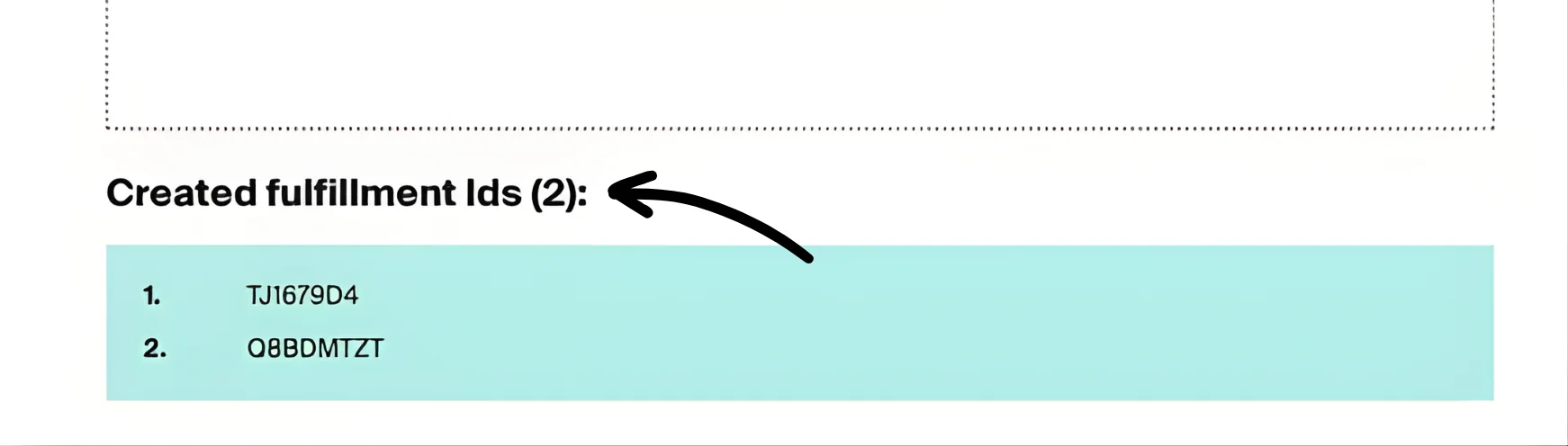
When your file uploads successfully, you'll see a green confirmation text with Friendly Order ID numbers (Column B). This means your tracking data has been successfully added.
Troubleshooting a failed CSV upload
If your CSV upload fails with an error and mentions invalid tracking code values, this usually means there is an issue with the Tracking Number field.
Common causes include:
- Hidden spaces or invisible characters in the Tracking Number column
- Special characters such as dashes, slashes, or symbols
- CSV formatting issues caused by spreadsheet software like Microsoft Excel
How to fix it
- Locate the row mentioned in the error message using the Order ID as a reference.
- Re-enter the Tracking Number manually instead of copying and pasting.
- Ensure the Tracking Number contains letters and numbers only with no spaces, dashes, or other characters.
- If you are using Excel, upload the file to Google Sheets, then download it again as a CSV before uploading.
- For mail that can't be tracked, use the Letter / Untracked values from Step 3. Ship everything else with tracking.
Customers are notified that their order has shipped
After you upload tracking information to Fourthwall, an automated email is sent to customers once the carrier scans the package for the first time. This ensures a real-time notification experience for your customers.
Note: If the tracking numbers you upload have already been delivered, no email will be sent, but the order status will still be updated accordingly.
How do I close local pickup orders?
To mark local pickup orders complete in bulk, select them with the row checkboxes in To be shipped and click Close without tracking. Customers don't receive a shipment email when you close an order without tracking. For more on the shipping workflow, see Shipping labels and fulfillment workflow.
How do I fix a wrong tracking number?
You can edit a tracking number after an order is marked as shipped, and choose whether to resend the shipping confirmation to your customer.
If you still can't add or fix tracking, email support@fourthwall.com with the order number and a screenshot of any error you see.