Export orders
Updated October 20, 2026
Easily download a full list of your shop's orders
You can easily export your Fourthwall orders into a CSV file for record-keeping, or integration with third-party tools. The export includes product orders, standalone donations, gift purchases, and Twitch gifts, providing a complete snapshot of your shop's activity.
Alert: For downloading order for fulfillment and shipping, please go to: How to Upload Tracking Numbers for Self-Fulfilled Orders
Looking for item details like Stock Keeping Unit (SKU) or item name? The Orders export has order-level columns only, with no per-item SKU or product-name column. The unshipped orders CSV (OrdersToShip.csv) has item columns, but it lists only creator-fulfilled items that still need to ship. It isn't a history of every item you've sold.
Which download should I use?
The Orders export and the unshipped orders CSV cover different jobs. Pick the one that matches what you need.
| Download | Where to find it | What it gives you | Best for |
|---|---|---|---|
| Orders export | Orders > Export orders, the download icon beside Search orders | Order-level fields: type, Order ID, Friendly ID, date, status, customer email and phone, totals (merchandise, donation, shipping, taxes, discount, refunded), shipping and billing addresses. No per-item SKU or product-name columns. | Order-level record-keeping. |
| Unshipped orders CSV (file name: OrdersToShip.csv) | Orders > To be shipped > Options (three-dot menu) > Download CSV of unshipped orders | Creator-fulfilled items still waiting to ship: Item Name, Item Code/SKU, Quantity (left to ship), Grouped Id, order IDs, shipping information, Item Price, Currency. Items you've fully fulfilled aren't included. | Self-fulfillment and shipping prep. |
What gets exported?
Fourthwall will export:
- Orders and sample orders
- Giveaway links
- Standalone donations
- Gift purchases
- Twitch gifts
Steps to export orders
-
From your Fourthwall dashboard, go to Orders.
-
Click Export orders, the download icon beside Search orders.
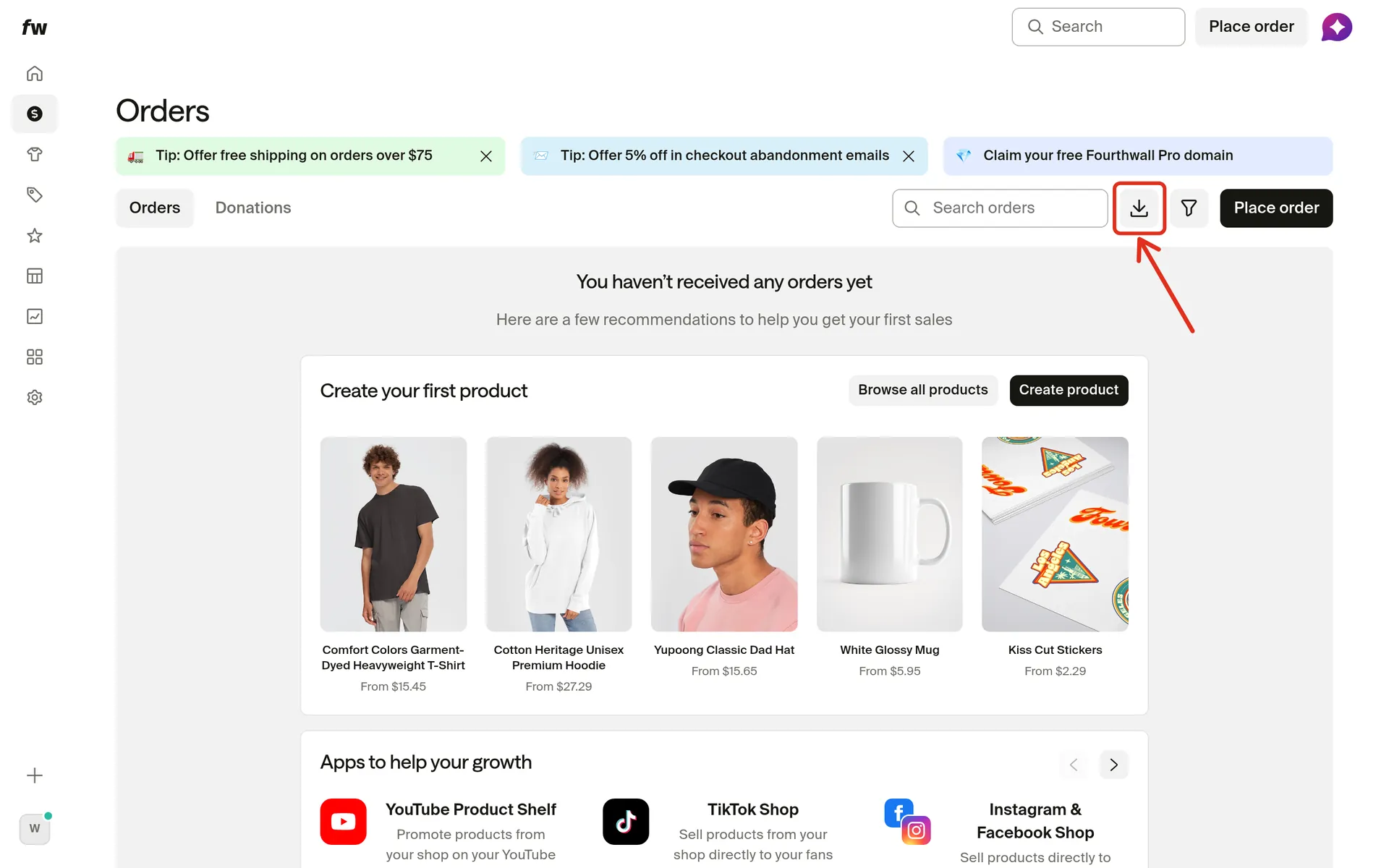
If Fourthwall asks you to confirm by email, follow the prompt before downloading.
The CSV file will automatically download to your device. It contains your full order list.
Filters do not affect what gets exported; however, you can always filter the content as needed when working on the exported file.
What details are included?
Your Orders export CSV includes the following details for each order:
- Type
- Order ID
- Friendly ID
- Date (PST)
- Status
- Customer Email
- Customer Phone
- Marketing Opt-In
- Merchandise
- Donation
- Shipping
- Taxes
- Discount
- Refunded
- Shipping Name
- Shipping Address
- Shipping City
- Shipping State
- Shipping ZIP
- Shipping Country
- Shipping Phone Number
- Billing Address
- Username
- Message
- Promotion Code
- Refund Reasons
- Tax ID
- Billing First Name
- Billing Last Name
- Billing City
- Billing State
- Billing ZIP
- Billing Country
Download unshipped orders for fulfillment
The unshipped orders CSV (OrdersToShip.csv) lists creator-fulfilled items that still need to ship.
-
Go to Orders > To be shipped.
-
Open Options (the three-dot menu) and click Download CSV of unshipped orders.

If Fourthwall asks you to confirm by email, follow the prompt before downloading.
In the unshipped orders CSV, Quantity is the amount left to ship. For example, if a customer ordered 5 and you've fulfilled 2, the row shows 3. Items you've fully fulfilled don't appear.