Fourthwall site design options
Updated October 23, 2026
Site design has four tabs. Layout arranges the sections on each page, Style sets your colors, fonts, logo, and other site-wide looks, Pages creates and lists your pages, and Theme shows your active theme and lets you add others.
Fourthwall lets you fully customize your site to match your brand using multiple themes and our Site Designer, all with no-code tools. Themes provide a starting point, and the Site Designer lets you tweak layout, style, and page settings in real time. Here's what each section does and how to get started.
You can also describe the changes you want in plain language with the Ask for edits AI feature, and the Site Designer applies them for you. See Use AI to edit your site to learn more.
Where to customize your site
-
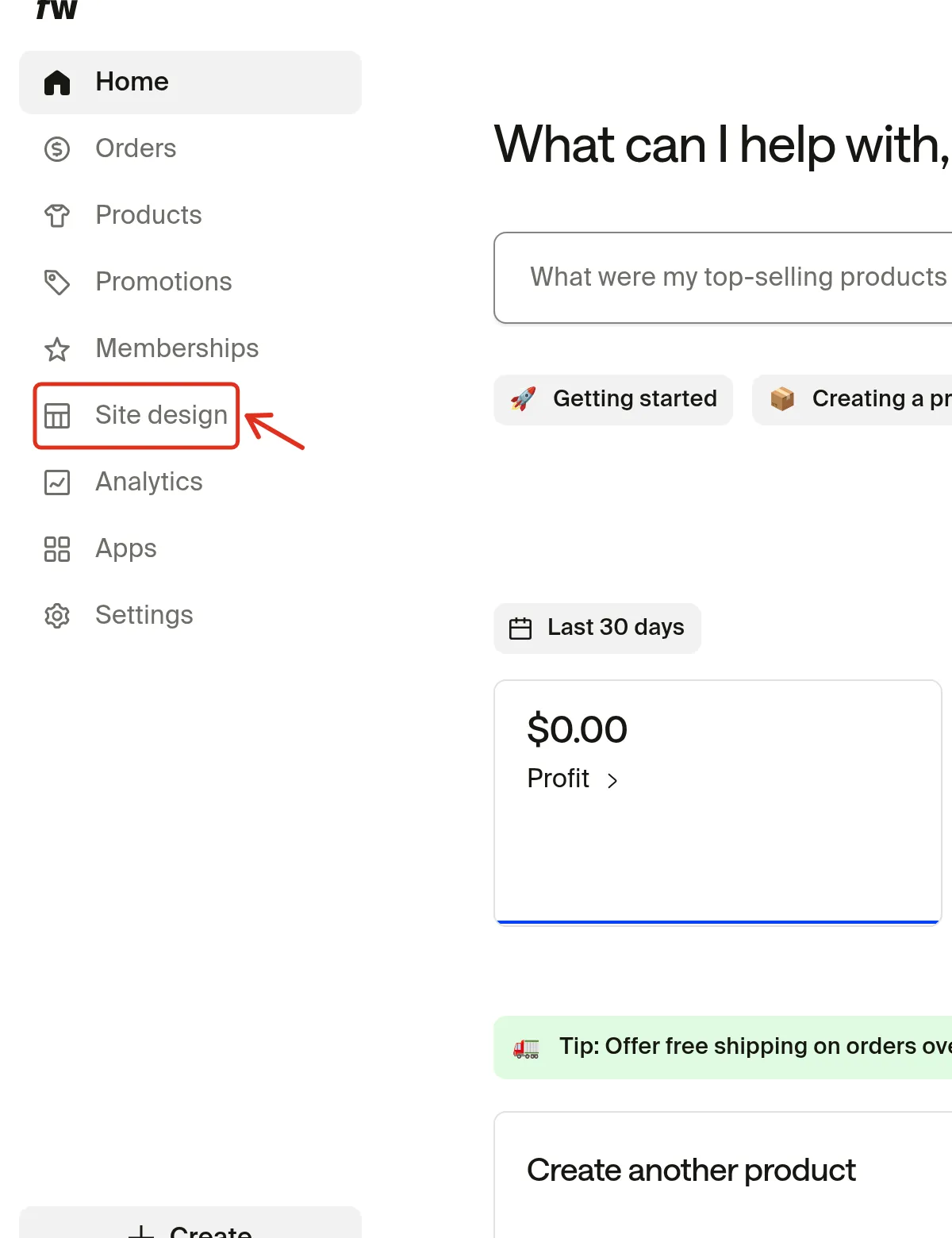
To customize your theme within your dashboard, go to Site design. Site design opens on the Style tab by default.
-
The editing panel appears on the left, and a real-time preview of your site/page appears on the right. Changes show in the preview right away and stay in draft until you click Save. See Preview and publish site changes. Your site design is divided into four main tabs: Layout, Style, Pages, and Theme. For Layout-specific guidance, see Design your site: Navigate the layout tab.
Layout tab (for organizing site pages and sections)
The Layout tab organizes and arranges sections on different pages. You can customize layouts for:
- Home: The main landing page for your site, where visitors get the first impression of your brand.
- Custom pages: Any additional pages you create for exclusive content, promotions, or other unique purposes.
- Memberships: Pages for member-only content, including the Feed, Perks, and Video catalog.
- Policies (and Support): Standard pages like Privacy Policy, Returns & FAQ, and Terms of Service. Your built-in Contact page lives at
/contactand can't be edited in Site design. - Product pages: Individual pages for each product, showing details, pricing, and purchase options.
- Collection pages: Pages that group multiple products, like a category or featured collection.
- Checkout: The page where customers review their order and complete the purchase.
- Cart: The page that shows the items in a customer's cart.
- Coming soon: The page visitors see while your site status is Coming soon. See Change your site's status.
- Search: The page that shows search results when customers search your shop.
How to customize the layout
Select a page from the dropdown menu (e.g., Home, Checkout), then add, remove, or rearrange sections. To add a section, click Add page section. The Add section dialog groups every section type you can add into Layout, Shop, Memberships, Social feeds, and Others. The exact list depends on your theme.
Layout
- Image: Upload an image, with an optional link.
- Image with text: Combine an image with text.
- Image banner: Combine an image with text and buttons. Use it for announcements, promotions, or branding visuals.
- Video: Upload or embed a video.
- Video with text: Combine a video with text.
- Video banner: Combine a video with text and buttons.
- Text: Add headlines and descriptions.
- Links list: Create a list of links with icons and text.
- Announcement bar: Add a text bar with an optional countdown.
- Scrolling text: Display scrolling, animated text.
- Text blocks: Highlight info in organized cards.
Shop
- Featured collection: Display a curated set of products from one of your collections, such as new releases, seasonal picks, or bestsellers.
- Featured product: Highlight a single product with a large image, description, and purchase button.
- Collections list: Show multiple collections so customers can browse your full catalog.
Memberships
- Membership tiers: Promote your membership tiers.
- Recent posts: Show your latest membership posts, so customers see what members get access to.
Social feeds
- YouTube feed: Show your latest YouTube videos.
- TikTok feed: Show your latest TikTok videos.
- Instagram feed: Show your latest Instagram posts.
Others
- Donations: Ask your fans for donations.
- Newsletter: Add an email signup form.
- Custom code: Embed your own code.
- Embedded Section: Embed a section as an iframe.
Some themes also have a Text banner section: a typography-focused section that puts large text front and center, with no image required.
Header and footer
The Header and Footer are fixed sections on every page. You can't add them from the Add section dialog, but you can edit them in Layout.
- Header: Controls your site's top navigation bar, including your logo, menu links, and cart icon. See Edit the header on your site.
- Footer: Adds site-wide links, social icons, and other info at the bottom of every page. In themes that have them, choose between footer layout styles, including Minimal for a stripped-down look with just the essentials and Modern for a richer layout with more room for links and brand elements. See Edit your footer section.
Membership sections
Membership pages include dedicated sections for the Feed, Perks, and Video catalog. These sections are available only on membership page layouts.
Product pages, membership feed pages, and the checkout page have limited customization in the site editor. For checkout, only certain sections can be modified. See Edit your checkout page for details on available options.
Learn more in Design your site: Navigate the layout tab.
Style tab (for controlling site-wide appearance)
Style options
- Colors: Set your site's color palette, including buttons, text, and background accents. You can also override colors for specific sections in their individual settings.
- Fonts: Choose typefaces for headings, body text, and other elements, and set the font scale to make text larger or smaller across your site. See Change fonts on your site.
- Background visual: Add or adjust background images, patterns, or colors.
- Logo: Upload your logo and set its width. See Upload and edit your logo.
- Buttons: Set your button style, including Border radius for rounded corners.
- Favicon: Add a favicon (the small icon shown in the browser tab).
- Product cards: Choose how product cards look, such as tile size, color options, a second photo on hover, or hiding promotion badges. In themes that have them, you can also pick the All in one line layout and set a separate product card font. The options depend on your theme.
- Photography: Set the product photo aspect ratio, rounded corners, and product photo background.
- Forms: Style text fields, including Input rounded corners.
- Social links: Add links to your social profiles. Where the icons appear depends on your theme. See Add social links to your site.
- Edit HTML code: Add custom header and footer code for advanced customization. See Add custom HTML and code to your site.
Pages tab (for managing your site structure)
The Pages tab lets you create, edit, and organize your pages:
- Create Custom pages: Add new pages for exclusive content.
- Edit Main pages: Modify existing pages, like Home or Checkout.
- Manage Membership pages: Customize Feed, Perks, and other membership pages.
- Update Policies and support pages: Edit Privacy Policy, Returns & FAQ, and Terms of Service.
Theme tab (for selecting and customizing your chosen theme)
The Theme tab lists your Active theme (the one that's live) and your Inactive themes. To add another theme, click Add new theme or Create new theme. For help switching themes, see Update your shop theme.
Managing your themes
From the Theme tab, you can:
- Set as active theme to switch your live site to that theme.
- Duplicate a theme to save a different version.
- Rename a theme.
- Reset to default to restore original theme settings.
- Delete a theme you no longer need.
Find these options in the ⋯ menu next to each theme.