Edit your checkout page
Updated October 22, 2026
Edit your checkout page in Site design > Layout > Checkout. You can change the customer message, donation, and marketing campaign sections and the checkout styling. You can't add custom code to checkout.
With Checkout styling set to Auto, your checkout page uses your site's colors from Site design > Style > Colors. While checkout customization is limited for security reasons, you can still adjust several sections to personalize the experience for your customers.
In this article, we'll cover:
- How to access checkout page settings
- Checkout styling (Auto, Auto dark mode, Dark, or Light)
- Customer message
- Donation
- Marketing campaign
Access checkout page settings
The checkout editor is where you customize your checkout page. Go to Dashboard > Site design > Layout > Checkout.
-
From your Fourthwall dashboard, go to Site design > Layout.
-
Select Checkout from the dropdown menu.
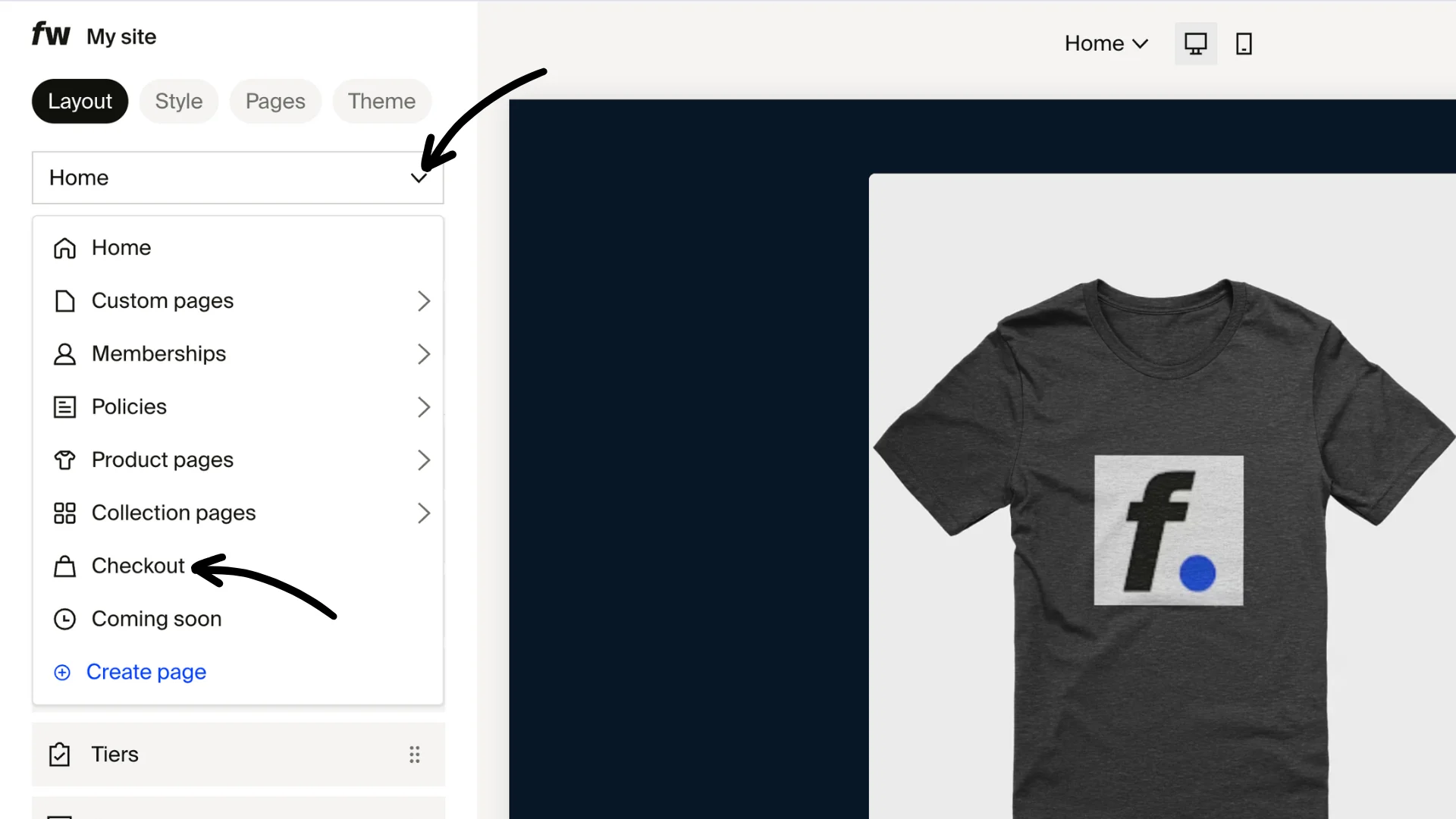
This loads your checkout editor, where you can manage the available options. Additional checkout settings are available through Go to checkout settings in the editor.
Checkout styling
The Checkout styling setting, under Appearance, controls the checkout background and the contrast of text against it. Set it to one of four modes:
- Auto: Follows your Style tab colors. It doesn't use the visitor's device light/dark setting.
- Auto dark mode: Light or dark, based on the visitor's device setting.
- Dark: High contrast with dark background.
- Light: High contrast with light background.
Under Auto, checkout uses the colors you set under Site design > Style > Colors. To change those checkout colors, edit your site colors there. For step-by-step guidance, see Customize your site colors and product appearance.
Customer message
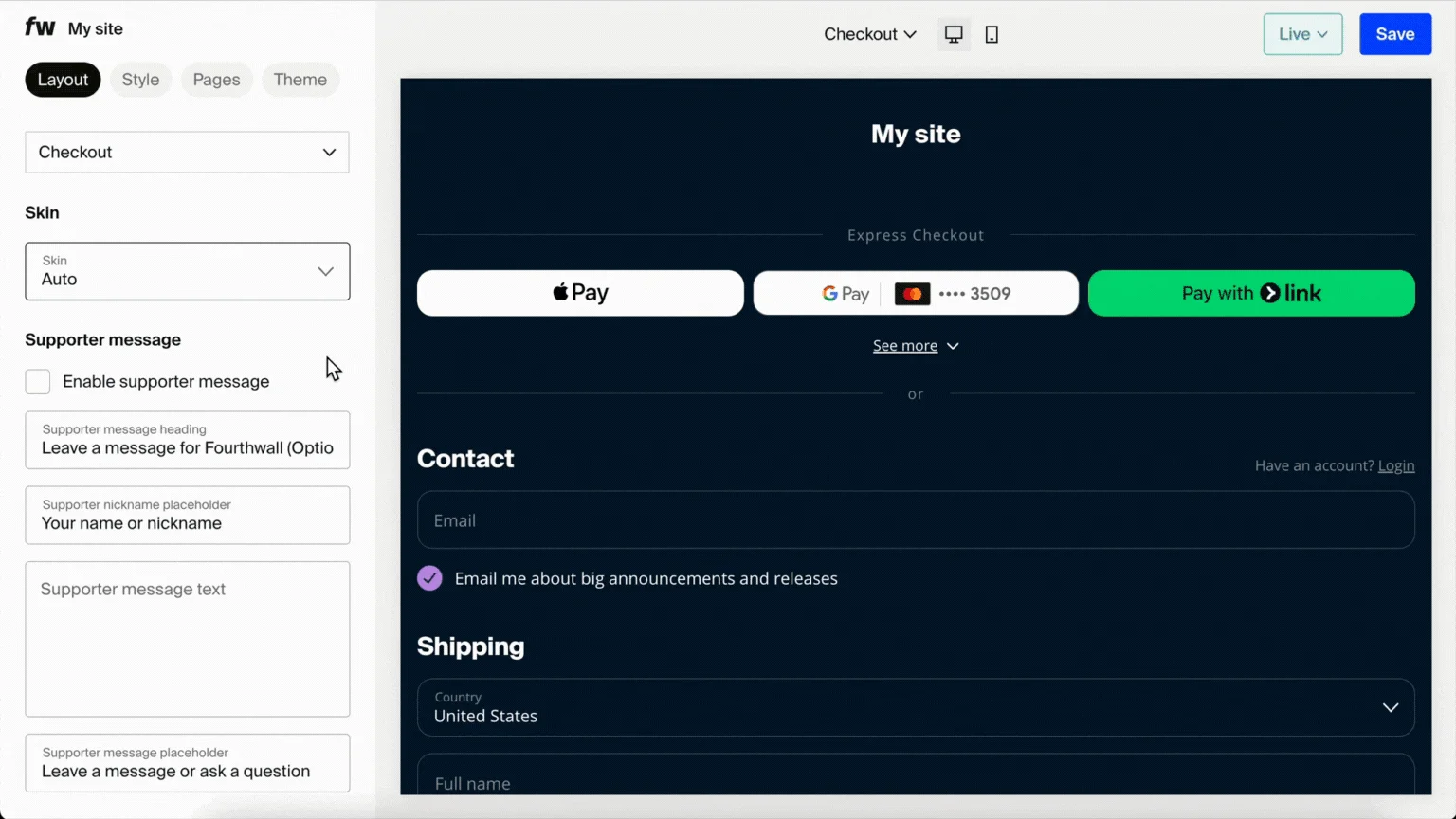
The Customer message section gives fans a space to share a note with you during checkout. This can be a fun way to interact, and it's perfect for sending thank-you videos or notes later.
Use Visibility to choose how the section appears to customers:
- Auto (recommended): Fourthwall determines the best display based on context.
- Minimized: The section appears collapsed. Customers can expand it.
- Expanded: The section appears open by default.
- Hidden: The section does not appear at checkout.
To turn it off, set Visibility to Hidden.
Editable text fields:
- Section heading. The call to action, e.g., "Leave a message for [Shop Name]".
- Name field placeholder. The placeholder text for the name or nickname field.
- Message field placeholder. The placeholder text for the message box, e.g., "Leave a message or ask a question".
- Customer message text. An extra text field for this section.
Donation
The Donation section lets customers add an extra donation during checkout. By default, this section is enabled.
Use Visibility to choose how the section appears:
- Minimized: The section appears collapsed. Customers can expand it.
- Expanded: The section appears open by default.
- Hidden: The section does not appear at checkout.
To turn donations off, set Visibility to Hidden. You can also edit the three preset donation amounts.
Marketing campaign
The checkout page includes an email marketing consent box beneath the email field. Depending on local regulations, this may appear as:
-
Opt-out. box is checked by default, customer unchecks to decline marketing emails.
-
Opt-in. box is unchecked by default, customer checks to consent.
-
To turn it off, uncheck Enable marketing campaign.
-
To change the consent text, edit Marketing checkbox message.
What can't I change on the checkout page?
You can't add custom code to the checkout page, for security reasons. Fonts or styles you add to your storefront with custom code don't carry over to checkout. You can change the sections in the checkout editor and the Checkout styling.
Text or buttons on my checkout are hard to read
Under Auto, checkout uses your site colors, so low-contrast colors carry over. Set Checkout styling to Light or Dark for a high-contrast checkout, or change your colors in Site design > Style > Colors. Preview checkout before you save.