Edit the header on your site
Updated October 23, 2026
Edit your header in Site design > Layout > Header. There you can edit your menu and show or hide the currency selector and search icon. Depending on your theme, you may also see layout, size, style, social icon and scroll options. To add an announcement bar or countdown timer, see Adding an Announcement Bar.

Customizing the Header Layout
Which options you see depends on your theme. If an option below isn't in your Header settings, your theme doesn't have it.
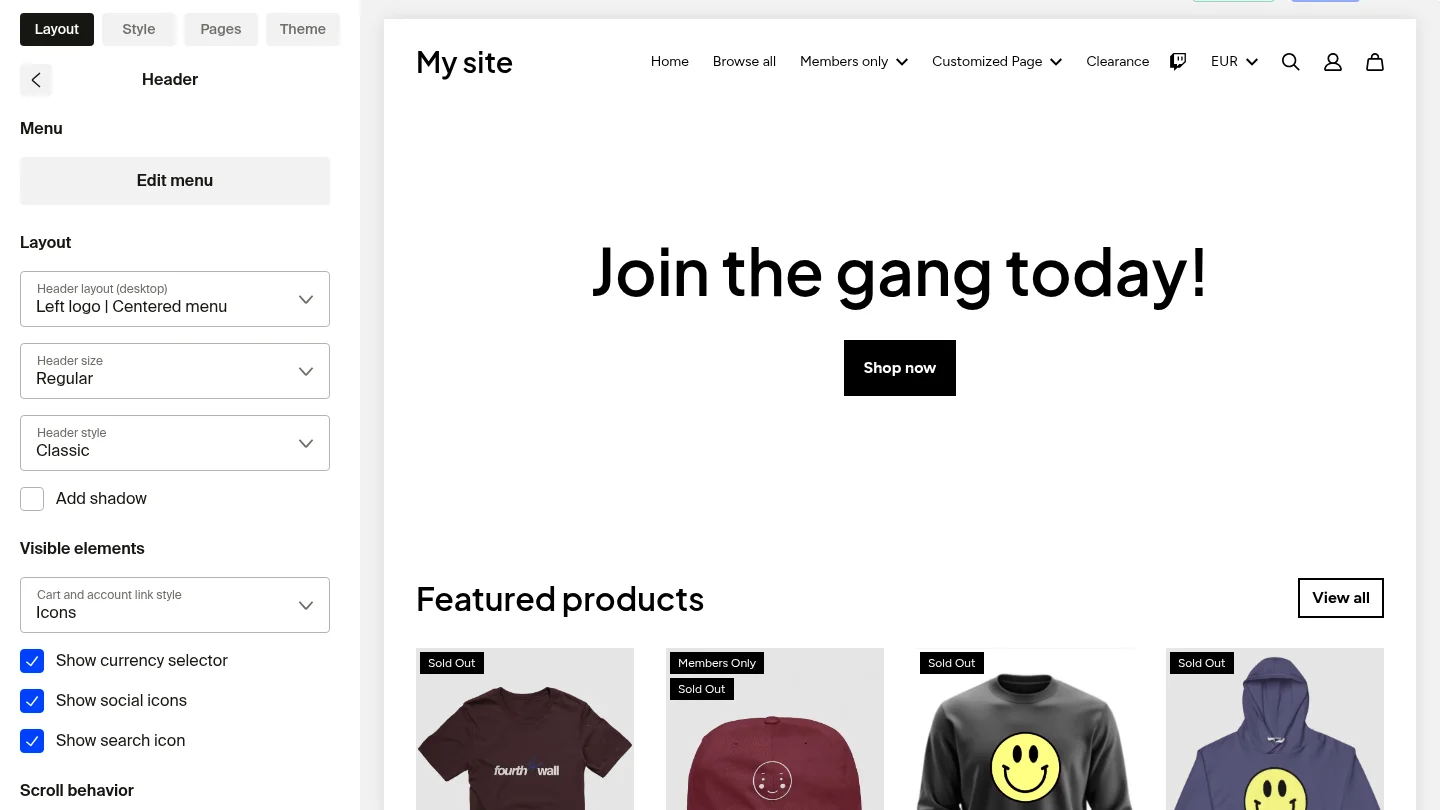
- Edit menu: The first section of the Header settings is the Menu option, which lets you customize your site's navigation. It edits the header menu only. The footer has its own Edit menu button in Footer settings (see Edit the footer on your site). To learn more about editing your menus, visit How to edit menu and create drop-down menus.
- Header layout: Choose how your logo and menu are positioned (e.g., Left Logo | Centered Menu).
- Header size: Select the size of your header.
- Header style: Pick between Classic (a full-width bar that spans the top of your site) and Floating (a detached bar with rounded corners and padding around it). See Header style options below for details.
- Cart and account link style: Select icons or text for these elements.
- Show currency selector: Let customers switch between currencies you have enabled on your site so they can see prices and check out in their preferred currency. To learn more about currency selection, check out the Multi-Currency Settings help article.
- Show social icons: Display social media icons in your header. Only the social icons you have added in Site Design > Style > Social Links will appear. To learn how to add social links to your storefront, check out How do I add social links to my storefront?.
- Show search icon: Display a search icon in your header that opens an inline search bar for customers. Turn search on by showing this icon. When search launched in April 2026, shops with more than 20 offers had it turned on automatically. You can turn this on or off at any time in the header settings.
- Make the section full width: Expand the header across the full screen.
- Advanced: Expand it to find Customize colors (set a color scheme for the header only), Invert colors (flip the header between light and dark), Adjust text size, and Add custom CSS code (modify header styles beyond the built-in options).
How do I make my logo bigger or smaller?
Your logo size is set in Site design > Style > Logo, not in the Header section. Drag the Logo width slider or type a width in pixels. For a sharp logo, upload one at least 200 px wide or tall.
Can I show my shop name instead of a logo?
Yes. If you haven't uploaded a logo in Site design > Style > Logo, your header shows your shop name as text. To change the name, see Update shop details and URL.
Header style options
The Header style dropdown sets the overall shape of your header. Each style has its own set of controls.
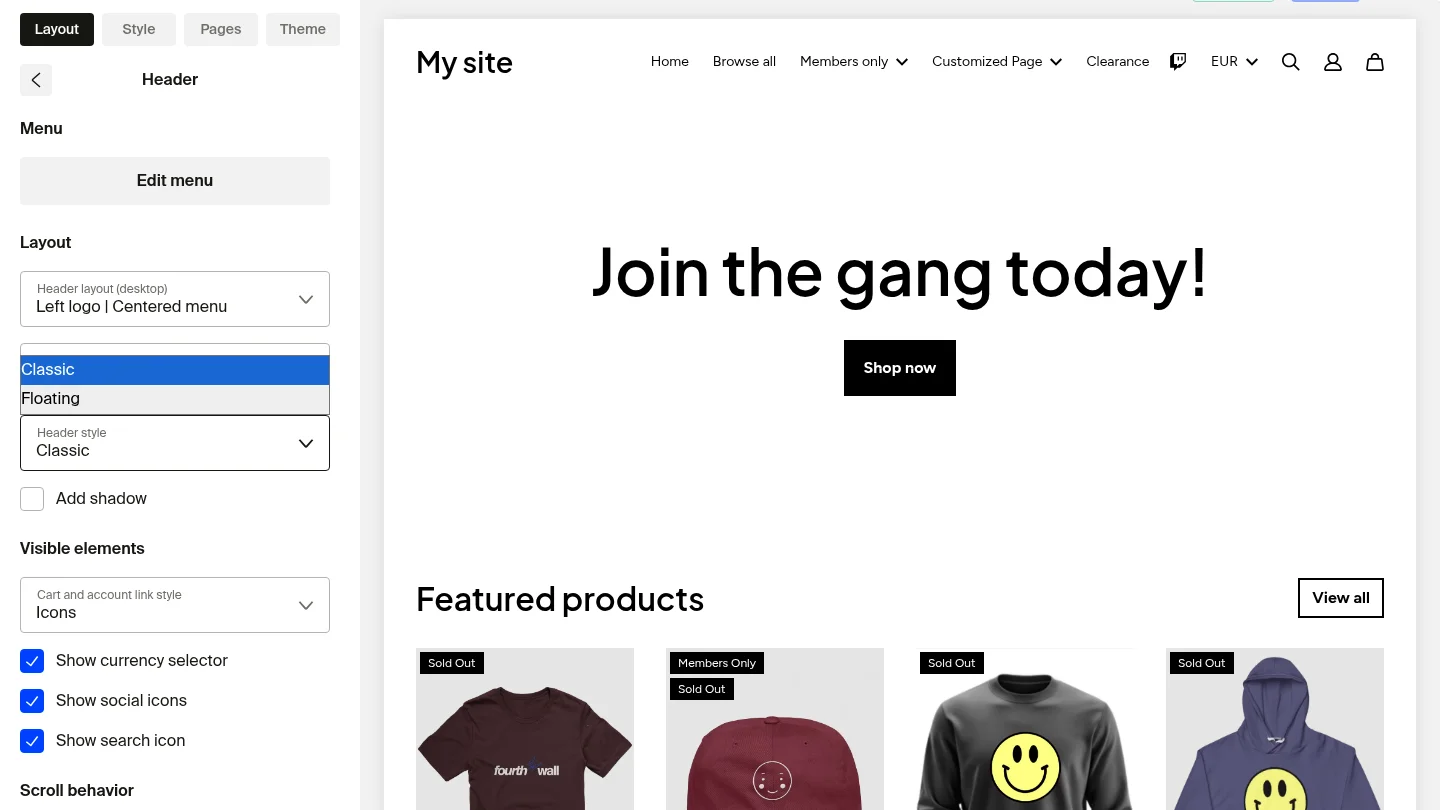
- Classic: A full-width bar that runs edge to edge along the top of your site. This is the default look for most shops.
- Floating: A detached bar that sits inside the page with padding around it and rounded corners. Use this style for a modern, card-like header.
When you select Floating, two extra controls appear:
- Floating header corner radius: Set how rounded the header corners are. Drag the slider or enter a pixel value.
- Padding: Set how much space sits between the floating header and the edges of the page.
You can also layer visual effects on either style:
- Add outline: Draw a thin border around the header.
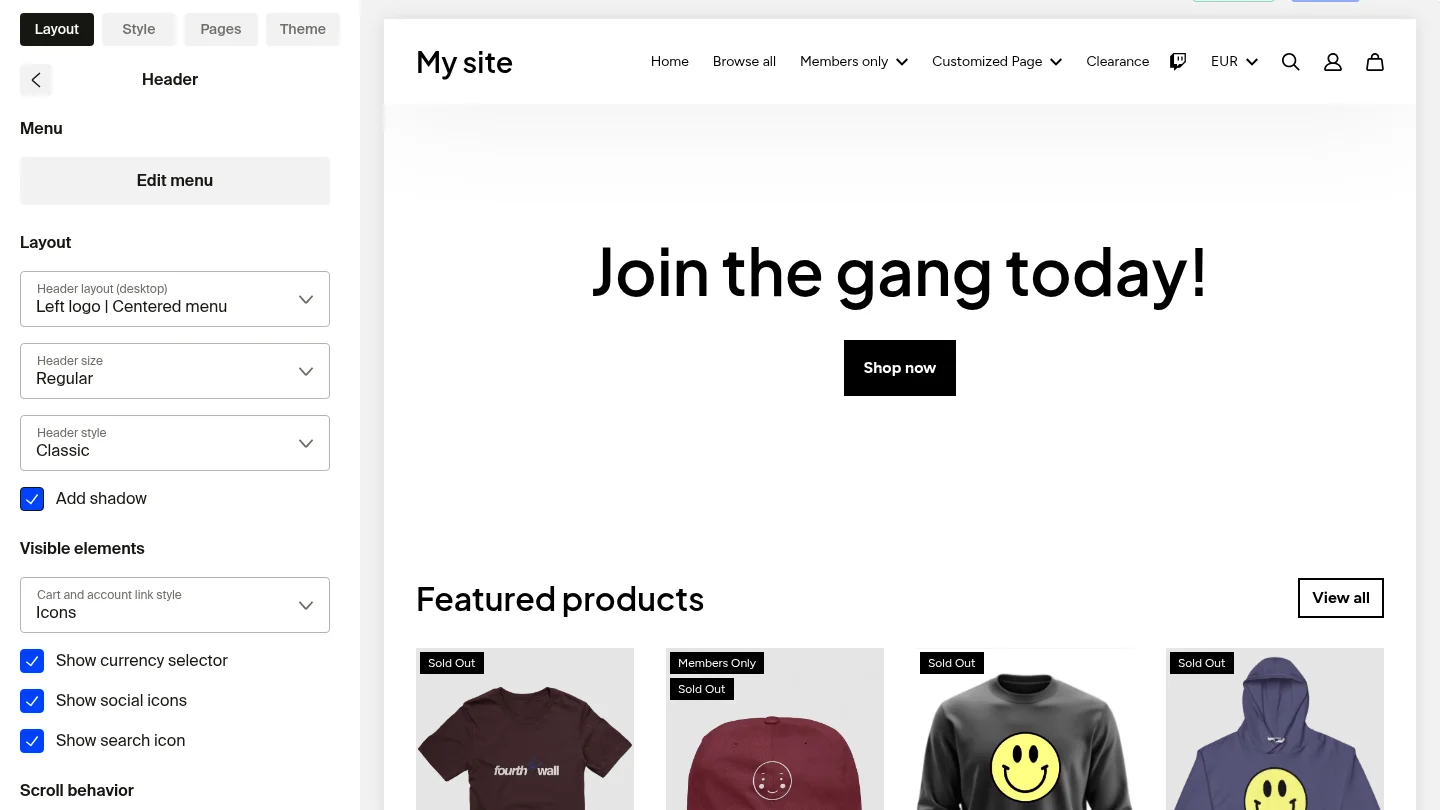
- Add shadow: Drop a soft shadow below the header to lift it off the page.

Scroll behavior
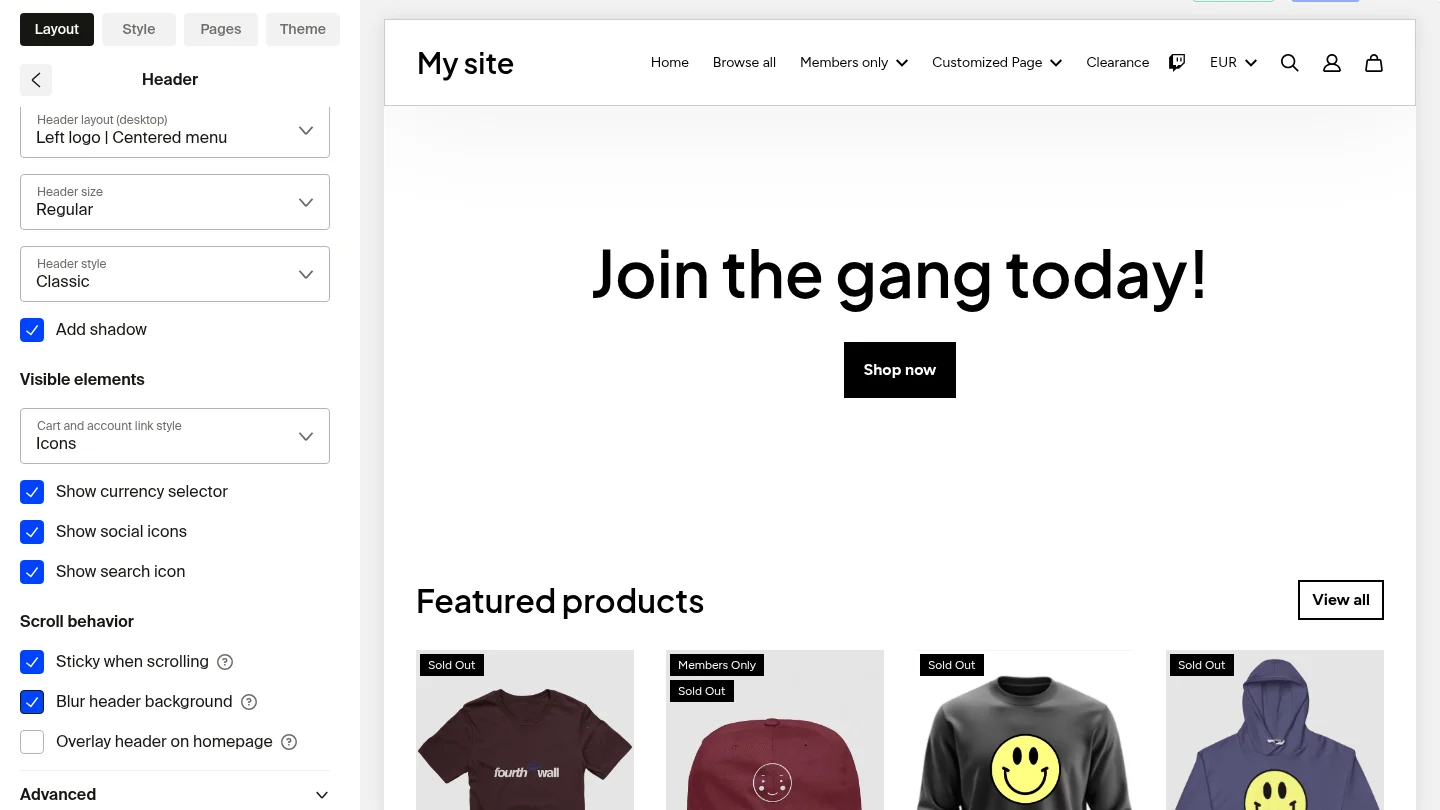
The Scroll behavior section controls how your header acts as customers move down the page.
- Sticky when scrolling: Keep the header pinned to the top of the page as visitors scroll. This puts your navigation, cart, and search within reach on every section of your site.
- Blur header background: Apply a frosted-glass effect to the header. Combined with a translucent background color, this creates a high-end glass look as content scrolls behind it.
- Overlay header on homepage: Let your homepage hero content show through the header so the bar blends into the background image or video at the top of the page.
How it looks on mobile
The glass and sticky settings carry through to mobile, so customers see the same polished header on phones and tablets.

Adding an Announcement Bar

The Announcement Bar is perfect for displaying time-sensitive updates like sales, product drops, or free shipping offers. To add it:
-
Go to Site design > Layout > Header.
-
Click Add header section.
-
In the Add section dialog, select Announcement bar and click Add.

Customizing the Announcement Bar
Now that you have added the announcement bar, you can customize it as shown below
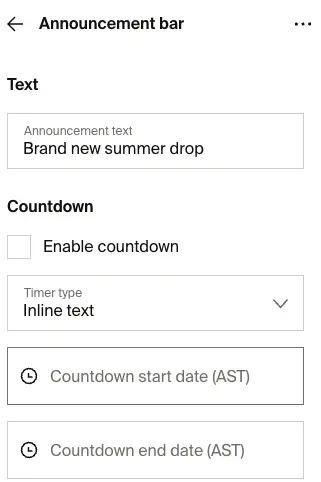
- Announcement text: Enter the message you want to display in the bar, like "Free shipping for orders of $50 and more" or "New drop is live!" "Limited time drop," etc. You can customize this text as you like. We recommend keeping it short and direct.
- Enable countdown (optional): Shows a countdown and the end date next to your announcement text, so customers know when your offer ends. To set it up:
- Check Enable countdown.
- Set the end date.
- Click Save.
Make sure you use the proper format when inputting your start and end dates, like "January 1, 2022," or else it won't display!
- Add Links (Optional): You can link the Announcement Bar to a specific page (e.g., Home, Shop, or a promo landing page). Just select the page under the "Links To" section.
- Add custom CSS code: Select this checkbox to add your custom CSS code, where you can tweak styling and placement options.
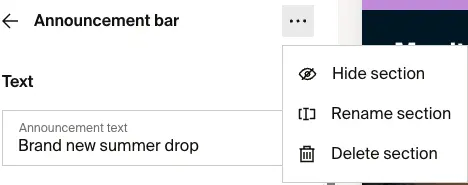
- Manage sections: Click the three dots (⋮) to manage sections on your site by using the Hide section, Rename section, Duplicate section, and Delete section options.
Make the announcement bar flash or blink
Flashing and animation effects are NOT a built-in announcement bar setting. To make the bar blink, add a custom CSS animation.
- In the announcement bar settings, check Add custom CSS code.
- Add a keyframe animation that toggles the bar's
opacity, then apply it to the bar. For example:
@keyframes flash {
  0% { opacity: 1; }
  50% { opacity: 0; }
  100% { opacity: 1; }
}

.announcement-bar {
  animation: flash 1s infinite;
}
- Click Save.
To speed up or slow down the blink, change the animation-duration value (the 1s above). A smaller number blinks faster, a larger number blinks slower.
We recommend previewing the effect in the site designer's draft preview before you click Save, so you can confirm it looks right on your live site.