Add custom HTML and code to your site
Updated October 26, 2026
To add your own code to one page, add a Custom code section in Site design > Layout. To add code to every page, use header or footer code in Site design > Style > Edit HTML code.
You can add custom HTML, CSS, or Custom Liquid code to your Fourthwall site to personalize it even further. For example, you might embed a Spotify player, a Twitter/X feed, a Google Maps location, or display dynamic product and collection data using Liquid objects.
There are two ways to add custom code:
- To a specific page on your site
- To your entire site
Add custom HTML or CSS to a specific page
-
From your Fourthwall dashboard, go to Site design > Layout.
-
Choose a page from the drop-down menu (for example: Home, Product pages, or Custom pages).

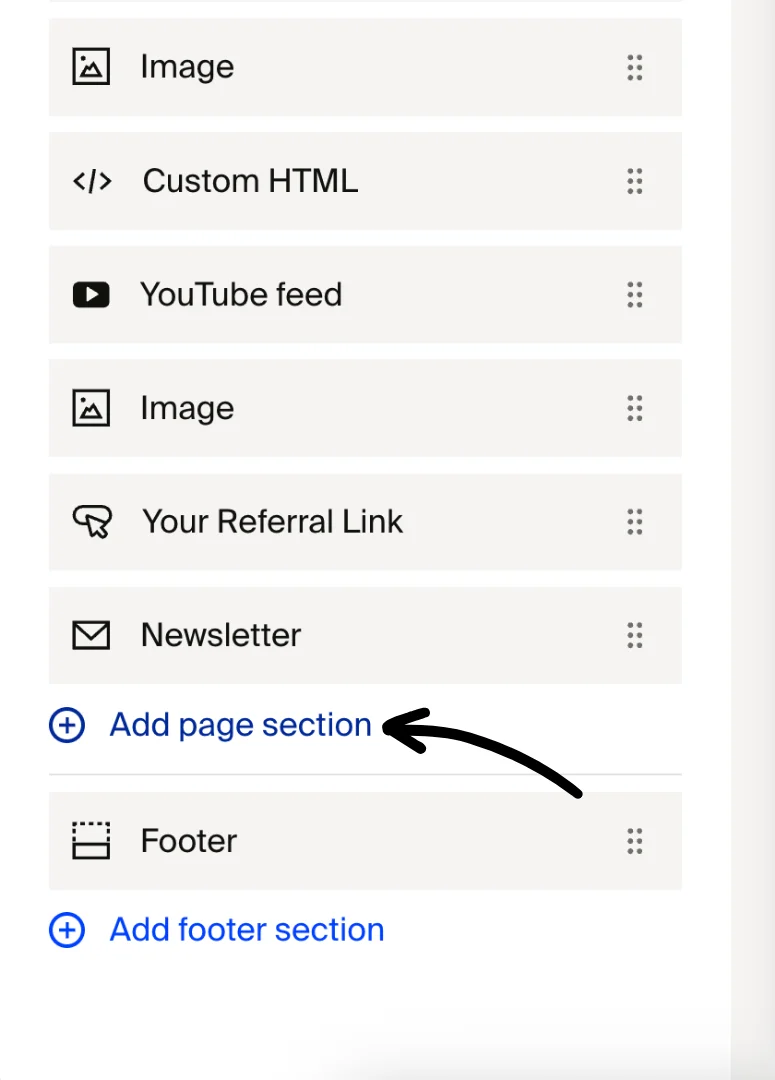
- Scroll down and click Add page section.
-
Under Others, select Custom code ("Embed your own code") to open the Code Editor. To show another web page inside your page as an iframe instead, select Embedded Section ("Embed a section as an iframe").
-
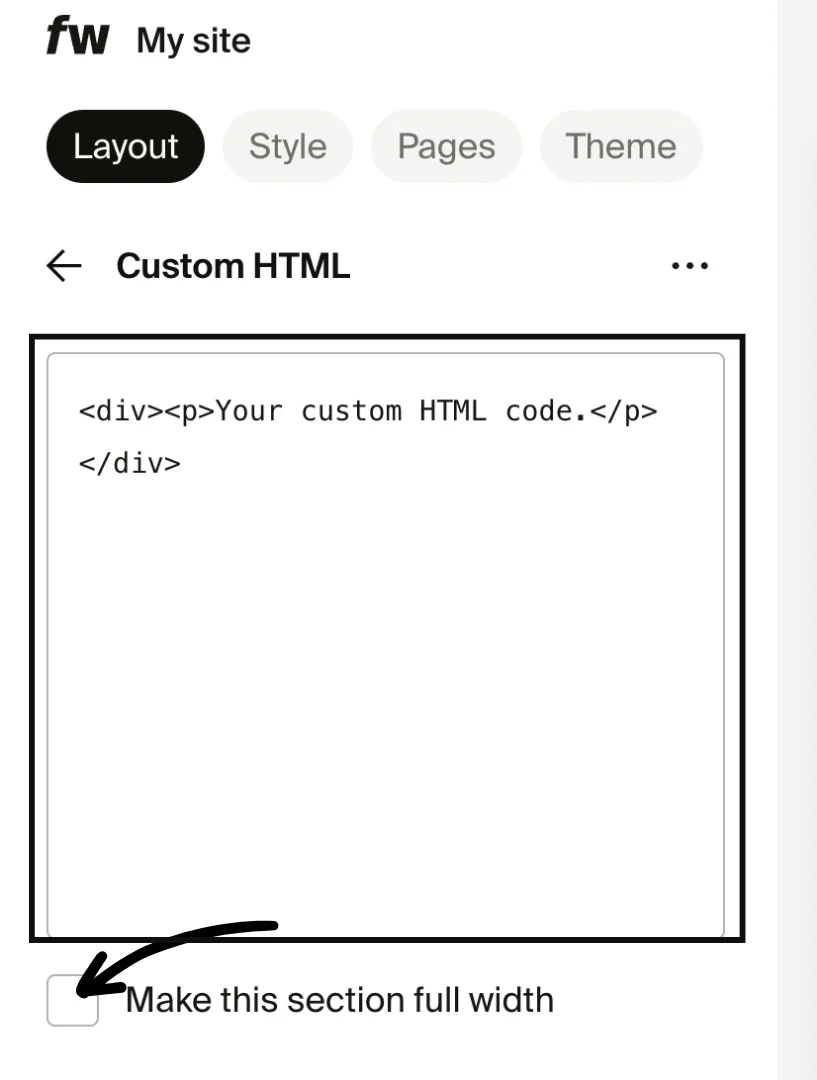
Enter your HTML or Custom Liquid code in the Code Editor (and optionally choose to make this section full-width).
-
To style the section, check Add custom CSS code and enter your CSS.
-
After adding the Custom code section, drag and drop it to place it above or below other sections on the page.
Custom Liquid code
Custom code sections in Site Designer support Custom Liquid, a templating language that renders server-side before the page reaches your customers. This means you can pull in live data from your shop and display it dynamically.
With Custom Liquid, you can access these dynamic objects:
- products. Display product details like titles, prices, images, and availability directly in your custom sections.
- collections. Show groups of products from your collections, including collection names and product lists.
- memberships. Reference membership tier names, perks, and other membership data in your custom code.
Custom Liquid code renders on the server before the page loads, so customers see the final output without any extra client-side processing.
Check the inline documentation linked in the Code Editor for a full list of available Liquid objects and their properties.
Code Editor features
The Code Editor in Site Designer includes several tools to help you write and manage custom code:
- Syntax validation. The editor checks your code for errors before you publish, so you can catch mistakes before they go live on your site.
- Full-screen mode. Expand the editor to fill your screen for a better view when working with longer code blocks.
- Auto-closing tags and improved indentation. Opening tags are automatically closed and code is indented properly as you type, keeping your markup clean and readable.
- Inline documentation. The editor links to documentation showing available Liquid objects and their properties, so you can reference them without leaving the editor.
Add custom code to your entire site
- In Site design > Style, scroll down and click Edit HTML code.
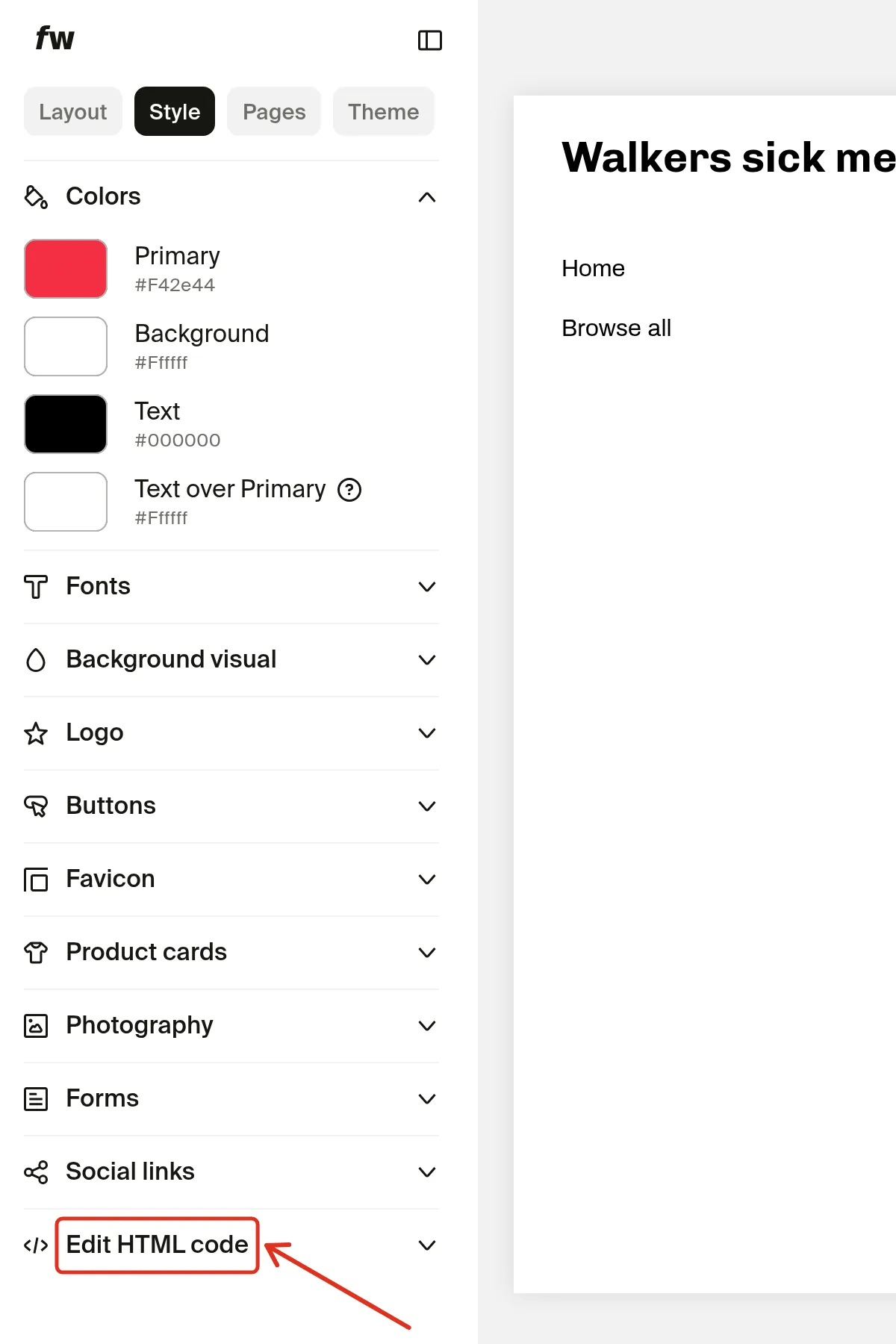
There is no Customize button on the Theme tab. To open the code editor, go to Site design > Style and click the Edit HTML code link directly.
- In the editor, you can:
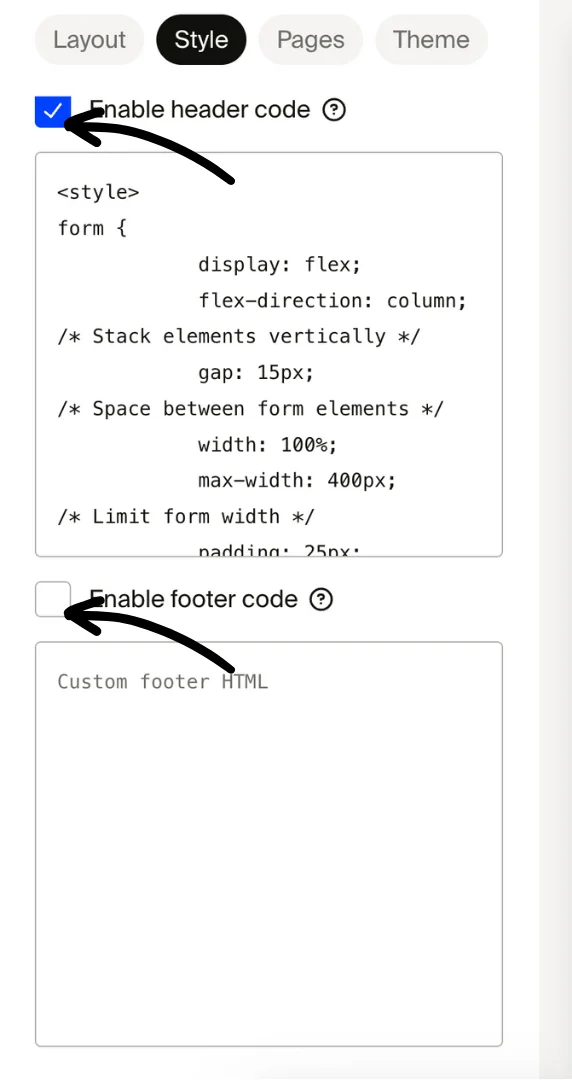
- Enable header or footer code
- Add CSS that applies to your whole site by putting it inside
<style>tags in your header code
Header code and footer code can each hold up to 30,000 characters.
Caution: Only add custom code from trusted sources. Untrusted code may open you to security risks.
Example: Display an animated logo in your header
The default header logo slot (see Upload and edit your logo) processes uploaded images through Fourthwall's CDN, which converts every image to a static format. That conversion strips animation from GIFs, so an animated logo uploaded through the standard logo field will display as a still frame.
To show an animated logo, bypass the logo slot and render the GIF directly with header code:
- Upload your animated GIF somewhere it can be served from a public URL (for example, a CDN, an image host, or an existing asset on your site).
- In Site design > Style, scroll down and click Edit HTML code.
- Enable header code.
- Paste an
<img>tag pointing to your GIF's direct URL, along with any CSS needed to position and size it. For example:
<img src="https://your-cdn.example.com/logo.gif" alt="Animated logo" style="height: 40px;" />
- Click Save.
Because the <img> tag loads the GIF directly, it skips the CDN pipeline that converts images to a static format and the animation plays as expected. You can hide or replace the default logo by adjusting your theme's header layout, which is covered in Edit your store's header.
Verify your site with external platforms
Many platforms require you to add a verification meta tag to your site's <head> section to prove ownership. You can do this using header code.
Common platforms that use meta tag verification:
- Pinterest (to claim your website for Rich Pins and analytics)
- Google Search Console (to verify site ownership for search performance data)
- Bing Webmaster Tools
- Other social platforms that require HTML tag verification
To add a verification meta tag:
- Copy the meta tag provided by the platform (for example, Pinterest gives you a tag like
<meta name="p:domain_verify" content="..." />). - In Site design > Style, scroll down and click Edit HTML code.
- Enable header code and paste the meta tag into the header code field.
- Click Save.
- Return to the platform and complete the verification process.
Each platform provides its own unique meta tag. Follow the platform's instructions to generate your specific tag before pasting it into your header code.
If verification doesn't complete, see Troubleshooting: my code isn't showing up.
Cookie policy compliance
If your custom code uses cookies, note that Fourthwall's cookie policy banner does not apply to it. To stay compliant:
- Update your custom code to respect the visitor's consent (stored in the 'cc_cookie'), or
- Remove the code and instead use Fourthwall's built-in Apps or the Analytics section.
Learn more in our cookie policy help article.
Troubleshooting: my code isn't showing up
Check these common causes:
- Your shop is pending verification. Custom code doesn't reach your live site yet if your shop is pending verification, so meta tag verification can't complete until the Fourthwall team verifies your shop. See Site Verification Before Your First Payout.
- Header or footer code isn't turned on. In Edit HTML code, check Enable header code or Enable footer code for the field you used, then click Save.
- The field is full. Header code and footer code can each hold up to 30,000 characters. The counter under each field shows how many you've used.
- Your changes aren't published yet. See Preview and publish site changes.
- You're looking at checkout. Custom code doesn't run on the checkout page. See Edit your checkout page for what you can change there.
Fourthwall Support can't debug or rewrite custom code or third-party scripts. If a third-party script or embed doesn't load, check the provider's documentation.
Can Fourthwall support make a custom styling change for me?
No. Fourthwall Support can't write, debug or rewrite custom CSS, HTML or scripts for your site. For changes like your logo, colors, fonts or header, start with the built-in Site design settings:
- Upload and edit your logo
- Customize your site colors and product appearance
- Change fonts on your site
- Edit the header on your site
- Customize your site theme and styles
If a built-in setting doesn't work the way its article describes, contact support@fourthwall.com with your shop URL, the page and setting you changed, and a screenshot of the result.