Change fonts on your site
Updated October 26, 2026
A key element in making your Fourthwall site your own is being able to select a font. Luckily, you have over a thousand different fonts to choose from! This article will explain how to change the fonts used on your site or add your custom font.
Font overview
Your Fourthwall site has two main font sections: Heading font and Base font.
- The heading font includes all your site's titles, headers, and section header fonts.
- The base font will be the body of all other text on the website, such as product descriptions, about sections, and donation fields.
Selecting your fonts
-
To select your fonts, go to Site design > Style > Fonts.
-
Open the Heading font and Base font sections. Use the dropdown menus to choose your fonts, and enable the option to display text in all uppercase if desired.

And that's it, you have made your site even more your own!
Can I use a font that isn't in the font list on my site?
Yes. If your font isn't in the Heading font or Base font dropdown, such as your own OTF, TTF or WOFF2 font file, add it with header code: host the font file on a CDN (Content Delivery Network), then add a CSS @font-face declaration in Site Design > Style > Edit HTML code. It takes a few steps and some comfort with custom code.
-
Once you have your font files, upload them to a CDN (Content Delivery Network). We recommend Cloudflare because it's easy to set up and has a free plan.
-
Go to Site Design > Style > Edit HTML code.
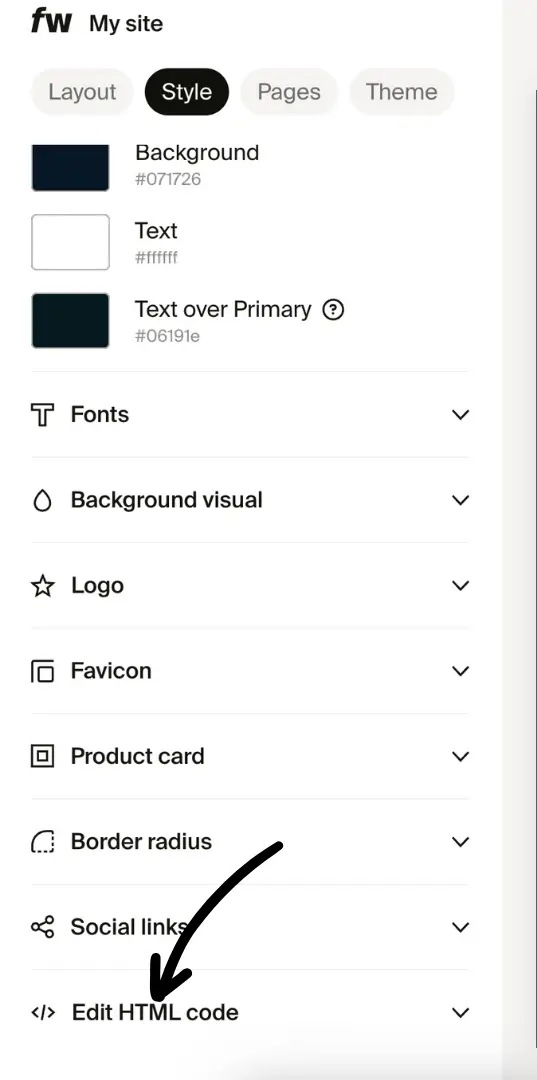
- This will take you to the custom code for your full site. Here you can enable header or footer code.
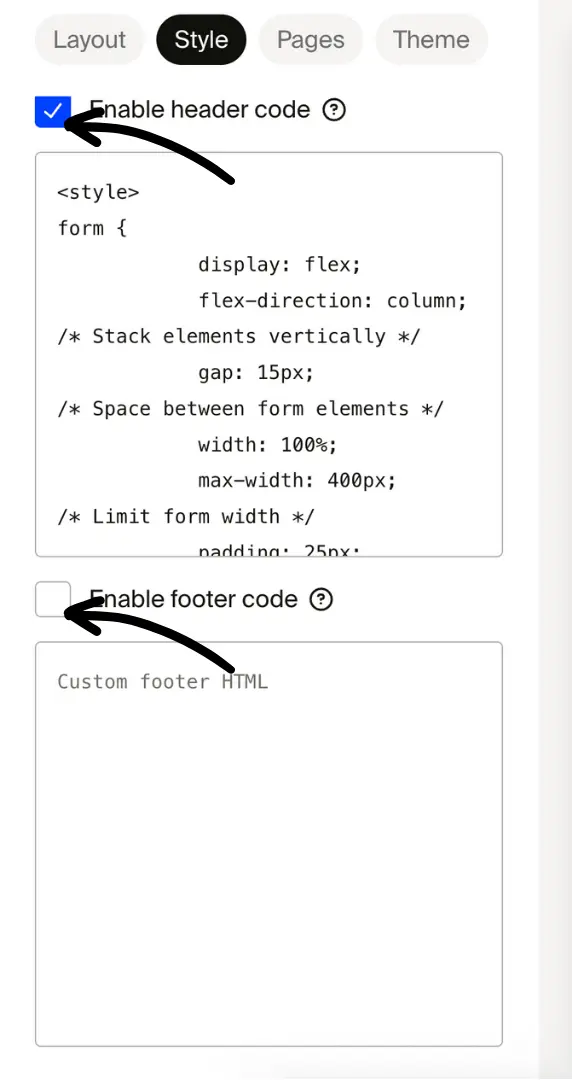
- Drop the code below into the Custom code box. Make sure to replace the following:
- FONT_NAME_HERE
- https://FONT_URL_HERE.woff2
With the correct font name and CDN URL.
<style>
@font-face {
font-family: 'FONT_NAME_HERE';
font-style: normal;
font-weight: 400;
font-display: swap;
src: url(https://FONT_URL_HERE.woff2) format('woff2');
}

body {
--font-family-heading: "FONT_NAME_HERE", sans-serif;
}
</style>
You don't need to convert an OTF or TTF font file to WOFF2. The code above is for a WOFF2 file. For an OTF file, change format('woff2') to format('opentype'); for a TTF file, change it to format('truetype').
Depending on which font should be updated, override related CSS variables:
- --font-family-base. for base font on the page (product description, etc.)
- --font-family-heading. for heading font on the page (headings).
Adjusting font size
You can customize your site's font scale to adjust how large or small text appears across your site. There are two separate scales:
- Heading font scale: Controls the size of headings and titles (range: 70% to 200%).
- Body font scale: Controls the size of body text such as product descriptions and paragraph text (range: 70% to 200%).
-
Go to Site design > Style > Fonts.
-
Adjust each slider to increase or decrease the text size for headings and body text independently.
-
Preview your adjustments in real time before saving.
This allows you to consistently and uniformly adjust readability and visual balance across various devices.
Override font size for a specific section
You can also override font size at the section level, independent of the store-wide font scale. This lets you make one section's text larger or smaller without affecting the rest of your site.
- Open a section in the site designer by clicking its name in the Layout tab.
- Look for the Font size override control in the section's settings.
- Adjust the scale for that section and save.