Create and edit custom pages on your site
Updated October 27, 2026
Create a custom page in Site design > Pages > Create custom page. Use custom pages for an About section, press kit, FAQ, or blog, then add sections and link the page from your menu.
Custom pages help your site feel like your brand's home. This is perfect for showcasing "About" info, press kits, FAQ pages, or even a blog. They also improve navigation and deepen fan engagement.
In this help article, we'll cover:
- How to create a new custom page
- How to edit layout and content
- How to add, move, and delete content sections
Step 1: Create a new custom page
From your Fourthwall dashboard, go to Site design > Pages and click Create custom page.
Then, enter the page title and click Create.

This action creates a page under "Custom pages."
Step 2: Edit your custom page
After creating your page, customize it to make it unique by adjusting the header, adding additional sections, and more.
Select your newly created page from the page dropdown at the top of the editor.

It loads in preview mode, now ready for customization.
Each custom page has its own Title, Meta description and Social sharing image settings, explained in How SEO works for your Fourthwall shop.
Step 3: Add, move, or delete sections
Add content: Click Add page section and choose a section, such as Image banner, Image, Featured collection, Custom code, Social feeds, Text, or Text blocks (which split long content into sections that are easy to scan). Learn more about the layout tab on this help article: Designing Your Site: Navigating the Layout Tab
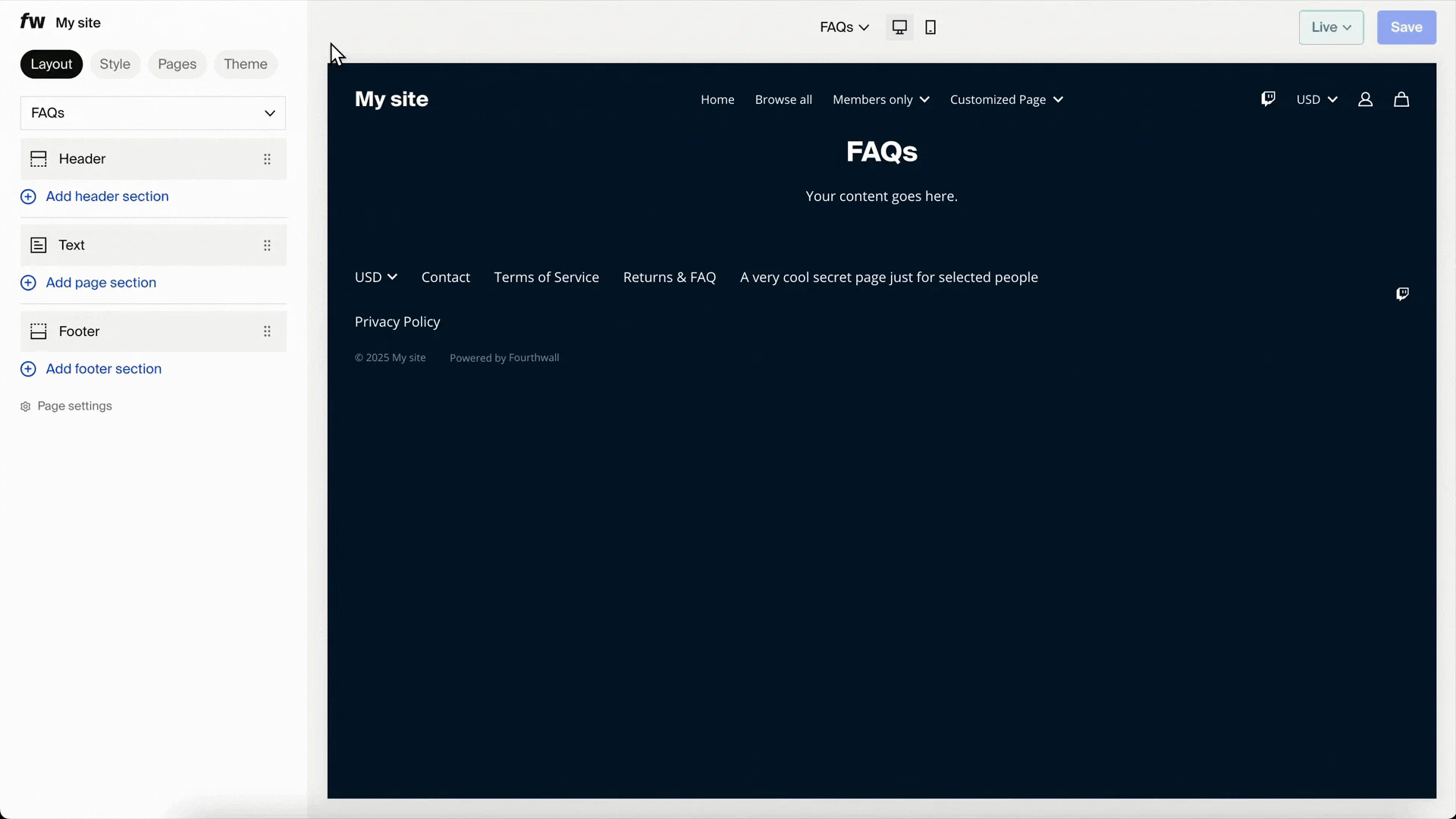
Move sections: Drag using the six-dot handle.
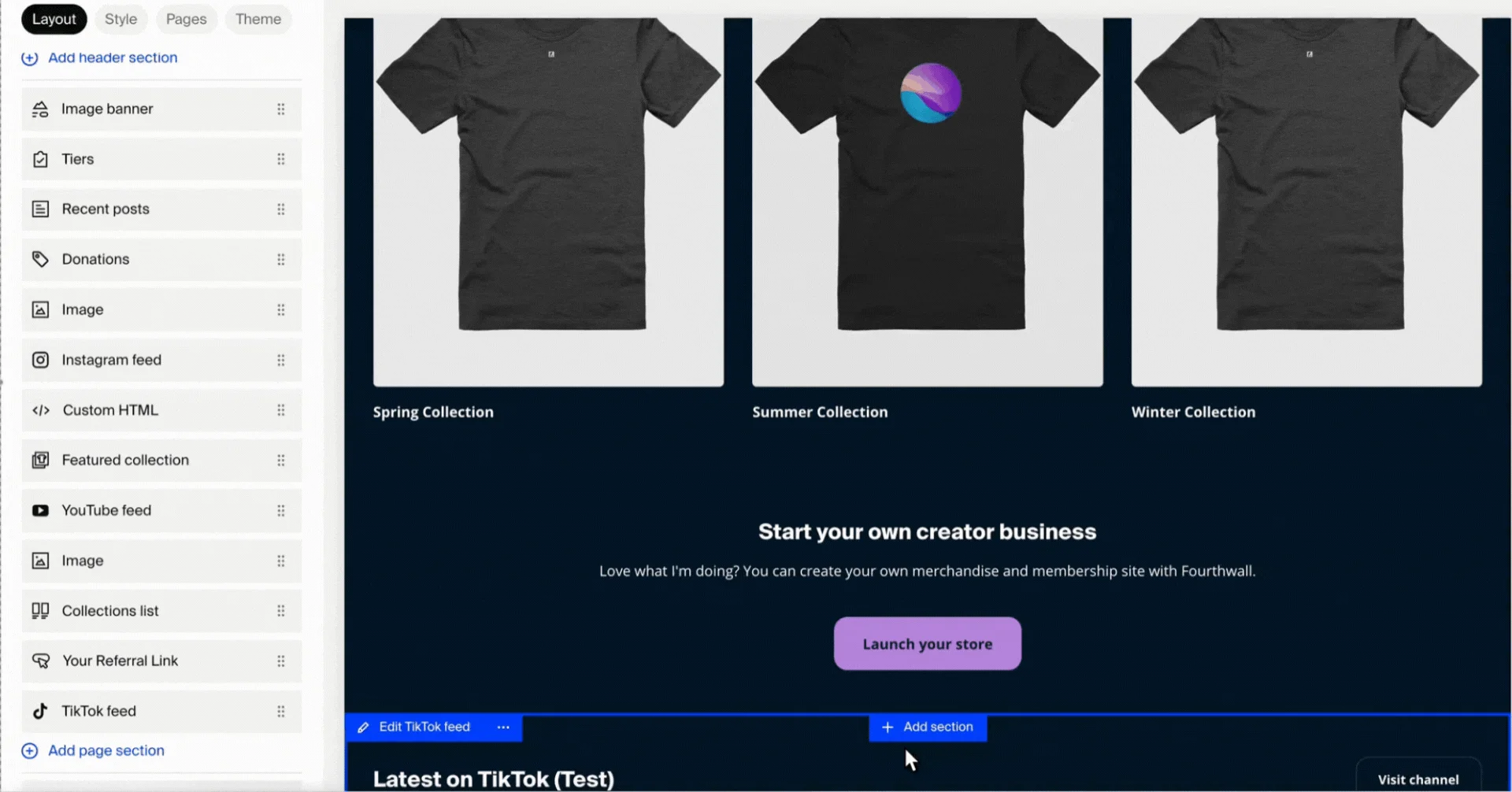
Hide sections: Click the eye icon to temporarily remove them.
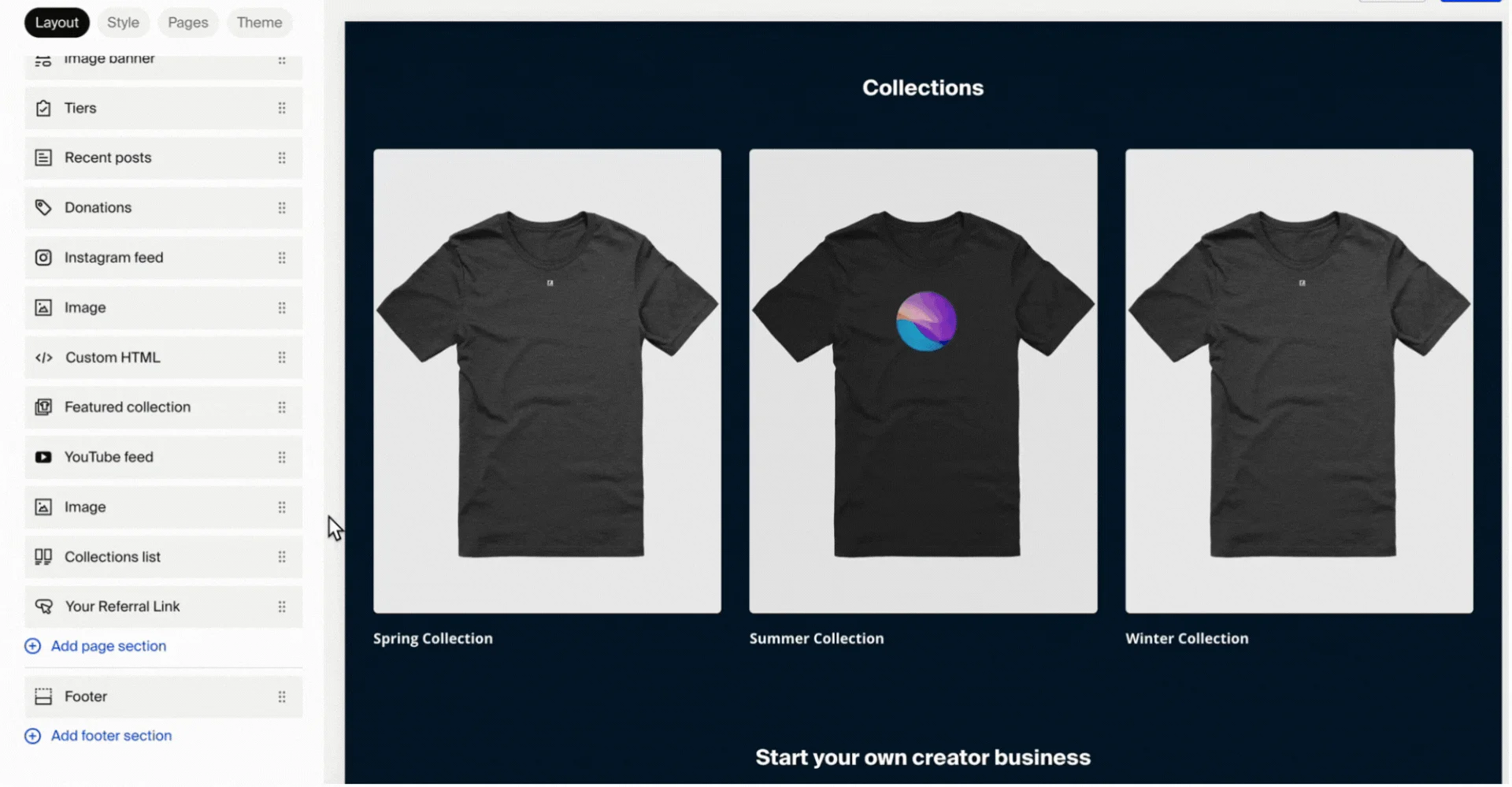
Delete sections: Click the ⋯ menu on the section and select Delete section.
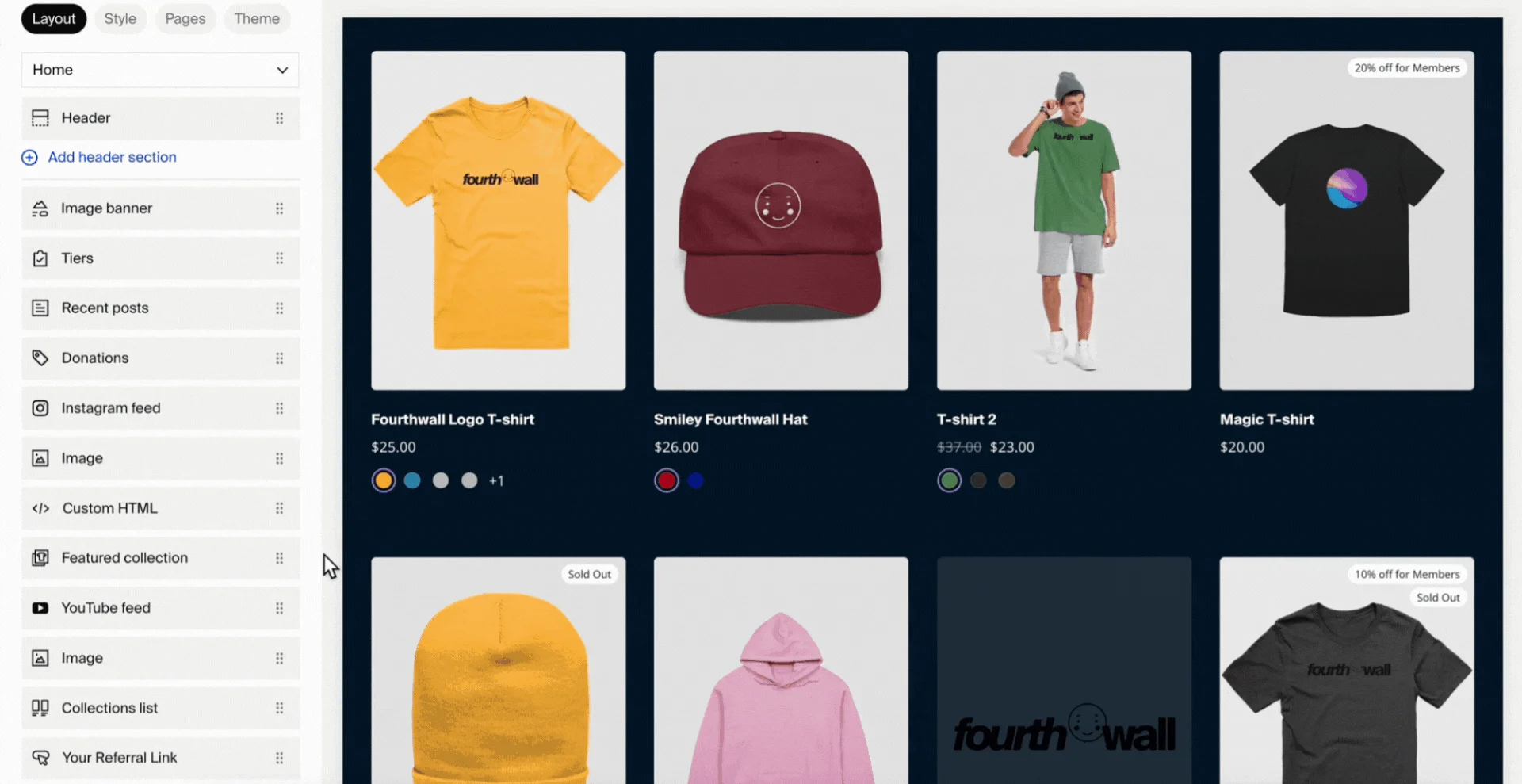
The same menu also has Hide section, Rename section, and Duplicate section.
Tip: Keep your Privacy Policy, Returns & FAQ, and Terms of Service pages. Your built-in Contact page lives at /contact and isn't edited here.
Step 4: Use your page site-wide
- Add it to the site menu via Site design > Layout > Header (or Footer) > Edit menu, or to a custom drop-down menu
- Link to it from your homepage or another page with a Links list section, the buttons in an Image banner section, or a Text blocks section
- Share your page URL in social posts, email, or marketing materials. To find the URL, see Access and link custom page URLs
Frequently asked questions
Can I put a page into draft mode so it's not public?
No. Individual custom pages don't have a separate draft or published state. In the site designer, you preview design changes and click Save to publish them (see Previewing changes before publishing), but once you create and save a page, it's part of your live site.
If you want to keep a page hidden from visitors, you have a few options:
- Remove it from your site menu. Go to Site design > Layout > Header or Footer > Edit menu and unlink the page. Visitors won't see it in navigation, though the direct URL still works.
- Hide all sections with the eye icon. Click the eye icon next to each section on the page to temporarily hide its content.
- Set the page as members-only. Restrict access so only your members can view it. See Creating members-only locked pages for setup steps.
- Delete the page entirely. If you no longer need it, remove the page from your site.