Memberships: Posts
Updated October 22, 2026
Create and manage posts for your membership audience
Membership posts let you share updates, media, and interactive content with members, free users, or the public. This article guides you on how to create a post, the available post types, and who can access them.
Step 1: Create a new membership post
From your Fourthwall dashboard:
- Go to Memberships > Posts.
- Click Create new post.
You'll be taken to the Create a new post page, where you can choose the type of content you want to publish.
Step 2: Choose a post type
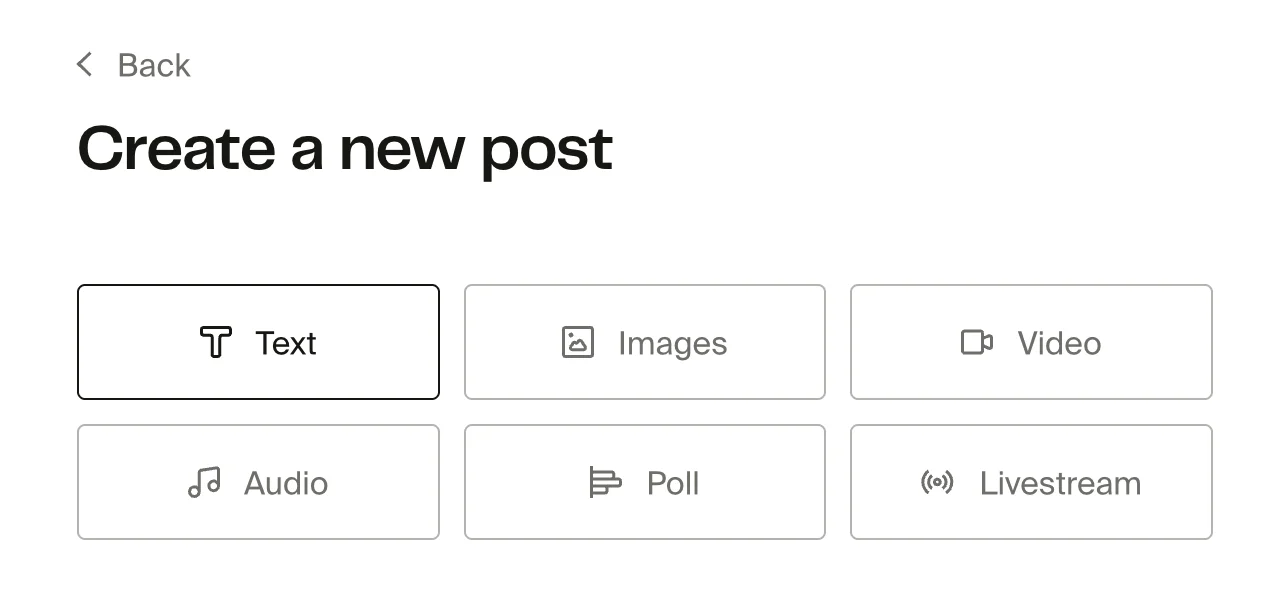
What you can add and configure depends on the post type you select.
Step 3: Configure your post
Configure your post by adding a title, description, and tags, then adjust any options specific to the post type you selected.
Text
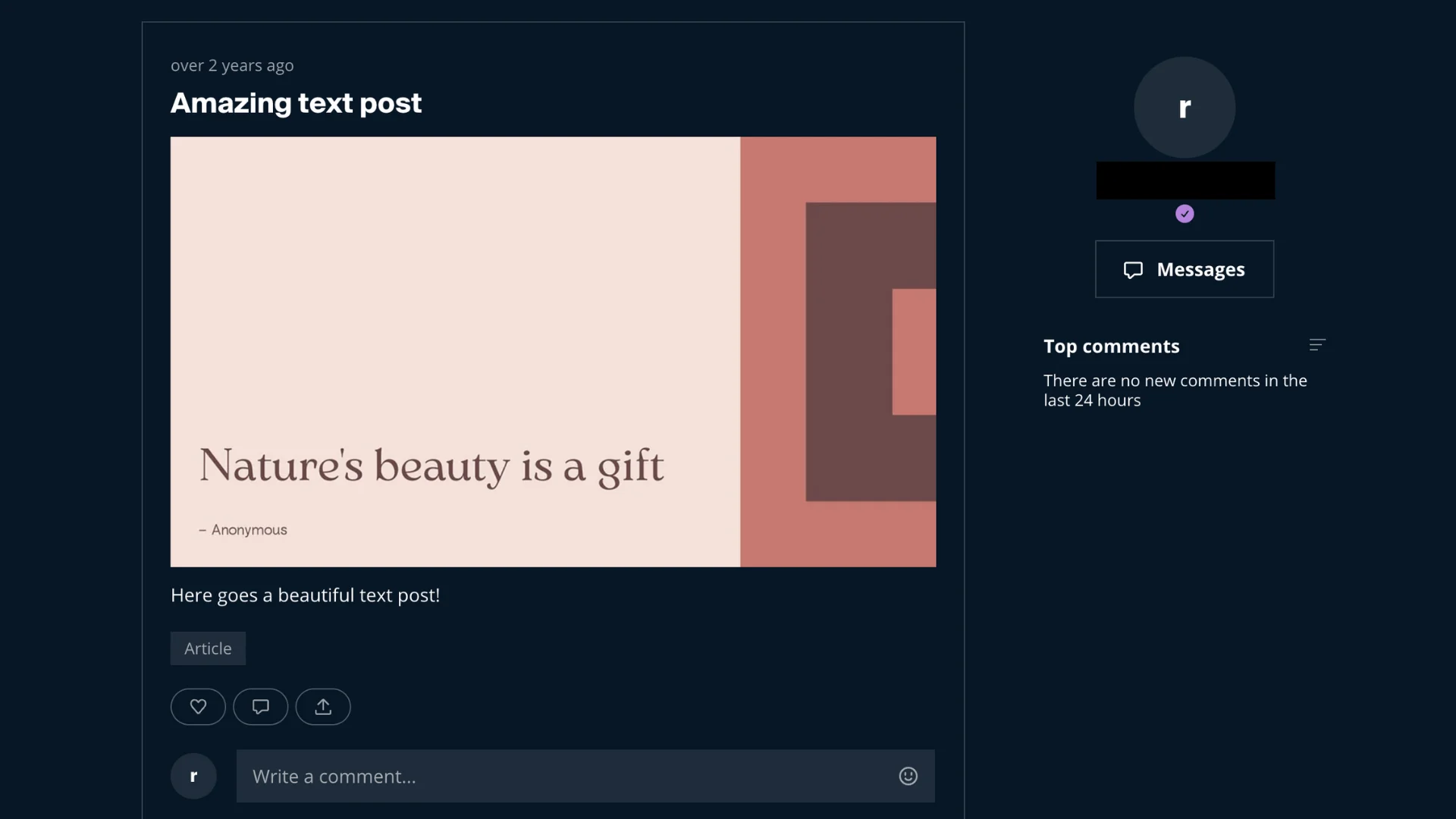
Use text posts for written updates, announcements, or longer-form messages to your audience. Text posts support rich formatting, allowing you to structure content clearly and include embedded images and links directly within the body of the post.
Sample post:
Image
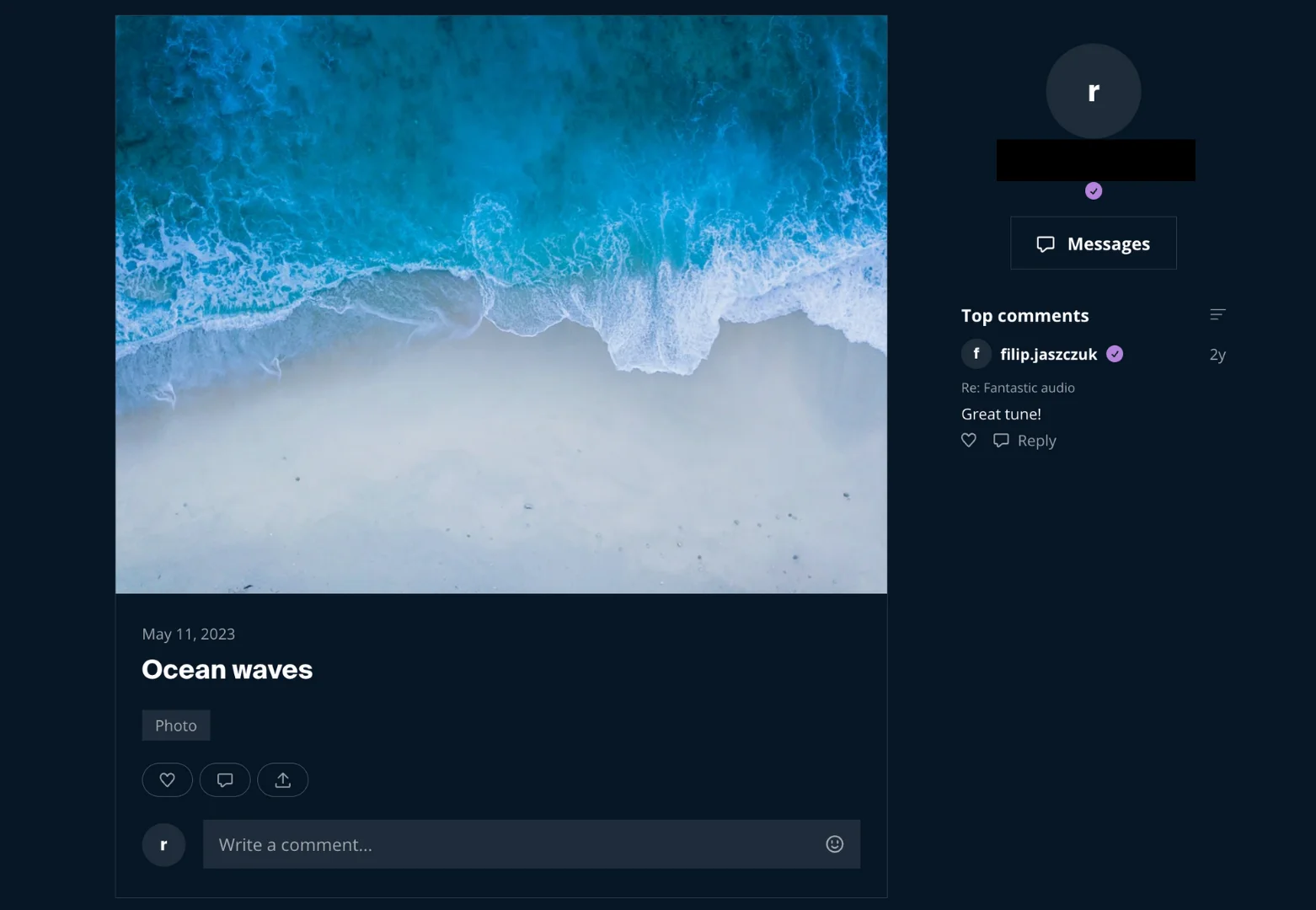
You can use image posts to share one or more visuals with your audience. You can upload images by dragging and dropping files or browsing from your device, making this ideal for product previews, announcements, or simple visual posts.
Sample post:
Video (Upload or Embed)
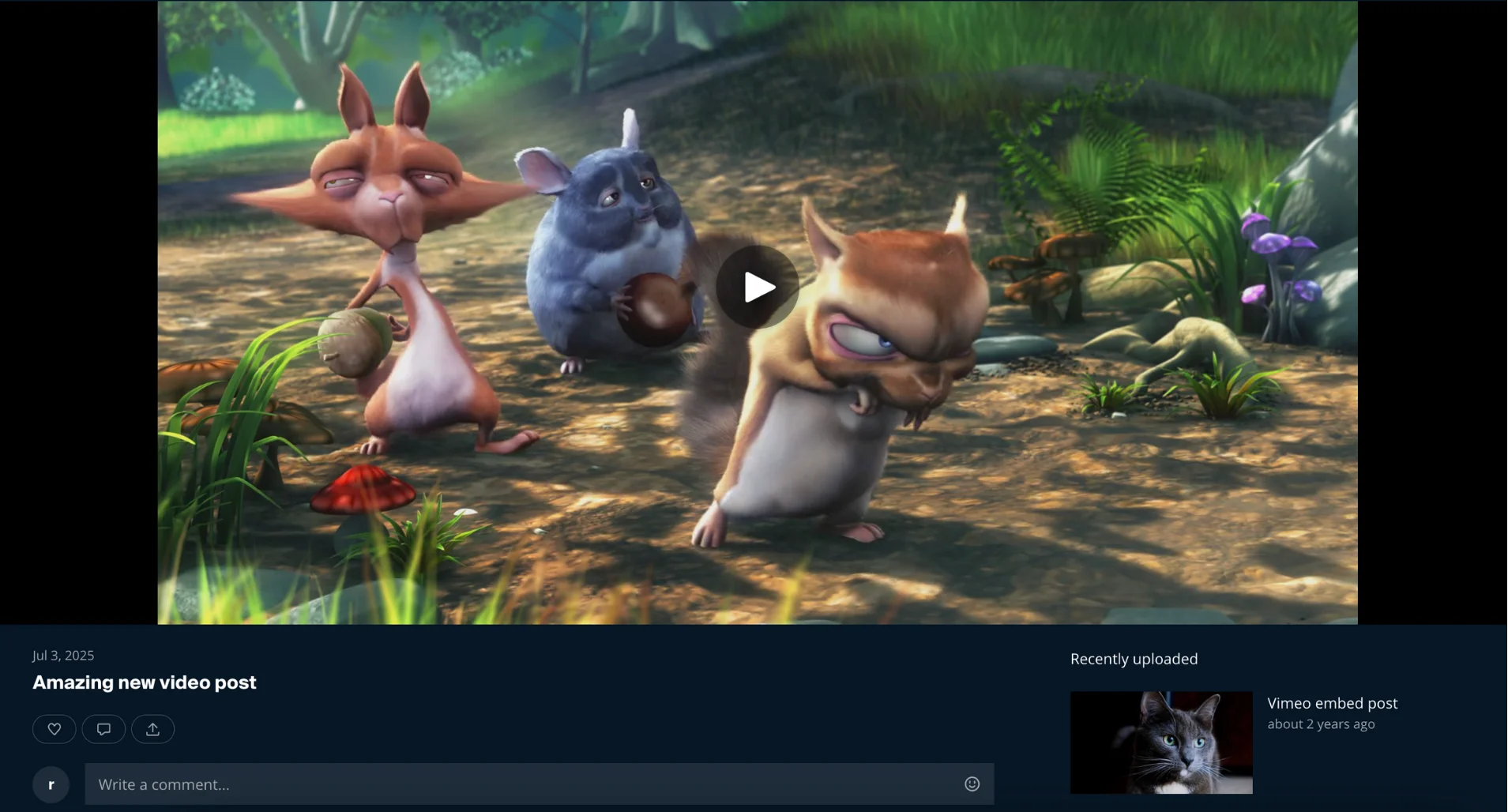
Use video posts to share recorded video content. You can upload a video file directly or embed a video using a supported URL. Embedded videos currently support YouTube, Vimeo, and Streamable. You can also organize videos by adding them to an existing video series or creating one during setup.
Direct video uploads go through Mux, a professional video hosting service, so they have no file size limit, unlike digital product uploads. You can upload up to 100 hours of video in total, and each video can be up to 12 hours long. Uploaded videos stream at up to 1080p.
Uploading directly gives your members an ad-free, in-page player. Because of bandwidth costs, you can offer uploaded videos only to paid members (Members only or specific tiers). To share a video publicly or with free accounts, use the Embed tab with a YouTube, Vimeo or Streamable link.
If you prefer to host elsewhere, upload your video to one of these platforms and embed it using the URL. Here's what each platform offers:
- YouTube - Set the video to Unlisted if you don't want it publicly discoverable. Only people with the link (your members) can watch it.
- Vimeo - Set the video's privacy to Unlisted or Hide from Vimeo. You can't embed Private videos. If you limit where the video can be embedded, add your shop's domain. Paste the standard
vimeo.com/<id>link. Showcase, channel andplayer.vimeo.comlinks aren't accepted. Vimeo doesn't show ads on embedded videos, which makes it the best option if you offer ad-free video content to your members. - Streamable - A lightweight option for shorter clips and quick uploads.
Your members' Videos page includes a Continue playing row with the videos they've started and a See history link to what they've watched. Fourthwall tracks play progress and watch history only for member accounts, not for your creator or team accounts.
Sample post:
Audio
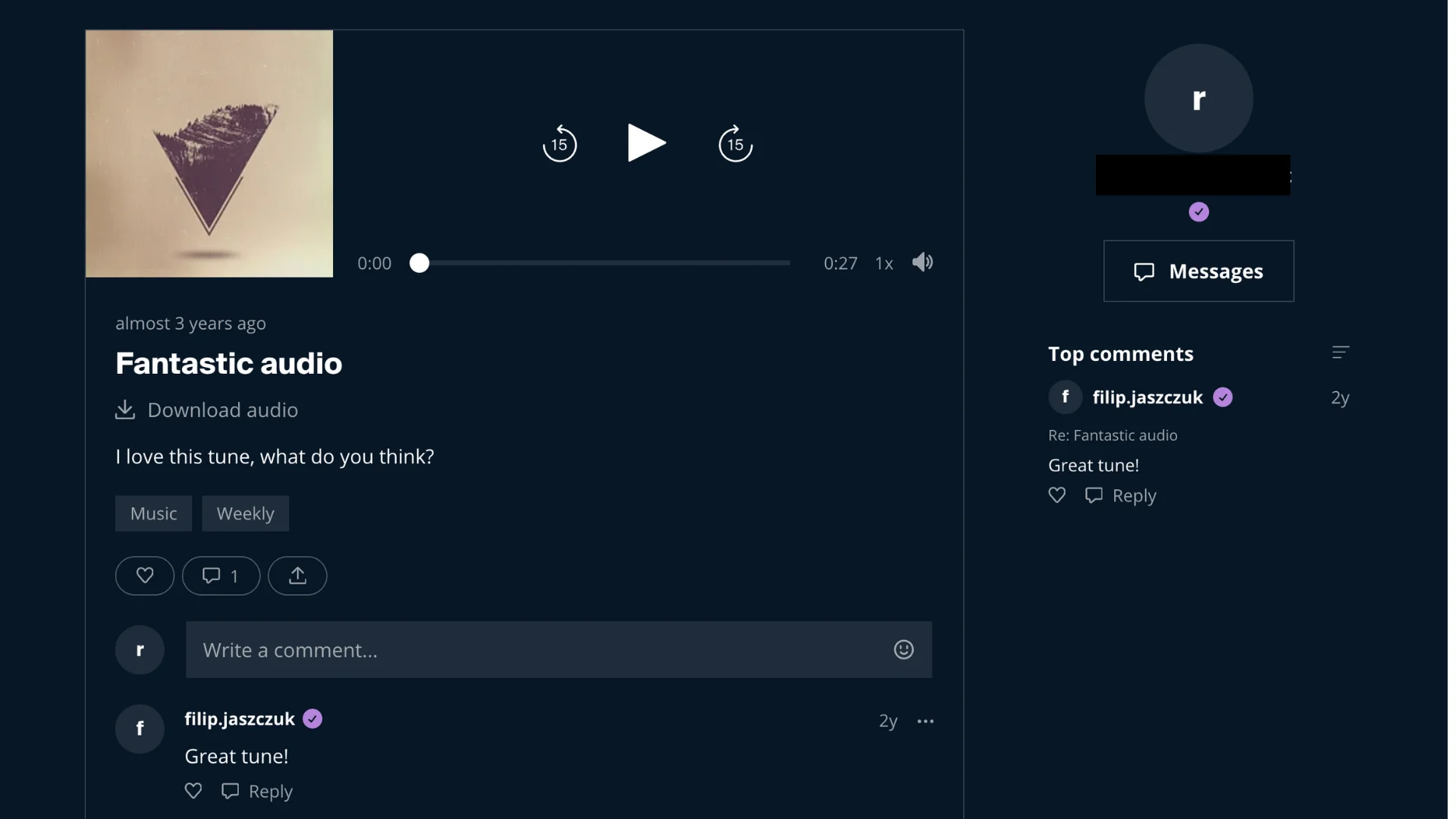
Use audio posts for podcasts, voice updates, or other audio-only content. Upload an audio file, then add a cover image to represent the episode or recording. The cover image is required.
To hide the download link on your audio posts, go to Memberships > Settings > General. Under Downloadable audio files, untick Display download link next to audio posts.
Sample post:
Poll
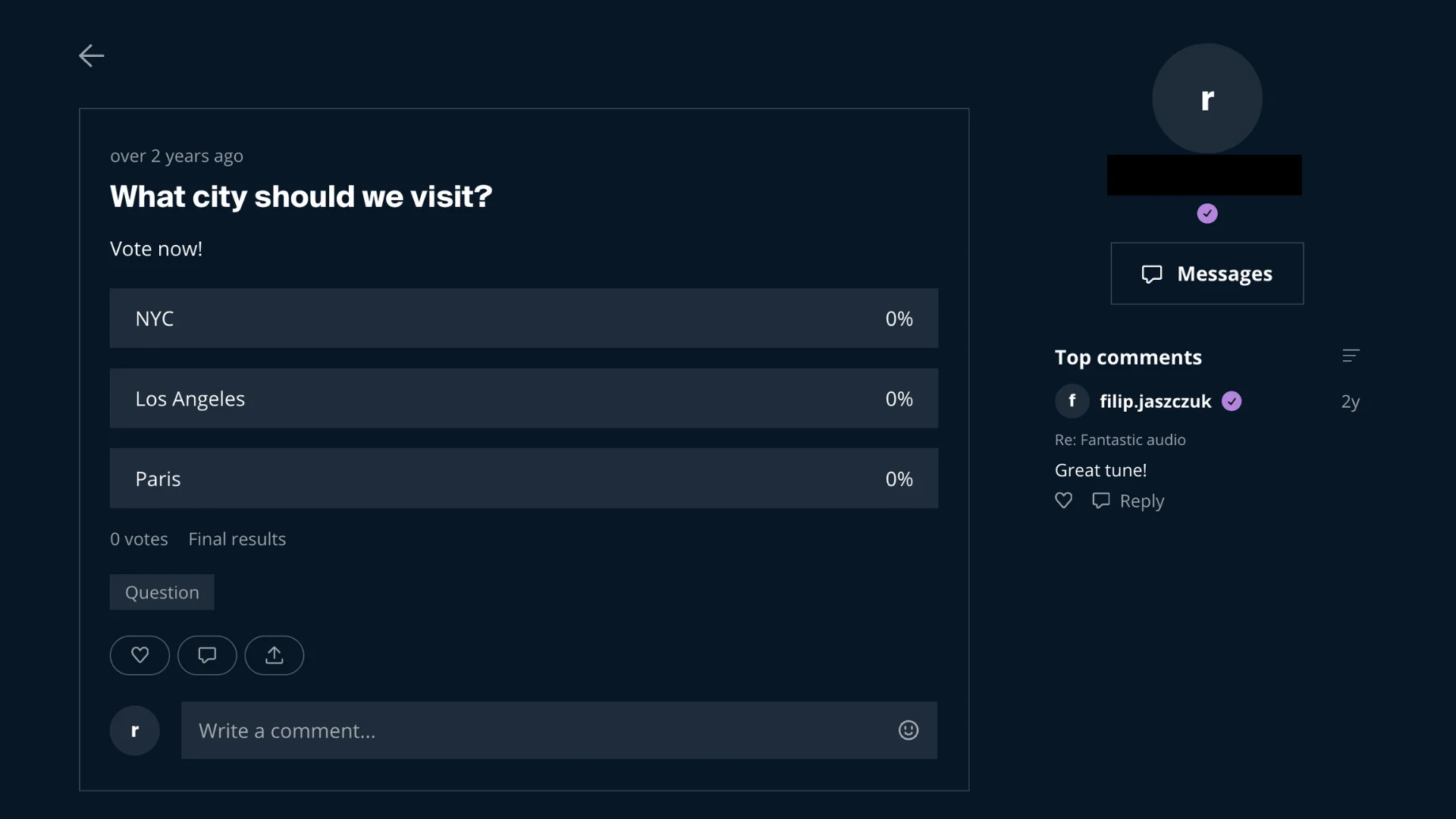
Use poll posts to gather feedback or opinions from your audience. Add 2 to 5 answer options and set how long the poll stays open, up to 7 days. You can't change the answer options after you create the poll.
Sample post:
Livestream
Use livestream posts to broadcast live content to your audience. You can connect your streaming software using either RTMPS or SRT, upload a custom thumbnail, and optionally group livestreams into a video series for easier organization.
Because of bandwidth costs, you can offer livestreams only to paid members (Members only or specific tiers). The Public (everyone), Free accounts only and Members & free accounts options aren't available for livestream posts.
Fourthwall enables livestreaming per account. Until it's turned on for your account, the Livestream option won't appear in the post type selector. To request access, contact Fourthwall support.
Sample post:

Step 4: Set post access permissions
Once you're done setting up your post, use the Who can access this post? panel on the right to choose who can see it:
- Paid access: tick Members only to limit the post to paying members. New posts are open to All tiers by default, which also includes tiers you create later. To limit the post to specific tiers, open the Tiers dropdown and untick the tiers that shouldn't have access. Only the tiers you tick get access. Fourthwall doesn't add higher tiers automatically or include tiers you create later, so tick every tier that should see the post. If you tick every tier again, the post goes back to All tiers.
- Free access: choose Public (everyone), Free accounts only, or Members & free accounts. Public (everyone) includes anyone, even people who aren't members.
With the default Post previews for lower tier members setting in Memberships > Settings > General, paid members see locked previews only of posts for higher-priced tiers. This means a post limited to a lower tier doesn't appear in a higher-tier member's feed at all.
The Public (everyone) option makes a post readable by anyone who visits your shop, including people who have never signed up for your membership. It isn't available for uploaded videos or livestreams, which you can offer only to paid members because of bandwidth costs. To share a video with everyone, embed it from YouTube, Vimeo or Streamable instead. Public posts let you run a general-purpose blog right inside Fourthwall. Share announcements, behind-the-scenes updates, or news you want everyone to see, while keeping other posts locked to members or specific tiers. You can mix public and members-only posts freely in the same feed.
Sell post (under Paid access) lets people who don't otherwise have access buy the post for a one-time Price between $3 and $500, in USD only. You can combine it with Members only (all tiers or specific tiers), or untick Members only to make the post available by purchase only. Customers can buy posts only in a web browser, not in the mobile app, and they keep access to a post they bought even if their membership ends. A post that's available by purchase only doesn't send new-post notifications.
You can enable Notify members about this post to send notifications when the post goes live. For livestream posts, the notification goes out 5 minutes before the scheduled start.
Step 5: Publish or schedule the post
Once you start editing, a bar appears at the top of the page. From there, you can:
- Click Publish to publish immediately (for livestreams, the button is Go live now)
- To schedule the post, click the calendar icon, tick Set release date (Set livestream release date for livestreams), pick the date and Publish time, then click Schedule
Once published or scheduled, the post appears in your memberships feed based on the access rules you selected. Every post, public or members-only, lives in your members area at /supporters on your storefront (for example, your-shop.com/supporters). This is the single feed where all of your posts are listed. To get the exact link, click Copy link on the main Memberships page.
To keep important posts at the top of your feed, go to Memberships > Posts, open the post's ⋯ menu and choose Pin post. You can pin up to 3 posts. If you pin a fourth, it replaces your oldest pinned post. Choose Unpin post to remove a pin.
Viewing comments on your posts
You read and reply to comments on the public post page on your live storefront. In the dashboard, once your onboarding checklist is complete, the main Memberships page shows your Top comments. Memberships > Posts shows each post's comment count, and you can download a post's comments with Export comments (CSV) from the post's ⋯ menu. To read and respond to comments left by your members:
- Go to your shop's storefront (your public site URL).
- Navigate to your memberships feed by visiting the Memberships page on your site.
- Find the post you want to check and click on it to open the full post page.
- Scroll down to see the comment section below the post content.
You can reply to comments directly on this page. Your replies appear with a Verified badge next to your name, so members can easily tell which comments come from you. It's your team's badge, and you can customize it in Memberships > Settings > Badges.
Bookmark your memberships feed URL for quick access. The feed lists all your published posts in order, making it easy to find the one you need.
Surface public posts as a standalone blog
Public posts can act as a free blog for your shop. All posts live in your members area at /supporters on your storefront, so you can point customers there directly or rework that feed to read like a blog. You have a few options:
- Add a navigation link to your
/supportersmembers area. Go to Site design > Layout, select Header or Footer, and click Edit menu. Add a menu link that points to/supportersso visitors can reach your posts from anywhere on your site. For step-by-step help, see Edit menus and dropdowns. - Rename the navigation label. The link does not have to say "Memberships." Name it something that reads like a blog, such as Blog or Updates, so casual visitors understand they will find articles and news there.
You can't customize the feed page's layout. If you open the Memberships Feed page in Site design > Layout, you only see the message "Memberships feed layout can't be currently customized." To change what the feed shows, create and edit posts under Memberships > Posts.
How do I feature recent posts on other pages?
To show your latest posts on another page, add the Recent posts section ("Embed your latest membership posts", listed under Memberships when you click Add page section) in Site design > Layout.
For a custom block or button, use a Custom code section instead. Add it in Site design > Layout, then paste in your own HTML to build a "Latest posts" block, a button that links to your /supporters members area, or links to individual public posts.
To copy the URL for a specific post, open the post in Memberships > Posts. You'll see its public URL under the title, with a copy button. On mobile, use Open post page in the ⋯ menu. You can also open the post on your live storefront and copy the link from your browser's address bar. Post URLs include unique identifiers, so always copy the real URL rather than guessing it. For more on custom code, see Add custom HTML and code to your site.
Membership posts and the Storefront API
The Fourthwall Storefront API does NOT expose membership posts. Posts are available through the authenticated Fourthwall Open API at /open-api/v1.1/memberships/posts instead. With your API (OAuth) credentials, you can list, read, create, update, delete and pin posts. Comments aren't available through any API.
If you build a custom storefront with the Storefront API, your posts still appear only in the /supporters members area on your Fourthwall-hosted storefront. To surface them elsewhere, link out to /supporters or to individual public post URLs, or fetch posts through the Open API.
FAQ
Why aren't links clickable when members leave comments on posts?
Links shared by members in comments are displayed as plain text and are not clickable. This is intentional and helps to minimize spam and misuse. Currently, other members can copy and paste the link from the comment to access it. Alternatively, you can encourage members to include relevant information from the link directly in their comments if it's not too lengthy. This way, the relevant details are readily available to everyone.
Is there a file size limit for video posts?
No. Direct video uploads for membership posts go through Mux, a professional video hosting service, so the file size limits for digital product uploads don't apply. You can upload up to 100 hours of video in total, and each video can be up to 12 hours long. Uploaded videos stream at up to 1080p. If you'd rather host your video elsewhere, you can embed a YouTube, Vimeo, or Streamable URL into the embed field when creating a video post instead. To keep an embedded video private, use YouTube's Unlisted setting, or set a Vimeo video to Unlisted or Hide from Vimeo. You can't embed Private Vimeo videos. If you limit where a Vimeo video can be embedded, add your shop's domain. Vimeo embeds also don't show ads, making it a good choice for members-only video content.
Can I view comments on my posts from the admin dashboard?
Partly. Once your onboarding checklist is complete, the main Memberships page shows your Top comments. Memberships > Posts shows each post's comment count, and you can download a post's comments with Export comments (CSV) from the post's ⋯ menu. To read full threads and reply, visit the post on your live storefront. Open your shop's public URL, go to your memberships feed, and click on the post. All member comments and your replies appear on the public post page.
How do I find the public URL for a specific membership post?
The easiest way is to open the post in Memberships > Posts, where you'll see its public URL under the title with a copy button. You can also start from your storefront's memberships feed. Visit your public shop URL and navigate to the Memberships page. Your posts are listed in the feed in chronological order. Click on any post to open it, and the URL in your browser's address bar is the direct link to that post. Avoid guessing URL structures manually, as post URLs include unique identifiers that aren't predictable from the post title alone.
Are my comments visually distinguished from member comments?
Yes. When you reply to comments on your own posts, your name displays with a Verified badge. This badge makes it clear to members that the comment comes from you, the creator, rather than from another member. It's your team's badge, and you can customize it in Memberships > Settings > Badges.
Can I unpublish or revert a published membership post to draft?
No. Once a post is published, it cannot be reverted to draft. To remove a post from your feed, delete it using the three-dot menu on the post. This permanently removes the post and its content. Tier unpublishing is a separate feature that hides a tier from new subscribers but does not apply to individual posts.
Can I edit a published post?
Yes, you can edit a published post's content. Open the post from Memberships > Posts and make your changes. However, you cannot change its status back to draft. Polls are the exception: you can't change a poll's answer options after you create it.