Creating Gallery Posts with Multiple Images
Updated October 26, 2026
Share multiple images in a single post with automatic gallery layouts
Gallery posts let you combine multiple images into one membership post. Fourthwall automatically arranges your images into a grid layout based on how many you upload, giving your members a polished visual experience without extra formatting work.
Create a gallery post
- Go to Memberships > Posts.
- Click Create new post.
- Select Images as the post type.
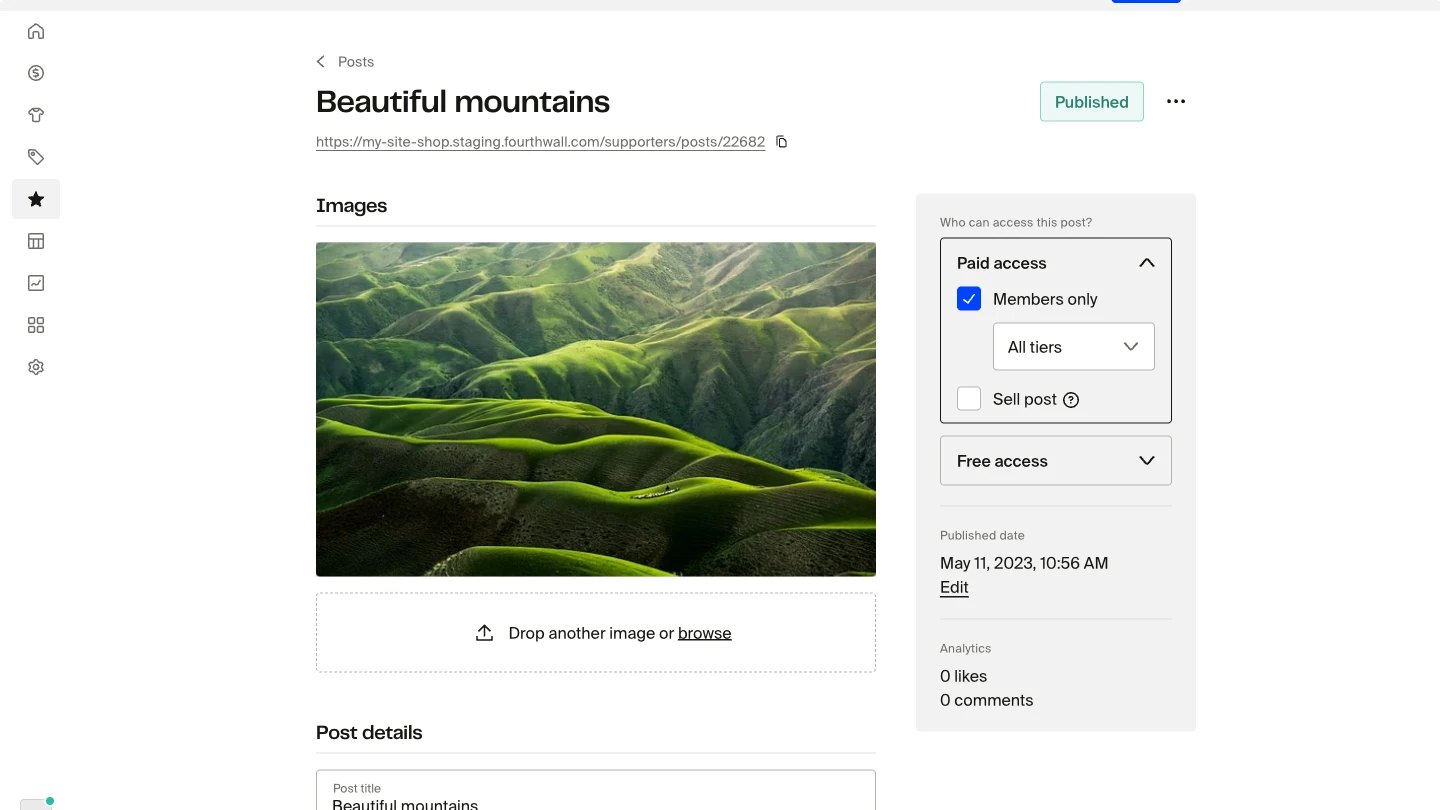
- Upload your images by dragging and dropping files or browsing from your device. You can add multiple images at once.
- Add a title, description, and any tags you want.
- Set your post access permissions and publish or schedule the post.
Gallery display layouts
Fourthwall automatically selects a gallery layout based on the number of images in your post. Members can click any image to open it in a full-screen lightbox viewer, where they can browse through all images using navigation arrows.
- 1 image. Displays as a single, full-width image.
- 2 images. Shows two images side by side in equal vertical columns.
- 3 images. Displays one large image on the left spanning the full height, with two smaller images stacked on the right.
- 4 or more images. Arranges the first four images in a 2x2 grid. If you uploaded more than four, the fourth image shows a +N overlay indicating the number of additional images hidden from the preview. Members click through to see all of them in the lightbox.
Images beyond the fourth are not visible in the feed preview. They appear only when a member opens the lightbox viewer by clicking on any image in the gallery.
Image formats and limits
You can upload JPEG, PNG, GIF, WebP and other common image formats. You can add up to 100 images to a post, and each image can be up to 10 MB. Large uploads with many high-resolution files may take longer to process.
Fourthwall automatically generates optimized thumbnails for the gallery grid and higher-quality versions for the full-screen lightbox. Portrait images (taller than wide) display with a background blur when viewed as a single image.
Galleries in direct messages
You can also include up to 50 images (JPEG, PNG, GIF or WebP) when you send a direct message to your members. A message can contain images or a single audio or video file, but not both. You can send audio and video files only in Locked Messages. Members can attach only one PNG or JPG image when they message you. The gallery layouts in direct messages follow the same pattern as posts:
- 1 image. Single image displayed in the message bubble.
- 2 images. Two images side by side.
- 3 images. One large image on the left, two smaller images stacked on the right.
- 4 or more images. A 2x2 grid with a +N overlay on the fourth image when additional images exist.
Members can click any image in a direct message to open the full-screen lightbox viewer, just like in feed posts.
Frequently asked questions
Can members download gallery images?
There's no download button in the gallery or the lightbox. Each lightbox image links to the full-quality file, though, so members can still save images through their browser. Media watermarking is available only on accounts where Fourthwall has enabled it, and there's no dashboard setting to turn it on. On those accounts, watermarks also apply in the lightbox.
Do gallery posts work on mobile?
Yes. Gallery layouts are responsive and adapt to smaller screens. Members using the mobile app or mobile browser see the same grid patterns, and the lightbox viewer works with touch gestures.
Can I reorder images after uploading?
Yes. You can reorder, add or remove images while creating the post. To change them later, edit the post, even after it's published. Drag the images into your preferred order, and the gallery layout will follow that sequence.