Cancel or refund a member's subscription
Updated October 26, 2026
Manage membership cancellations and refunds directly from your dashboard
For members who pay on your website, you can cancel subscriptions and issue full or partial refunds right from the Fourthwall dashboard. Here's how each option works.
Note: The cancel and refund steps on this page apply to paid memberships only. Free members do not have a subscription, so there is nothing to cancel or refund. See the FAQ below for details.
Note: Members who subscribed in the iOS, Android or Roku app are billed by Apple, Google or Roku, so you can't cancel or refund those subscriptions from the dashboard. If you select Cancel subscription for one of them, you'll see Cancel unavailable. You also can't select their payments for a refund (Refunds are not available for in-app purchases). Ask the member to cancel on their device through their app store account, and to request any refund from the store.
Note: If you're looking to cancel or refund a merch order instead, go to How to cancel and refund an order?
Cancel vs Refund: What's the difference?
Canceling a subscription
- Ends the subscription, either immediately or at the end of the current billing cycle.
- During cancellation, you can choose:
- Full refund
- Pro-rated refund
- Custom refund amount
- No refund, available both to creators and via member self-serve
Refunding a subscription
- Issues a refund for a specific past transaction but does not cancel the subscription.
- The member will continue to renew unless you cancel the subscription separately.
Canceling a member's subscription
To cancel a subscription:
-
Within your Fourthwall dashboard, go to Memberships > Members.
-
Search for the member you wish to cancel the subscription for, and click on their name to see more details.
-
Click the three dots in the top-right corner and select Cancel subscription.
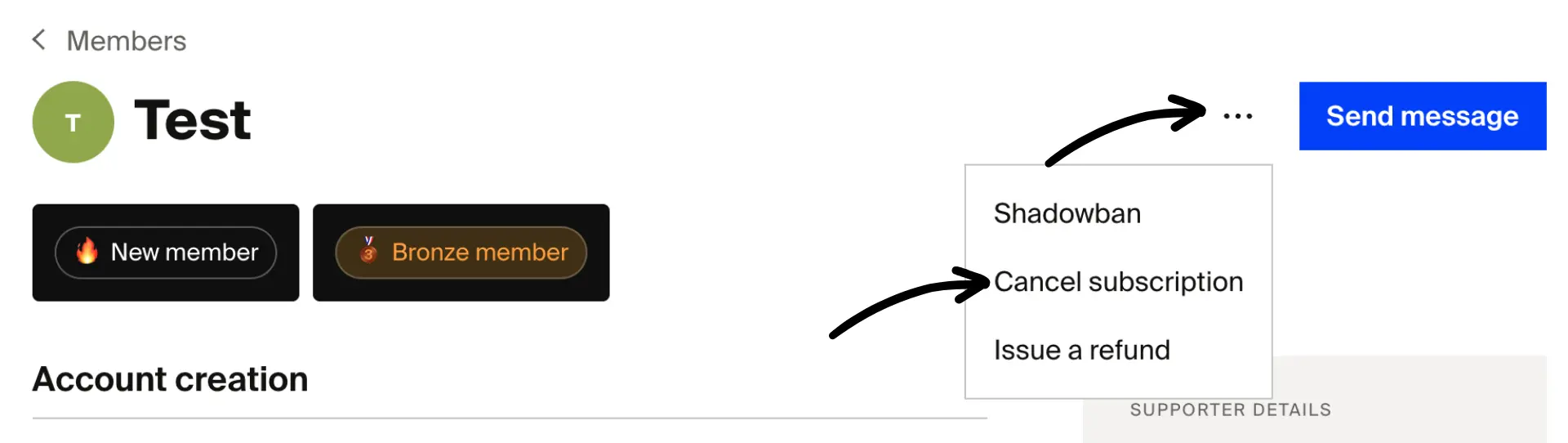
A cancellation modal will appear with the following options:
-
When do you want to cancel this subscription?
- Remove access immediately
- Remove access at end of cycle
-
Do you want to issue a refund for this subscription?
- Full refund
- Pro-rated refund
- Custom amount
- No refund
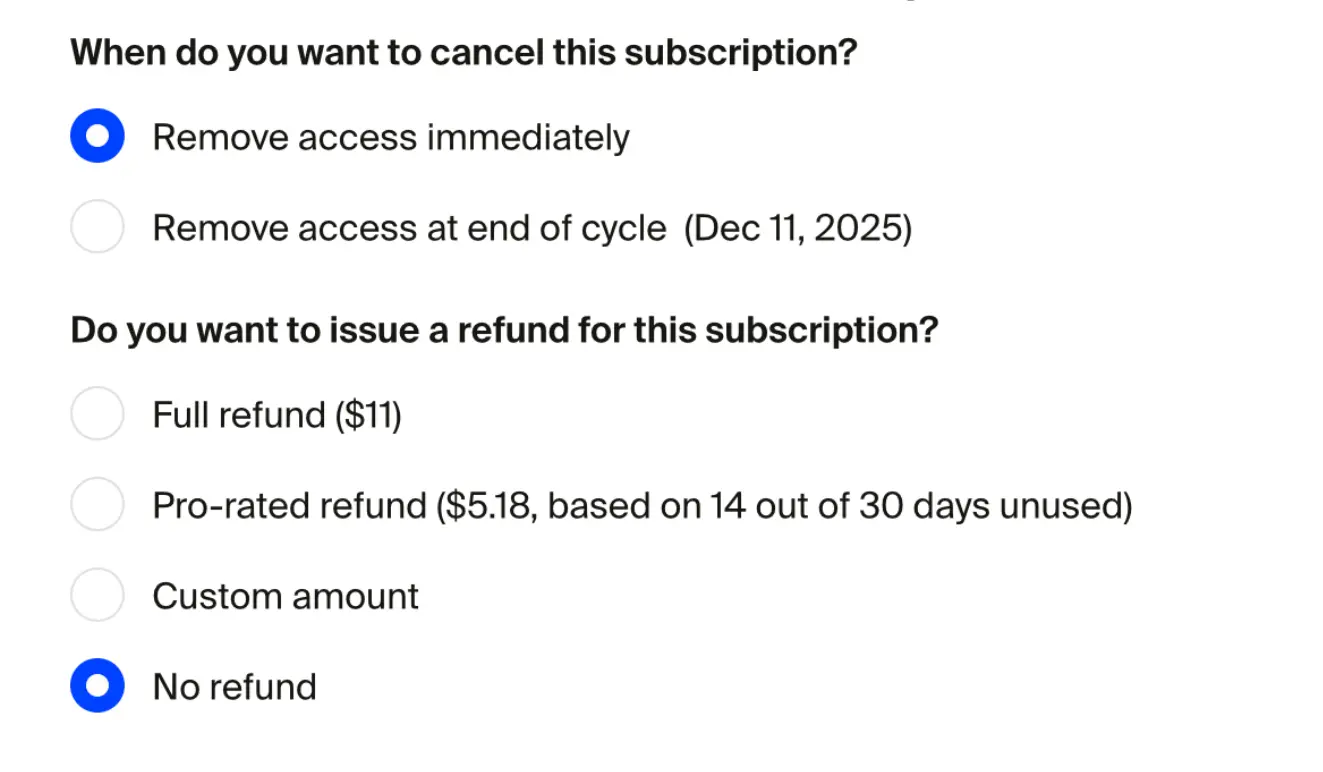
- Choose when access ends and whether to issue a refund. The modal opens with Remove access immediately and Full refund selected, so check both choices before you confirm. If you switch to Remove access at end of cycle, the refund choice changes to No refund.
Important notes:
- During cancellation, you can only refund the latest subscription payment.
- Pro-rated refund only appears when that payment is in the current period of an active subscription. It's greyed out if the prorated amount would be under $1.
- To refund earlier payments, complete the cancellation first, then issue additional refunds separately.
- If the member's payment has failed (Past due member), the modal only asks Do you want to cancel this subscription immediately? There's no end-of-cycle option and no refund choice, and the button reads Confirm cancellation. To refund a past-due member, use Issue a refund separately.
- Click Confirm cancellation (or Confirm cancellation and refund $XX) to complete the cancellation process. You can't undo an immediate cancellation, so the member must subscribe again to regain access. After an end-of-cycle cancellation, the member can keep their subscription by clicking Resume on the Billing page of their account before the period ends. Either way, you can't undo a refund.
What you'll see after cancellation
- Immediate cancellation: Member badge updates to "Former member"
- End-of-cycle cancellation: Badge updates to "Expiring member"
Note: Members can cancel their own subscription and select No refund directly through their account. This allows creators to avoid the need for manual cancellation if a member simply wishes to end their subscription without receiving a refund.
Refunding a member's subscription
- Inside the member details, click the three dots in the top-right corner and select Issue a refund.
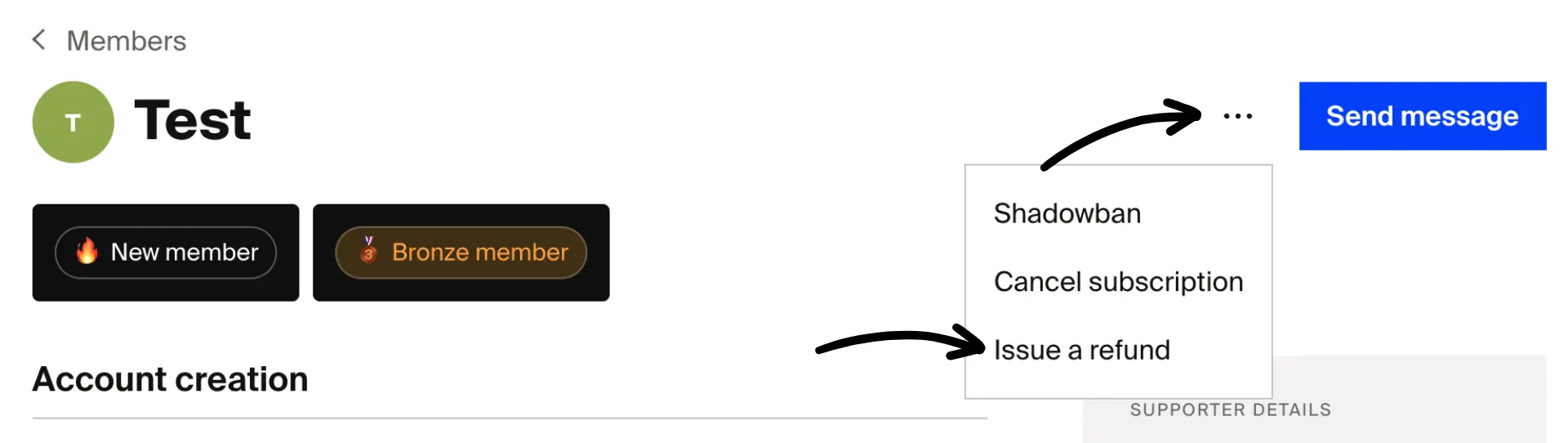
The refund modal will appear.
- Choose the transaction to refund and the refund type
Select a transaction to refund
You can pick the most recent or any prior subscription payment. Refunds are processed one transaction at a time.
You can only choose Pro-rated refund for the most recent payment, while the subscription is active and that payment is in the current period. It's greyed out if the prorated amount would be under $1. For older payments, or once a subscription has ended or is past due, choose Full refund or Custom amount.
Tip: The Payment history section, further down the member detail page, shows a member's full payment history, including amounts. This is especially useful when a member pays a custom amount above the tier minimum. The refund modal lets you pick the specific transaction to refund. No charge or change is made until you click Refund, so you can close the modal at any point without affecting the subscription.
Full or partial refund?
- Full refund
- Pro-rated refund
- Custom amount
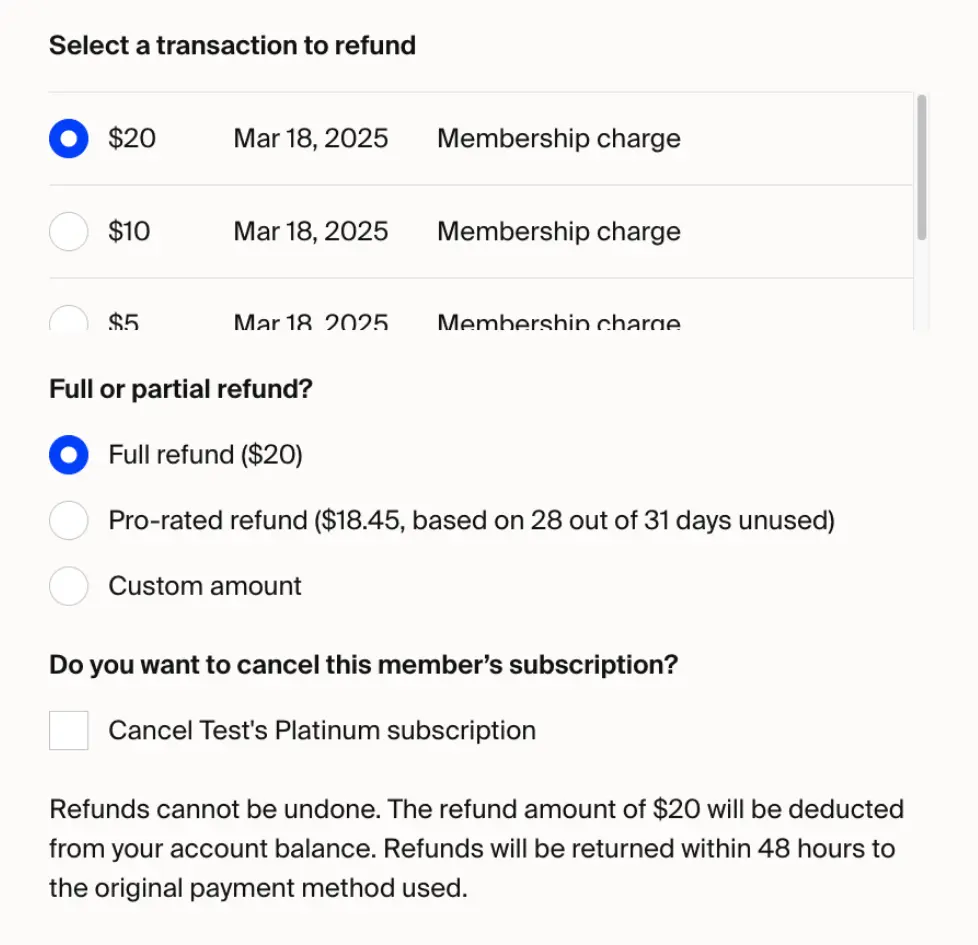
- Click Refund $X to confirm. Please remember that this action is irreversible.
When a refund isn't available
Some payments can't be refunded. The refund modal greys them out, and you can hover over one to see why:
- This transaction has already been refunded. You can refund each payment only once, so you can't add to a partial refund later.
- The minimum refund amount is $1.00. A refund must be at least $1 and no more than the payment. Payments under $1 can't be refunded.
- Refunds are not available for in-app purchases. The store refunds App Store, Google Play and Roku payments.
- PayPal charges older than 6 months cannot be refunded.
Disputed (charged-back) card payments can't be refunded either. The dashboard doesn't warn you about this before you submit.
When you cancel a subscription, the same limits apply to the latest payment. If it can't be refunded, the cancellation modal shows Refund is not available with the reason, and the subscription is canceled without a refund.
Refunds are deducted from your Fourthwall balance and returned to the member's original payment method within 48 hours.
"Refund amount greater than shop balance" when refunding a member
This error means the refund is more than your available shop balance. Fourthwall doesn't charge your card on file for membership refunds, so your shop balance has to cover the refund. The dashboard doesn't warn you before you submit.
Are fees returned when I refund a membership payment?
No. When you refund a membership payment, Fourthwall keeps the payment processing fee and the platform fee from the original payment. Your balance is debited the payment amount before tax, which is more than your balance was credited for that payment.
For example, a member pays $5 plus $1.15 VAT ($6.15 in total) by card. After tax, the platform fee and the processing fee, about $4.28 is credited to your balance (a little less for a PayPal payment). If you refund that payment in full, your balance is debited $5.
Removing a member's payment method
You can't remove a member's payment method from the dashboard. Members can remove their own payment method from the Billing page of their account, but only after their subscription has been canceled and the paid period has fully ended. To stop future charges, cancel the subscription using the steps above.
FAQ
Can I cancel or remove a free member?
Free members do not have a subscription, so there is nothing to cancel or refund. The cancel and refund options in the dashboard apply only to paid membership subscriptions.
You can't remove free members from the dashboard. See the next question for how to have an account removed.
Can a member's account be deleted?
Yes. Members can delete their own account in the mobile app. If they have an active App Store or Google Play subscription, they need to cancel it first. Members can't delete their own account on your website, and you can't remove accounts from the dashboard. Fourthwall support handles those requests.
- A member wants their account removed. Point them to your shop's support email to request removal.
- You want to remove accounts. Email support@fourthwall.com with your shop URL and the email addresses of the accounts to remove.
Unsubscribing from notification emails doesn't remove an account. It only stops the emails.