How direct messages work
Updated October 20, 2026
Everything you need to know about messaging your members on Fourthwall
The Messages (or direct messages) feature enables you to connect with members through personal messages, ideal for sharing exclusive updates, perks, or quick thank-you notes. Fans can also send tips with their messages or pay to unlock special content.
DMs can become a valuable income channel and a unique membership perk.
Why enable messages?
Turning on messages unlocks multiple benefits for you and your members:
- A new way to engage with members - Give your customers a more personal way to connect by allowing one-on-one messages.
- An additional income stream - Let members attach a tip when they message you, or set a minimum tip amount to help manage your inbox while earning more.
- A valuable membership perk - Messaging access adds real value to your membership offering and can be a compelling benefit to highlight in your tier descriptions.
- A tool to win back former members - Reach out directly with special offers, like a promo code for their first month, to encourage past customers to rejoin.
How to enable Messages for your site
Go to Memberships > Settings > Messages and click the Enable messages box to enable it.

Once messages are enabled, choose who can start a conversation with you. Only for members limits this to active members. For both members and free accounts also lets free account holders and former members message you.
How to send a message to your members
Step 1: Navigate to Memberships > Messages and click New message or the ➕ icon.
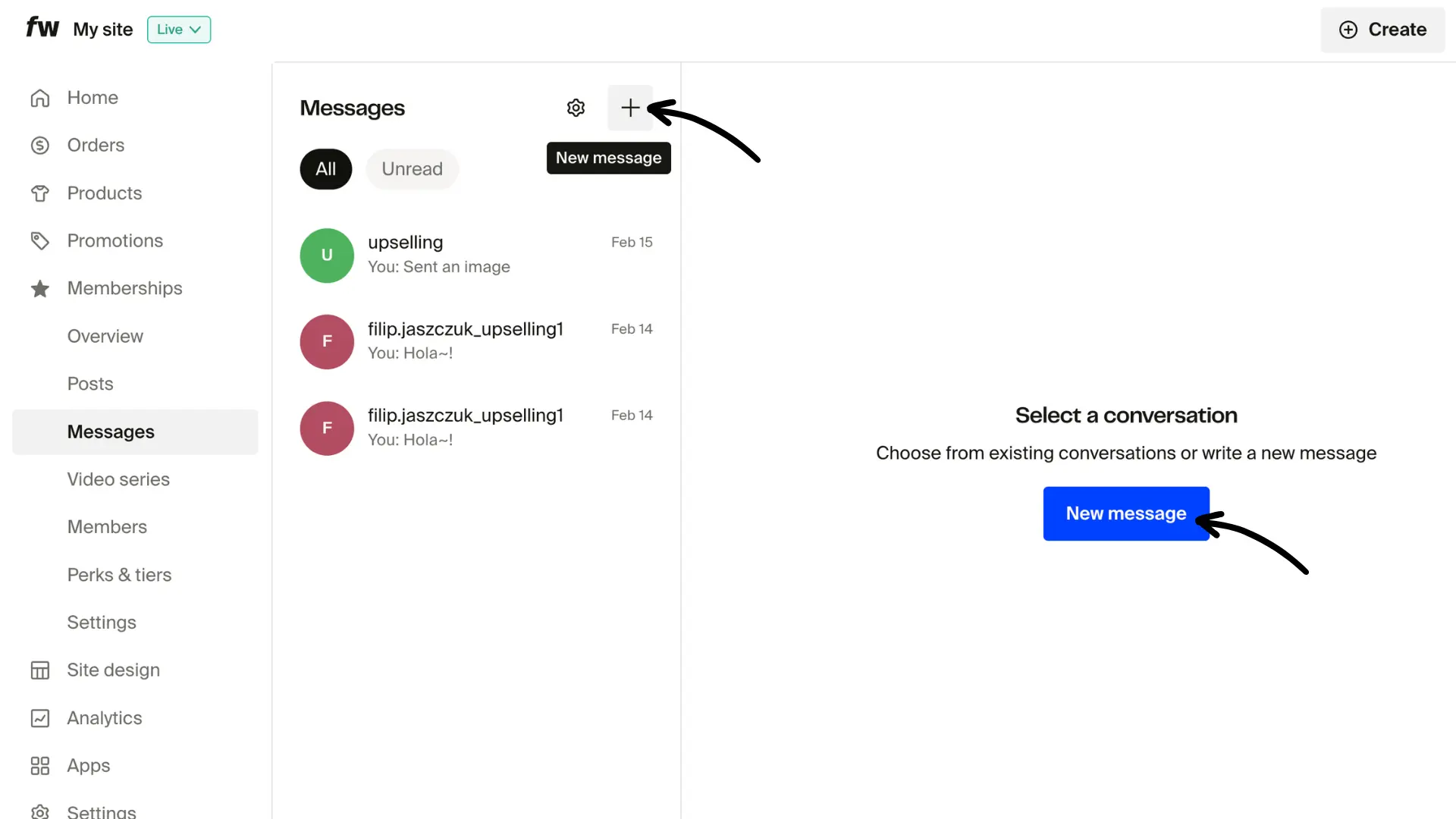
Step 2: Select the message recipients and click Confirm.

You have the following options for recipients:
- All members
- Include expiring members, checked by default (those who have canceled their subscription but still have access until the end of their current billing period)
- Include free accounts and former members
- Selected tiers (choose one or more tiers, and check Include expiring members to also reach members on those tiers whose subscription is ending)
- Expiring members (choose one or more tiers)
- Former members (members who have canceled or whose payment failed, and no longer have access to memberships)
- Free accounts (free account holders and members who have canceled or whose payment failed, and no longer have access to memberships)
To message specific members instead, search for them in the Search members box in the same window. You can also click Send message on a member's profile page.
Step 3: Type your message (up to 4,000 characters) in the message window and click Send. You can also include up to 50 images (JPG, PNG, GIF or WEBP) to enhance your message!
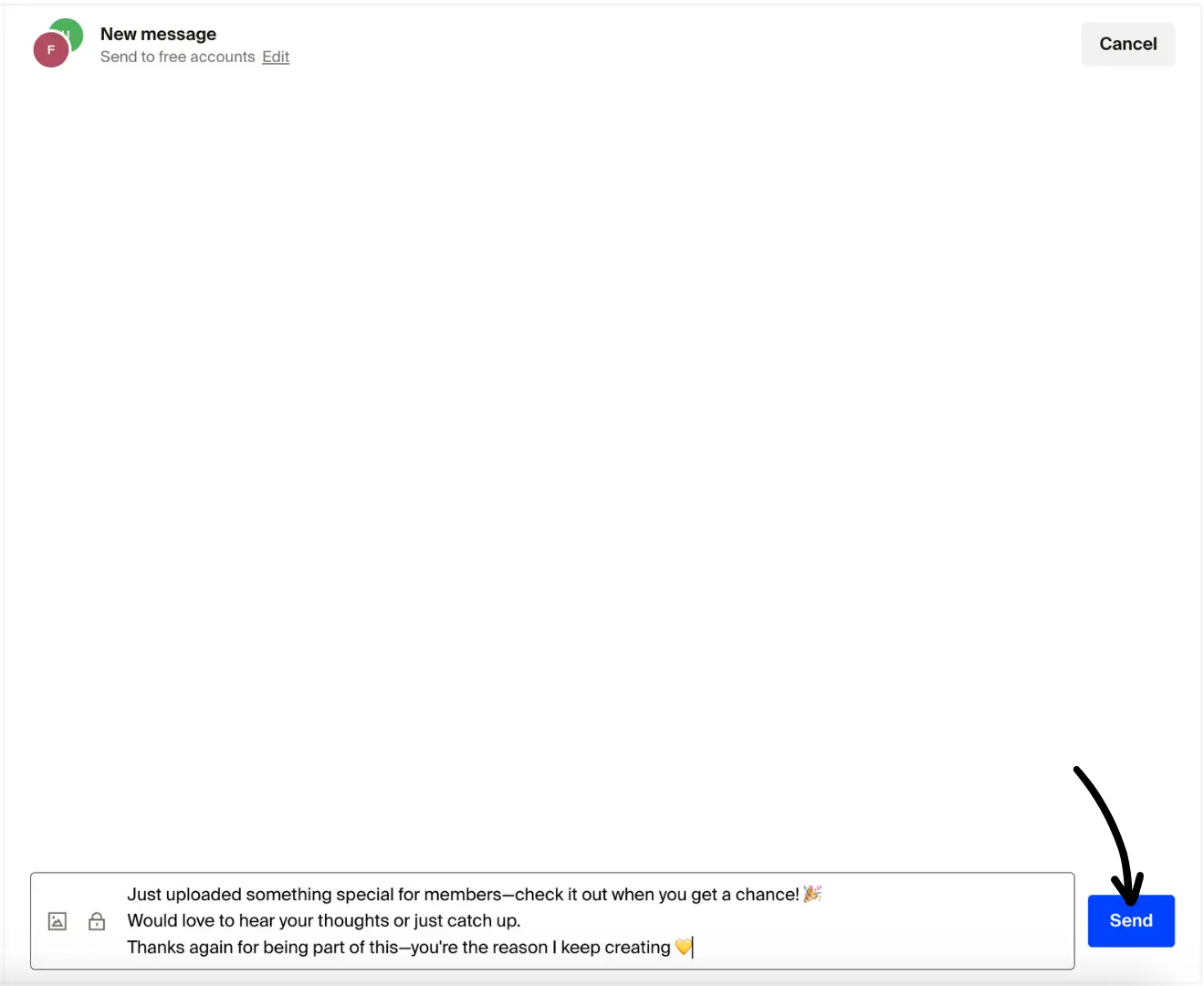
If you select more than one recipient, an individual message will be sent to each person, instead of a group chat.
When you send to more than one person, Fourthwall asks you to confirm before the message goes out. Only one mass message can be sending at a time, so the message box stays disabled until the current one finishes.
Managing tips and minimum tip requirements
By default, the option to receive tips is enabled when you turn on Messages. If you'd prefer not to allow tips, you can disable the setting by going to Memberships > Settings > Messages and unchecking "Allow members to send tips."
You can set a minimum tip requirement to help limit low-effort or spammy messages if you want. To do this, check the box for Set minimum tip requirement for members to send a message, enter your desired amount, and click Save.
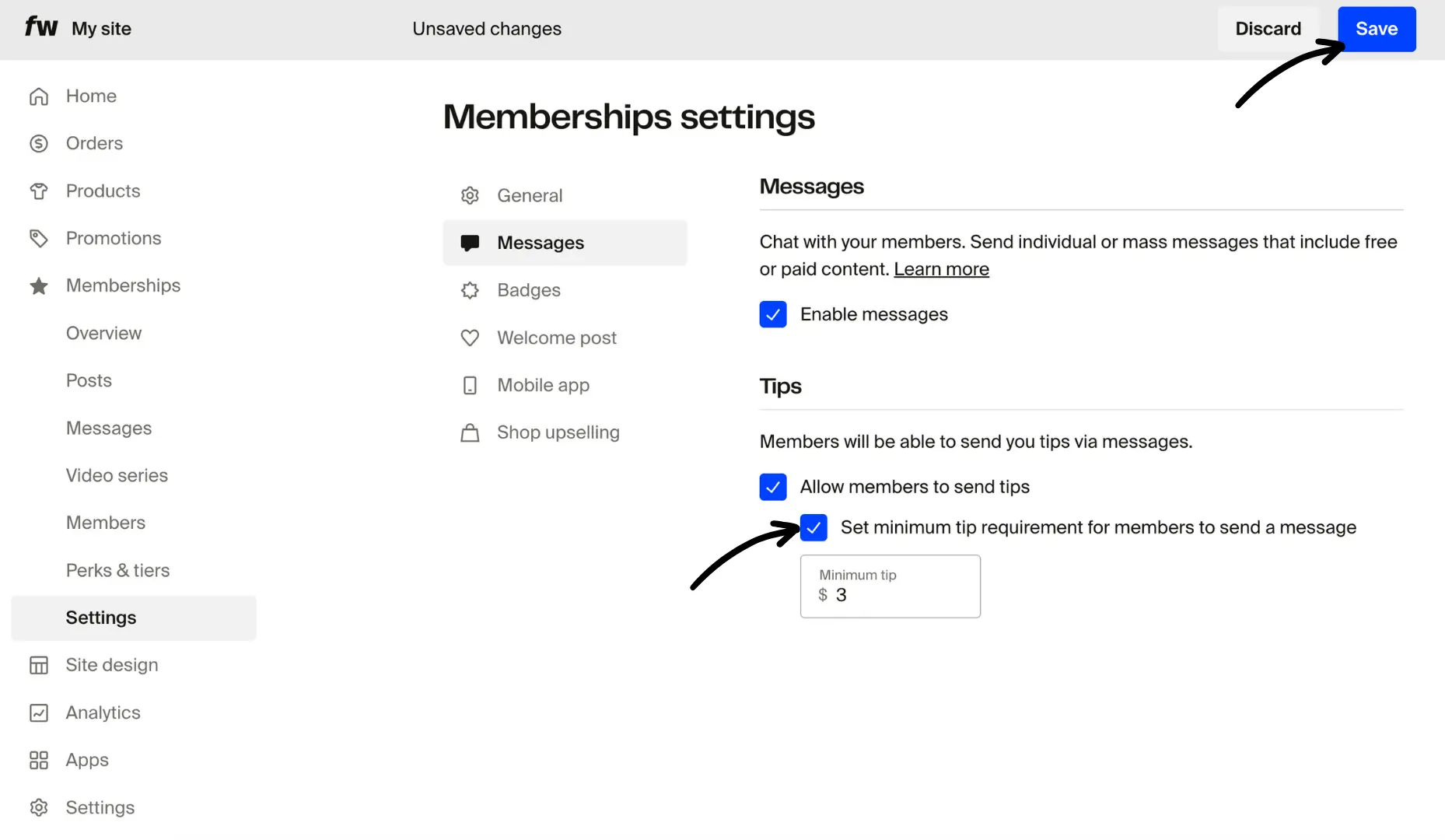
Setting a minimum tip ensures your inbox stays focused while giving members a more intentional way to connect and support you.
Members whose membership is billed through the App Store, Google Play or Roku can't tip. If you set a minimum tip, they can't send you messages at all, even if they still have free messages left.
Setting free message limits per tier
You can control how many free messages each member is allowed to send per month, based on their membership tier. This lets you offer more messaging access to higher tiers while keeping your inbox manageable.
To configure free message limits, go to Memberships > Settings > Messages. In the Tips section, check Allow members to send tips and Set minimum tip requirement for members to send a message, then check Allow members to send free messages. A table lists your tiers. For each tier, you can:
- Enter a number of Free messages per month
- Check Unlimited so members in that tier can message you without restrictions
When you first turn on free messages, every tier starts at 0.
Free message limits only apply while a minimum tip is set. Without one, members can message you without tipping. Only members with an active paid membership get free messages. Free account holders and former members you allow to message you must include a tip with every message.
A tier with no saved limit, such as a tier you create later, gets unlimited free messages. Its row in the table stays empty, so enter a number if you want to limit it.
Free message limits reset at 00:00 UTC on the first day of each calendar month. Once a member reaches their limit, they need to include a tip to send additional messages during that month. They may also be offered an upgrade to a higher tier.
Members can see their remaining free messages for the month when composing a new message. Once they've used all their free messages, they'll be prompted to include a tip to continue the conversation.
Marking conversations as unread
To keep track of conversations that need follow-up, you can mark any conversation as unread. Open the conversation in your Messages inbox, then click the Mark as unread option. The conversation will appear with an unread indicator so you can easily return to it later.
This is helpful when you read a message but want to respond at a better time without losing track of it.
Let your members know about DMs!
Once you've enabled direct messages, it's a great idea to let your members know the feature is available. The best way to do this is by sending a mass message right away.
This initial message works as both an announcement and a natural entry point! Your members will receive a notification and be taken straight to the message thread.
How members send you messages
When Messages are turned on, your members will see:
- A message icon in the top right corner of your site (on both desktop and mobile)

- A Messages tab in their sidebar menu

From here, they can send you a message anytime, along with an optional tip, if enabled.
Frequently asked questions - Messages
Can I include images in messages?
Yes! You can add one or multiple images per message. Audio and video files are supported only in Locked Messages, which members pay to unlock.
Are there limits on message length or attachments?
Yes. Your messages can be up to 4,000 characters, with up to 50 images. In a Locked Message, you can attach one audio or video file instead of images. Members' messages can be up to 500 characters, with one PNG or JPG image. Only one mass message can be sending at a time.
Can I turn off messages later?
Absolutely. Go to Memberships > Settings > Messages and uncheck Enable messages. Your members will still be able to see previous messages, but won't be able to send new ones.
Can former members send me messages?
By default, only active members can start new messages. Former members can still read previous messages and receive updates, but they'll be prompted to rejoin if they want to reply.
If you'd like to hear from them, go to Memberships > Settings > Messages and select For both members and free accounts under Enable messages. This lets both free account holders and former members message you. If you've set a minimum tip, they need to include a tip with every message, because free messages are only for active paid members.
Can I send an automatic welcome message?
No, automatic welcome messages aren't available. However, you can set a welcome post! Learn more here.
Can I edit or delete a message I sent?
You can delete messages you've sent. Editing a sent message isn't available.
What's the minimum and maximum tip amount?
Members can tip between $1 and $500 per message.
When do free message limits reset?
Free message limits reset at 00:00 UTC on the first day of each calendar month. If a member used all their free messages in March, they get a fresh allowance on April 1.
Can I set different message limits for different tiers?
Yes. Each tier can have its own free message limit, including the option to set a tier to unlimited. This lets you use messaging access as a perk to differentiate your tiers. Free message limits only apply while a minimum tip is set. A tier you create later has unlimited free messages until you set a number for it.
Can my team reply to messages on my behalf?
Yes! Super Admins, Managers and Memberships Moderators on your team can send messages, and they will appear as coming from you. Only Super Admins and Managers can change Messages settings.
Can I charge for messages?
Yes! You can send pay-per-view messages, which we call Locked Messages.
Why can't some members tip or send me messages?
Members whose membership is billed through the App Store, Google Play or Roku can't tip yet. If you've set a minimum tip, they can't send you messages at all, even if they have free messages left. They see a notice that paid messages aren't supported for their subscription.