Create your Fourthwall account
Updated October 23, 2026
Sign up at fourthwall.com, complete a short profile setup, and verify your email. The whole process takes a few minutes.
Problems signing up? If your verification email didn't arrive, see I didn't get the verification email, or the link expired. If you already have an account, can't sign in, or are asked for a verification code, see Account access: login issues, password reset, and email changes.
Step 1: Access the signup page
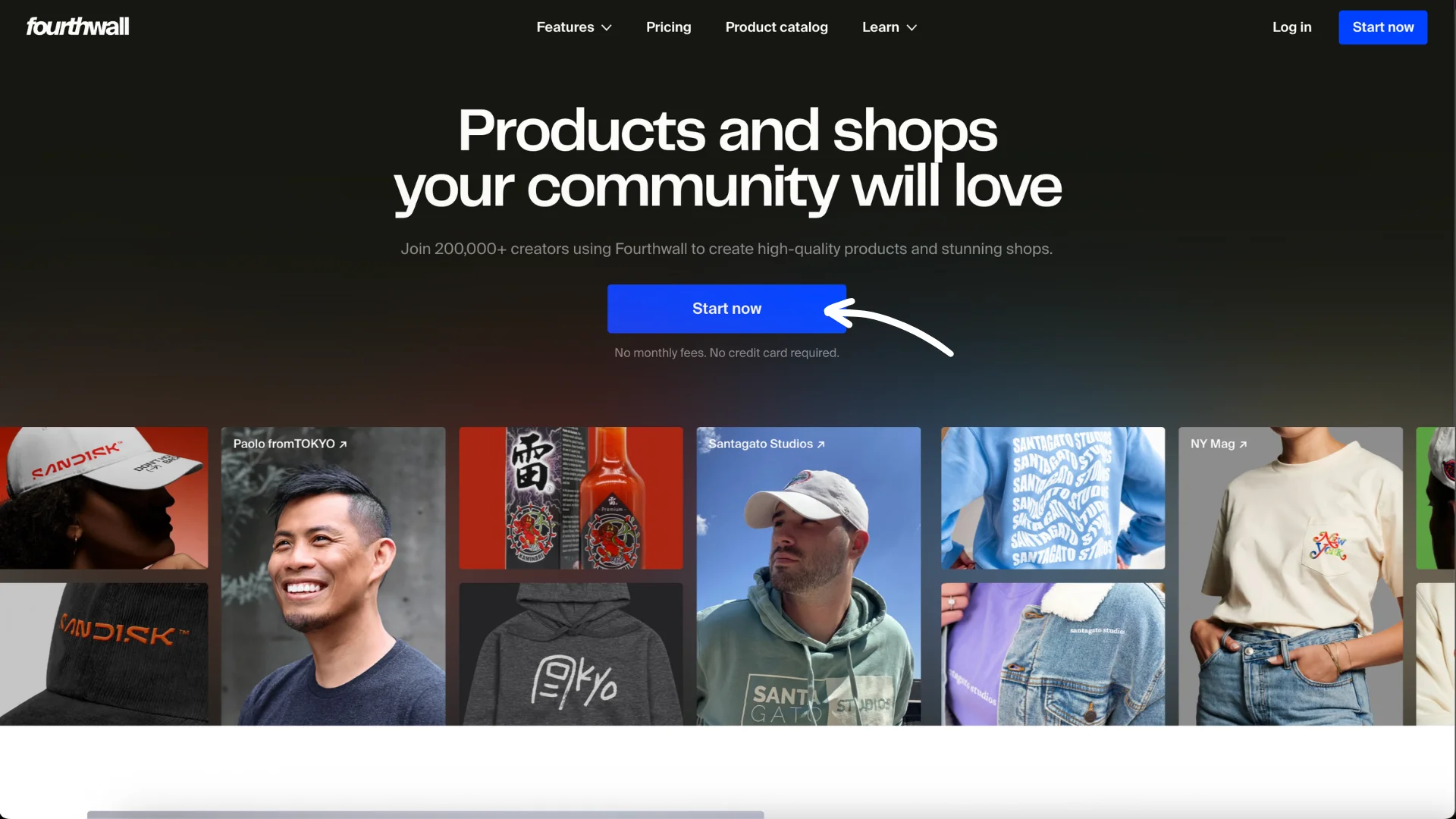
Head to Fourthwall and click Start now.
Step 2: Choose your signup method
You can sign up with:
- Apple

Follow the initial on-screen prompts to connect your account.
Step 3: Set up your profile (pre-onboarding)
After signing up, you'll be asked for a few details:
- What best describes you: Choose the option that fits you best, such as Content creator, Business or Artist.

- Your name and Shop name: Your shop name becomes your Shop title, which appears in browser tabs and search engine results. You can change it later in Settings > General under Shop details.

- Social channel (optional): The social platforms you can be reached on. Here, you'll select the primary platform where most of your audience engages with you (e.g., YouTube, Twitch, Instagram, etc.).
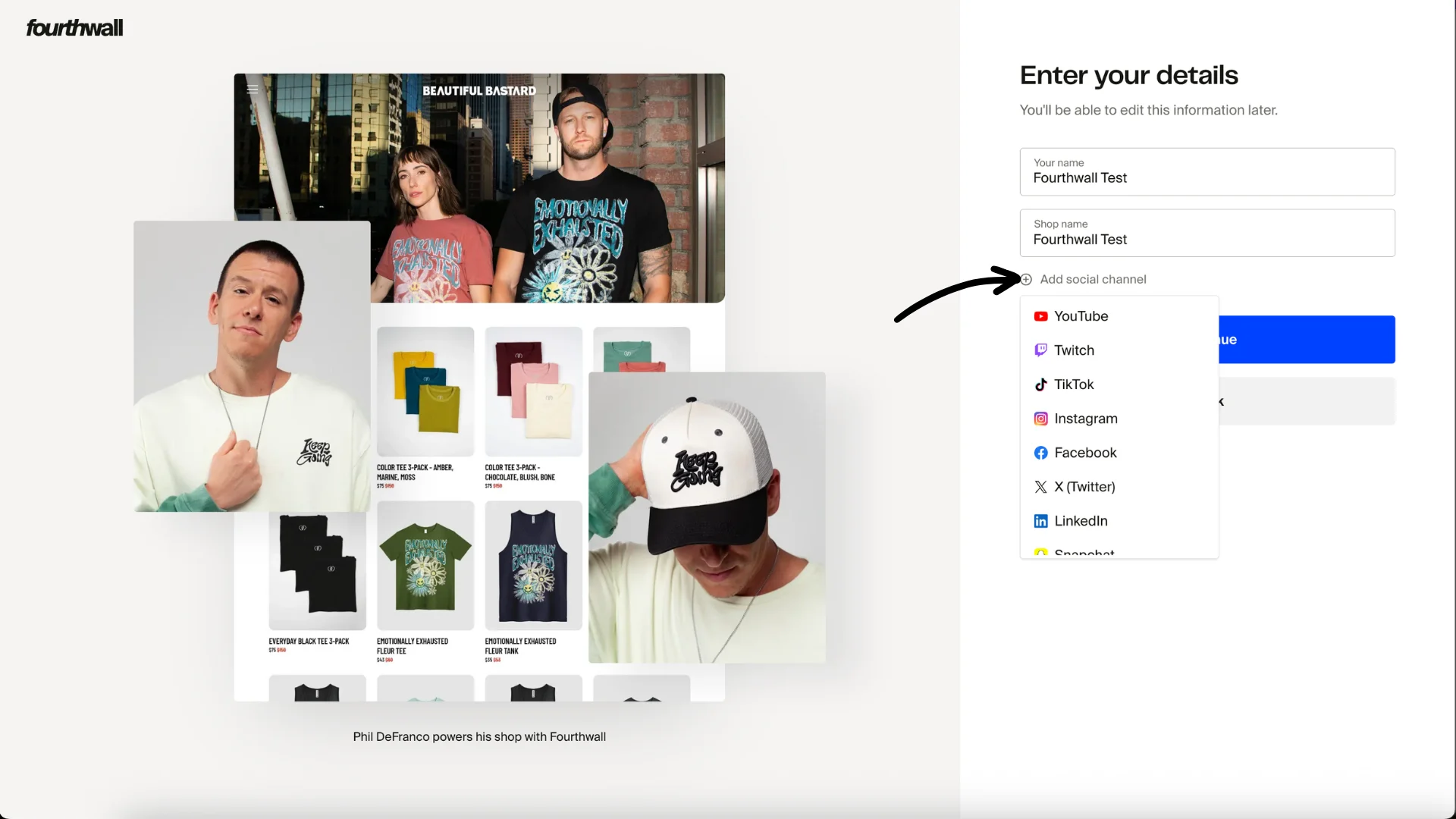
Note: Even if you're active in multiple places, pick the one where your audience engages most.
Click Continue, and you'll be directed to your Fourthwall dashboard.
Step 4: Verify your email
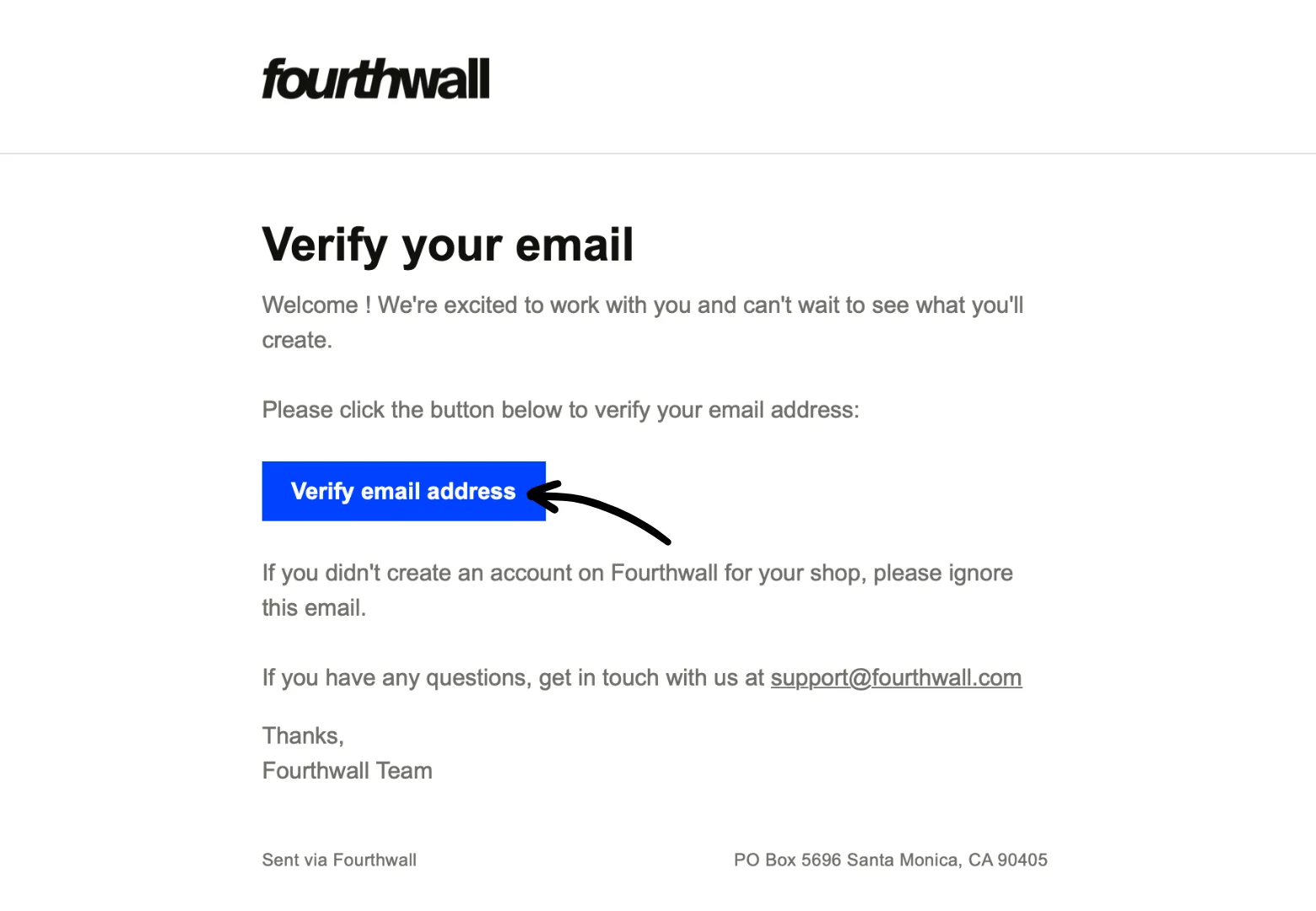
Fourthwall will send a confirmation email. Click Verify email address to complete the setup. If it doesn't arrive, see I didn't get the verification email, or the link expired.
This will reopen your Fourthwall dashboard, where you can continue onboarding, such as creating your first product and customizing the look of your Fourthwall site, and explore the other features we offer!
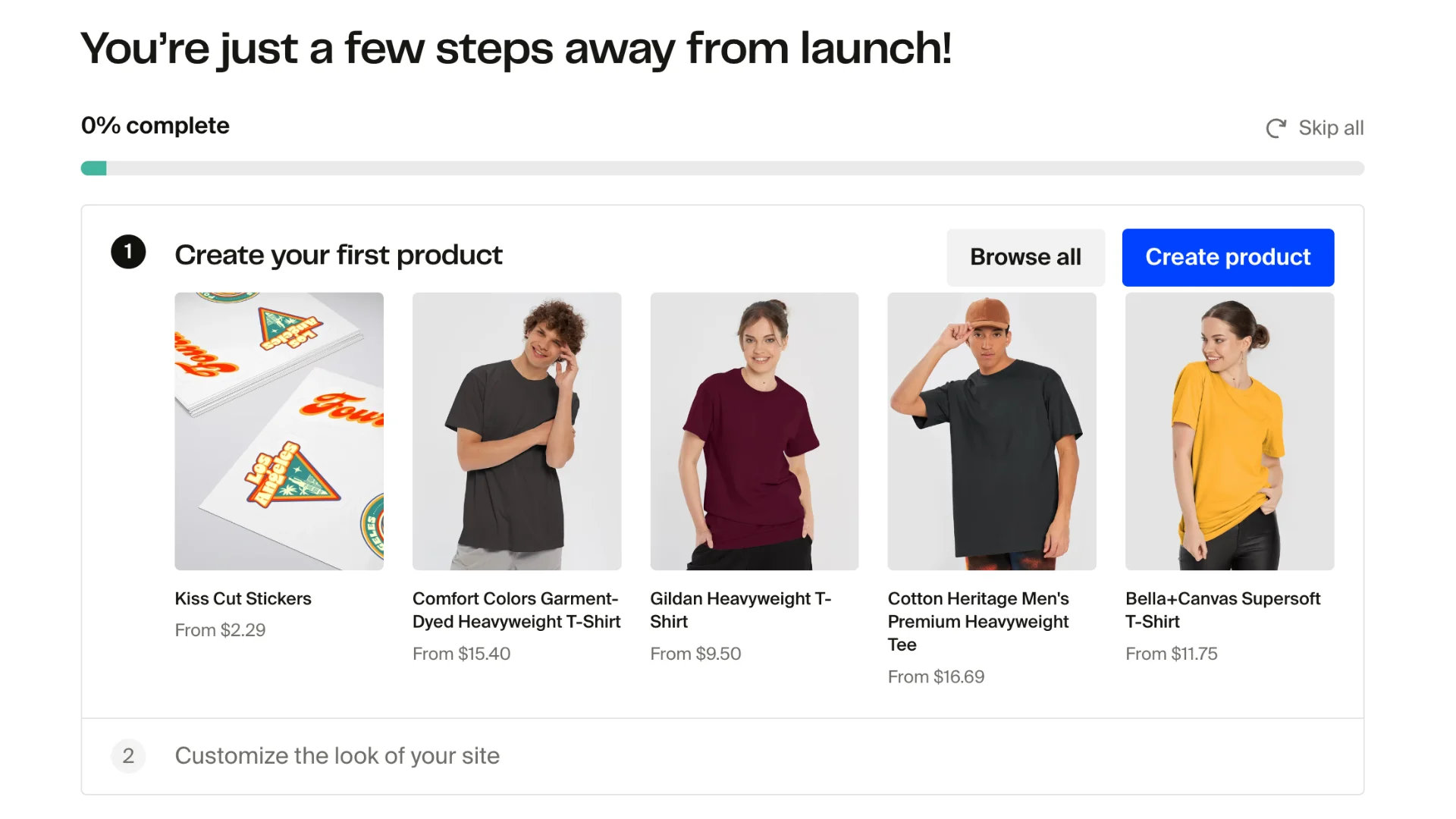
That's it! Your Fourthwall account is up, and you're ready to move to the next steps.
What customers can see
Fourthwall keeps your personal account information separate from what your customers see. Here is how your profile fields work:
- Shop title (set in Settings > General under Shop details): Visible to customers. It appears in browser tabs and search engine results, and has a maximum of 70 characters.
- Full name (set in Account settings > General): Used internally by Fourthwall only. Customers cannot see your full name.
- Account email (shown in Account settings > General): Used for login and email verification only. Customers cannot see your account email address.
Customers see your Shop title, not your full name. Your shop name also appears in the statement line for card payments (after FW *, shortened to 17 characters) and on the PayPal checkout screen; see Stripe account setup and issues. If you want to use a brand name, stage name, or alias, use it as your shop name. Your full legal name stays private in your account settings.
I didn't get the verification email, or the link expired. What do I do?
If the verification email doesn't arrive, or its link has expired, request a new one:
- Check your spam, junk and Promotions folders, and search your mailbox for "Fourthwall".
- Go to Account settings > General and click Resend email. Open the newest email and click Verify email address.
- If you signed up with a work or school address, check with its administrator: these addresses often block automated emails.
If it still doesn't arrive, email support@fourthwall.com from the address you signed up with. Include your shop name and say that your verification email didn't arrive or that the link expired.
Already have an account?
If you can't sign in, or you're asked for a verification code on a new device, see Account access: login issues, password reset, and email changes.