Add and manage your payment methods
Updated October 21, 2026
Easily manage the payment methods used for your Fourthwall billing and creator charges
To update your credit card, go to Settings > Billing and payouts, add the new card, set it as your default, then remove the old one. Keeping your payment methods up to date ensures your shop runs smoothly without interruptions.
For more information on why and when Fourthwall requires a valid payment method on your account, visit: Why does Fourthwall need my credit card information?
Step 1: Add a payment method
- To add a payment method, go to Settings > Billing and payouts in your dashboard.

- Under "Payment methods", click Add a payment method.
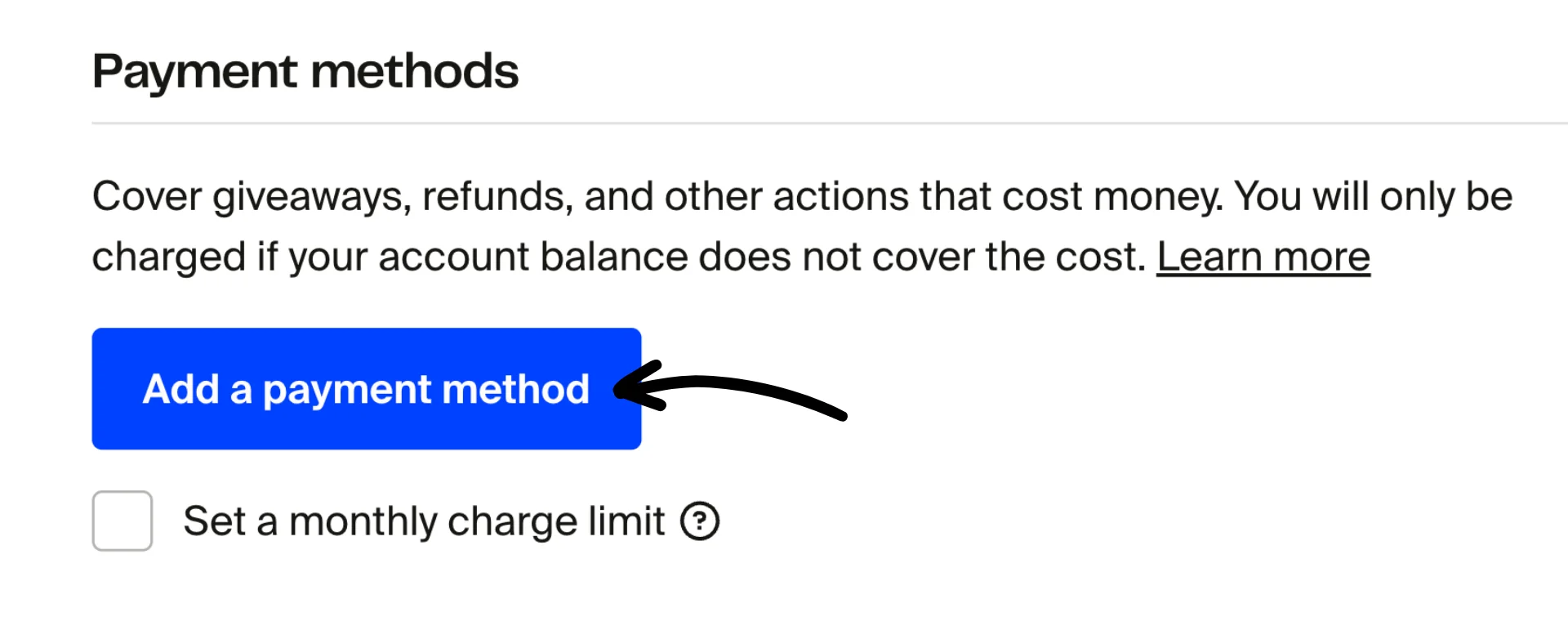
- Enter the details of your chosen payment method and click Save.
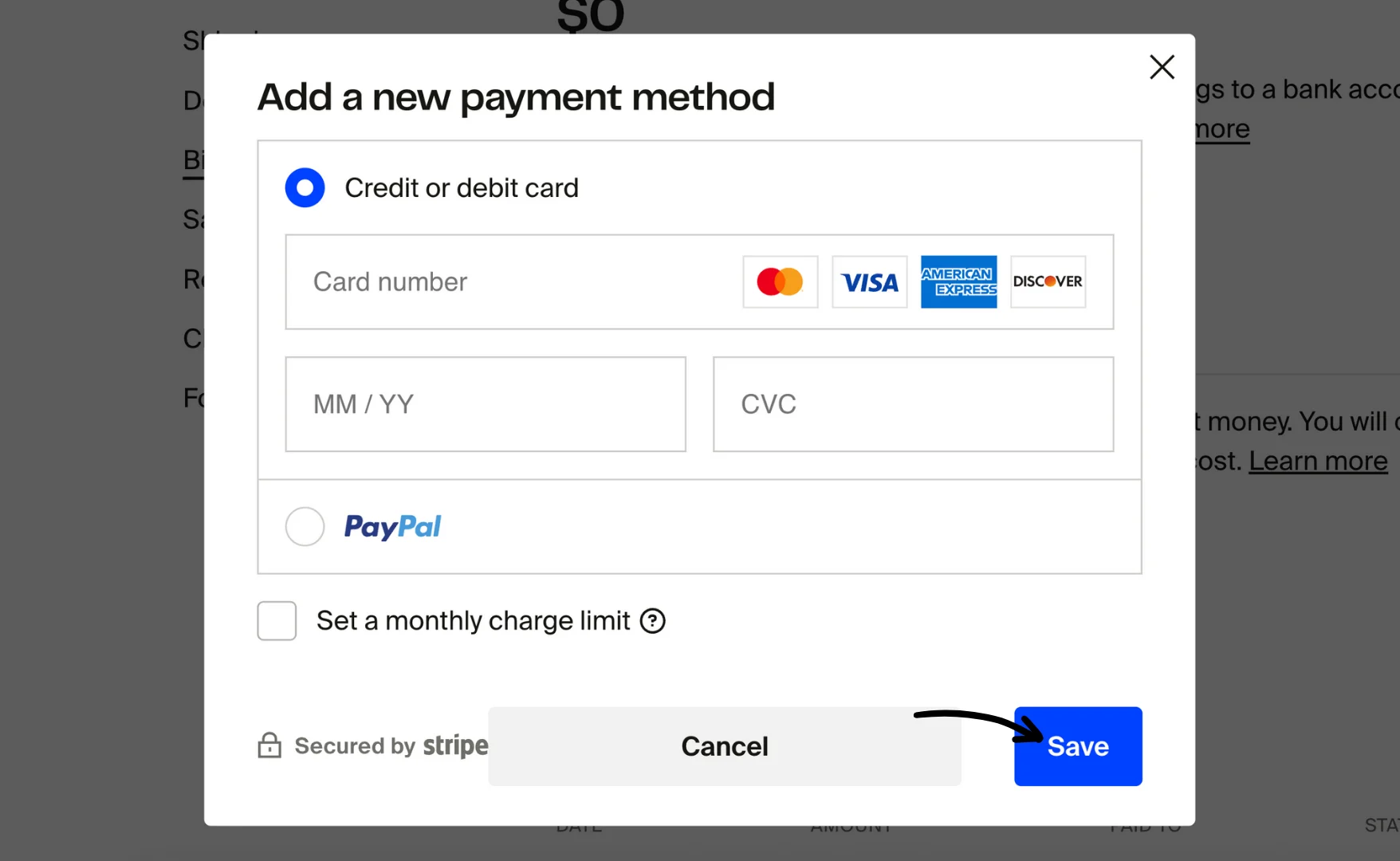
If you manage more than one Fourthwall site, you can reuse a payment method you already saved on another site.
See the complete list of accepted payment methods here.
Note: Adding a second payment method will let you choose a default payment method for your account.
Step 2: Manage your payment methods
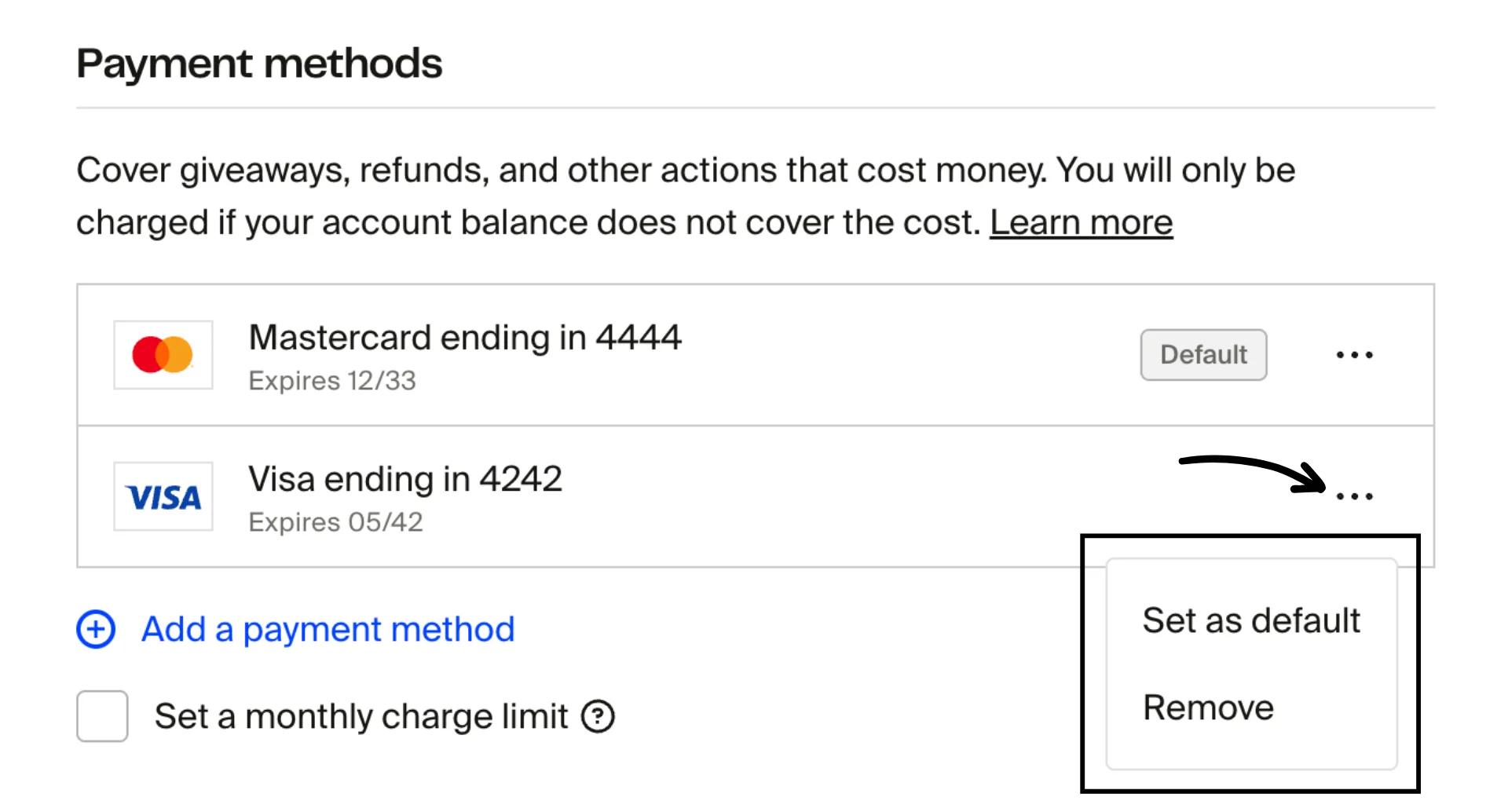
You can manage your saved payment options under "Payment methods." Click the three-dot menu next to a saved payment method to:
- Change your default payment method
- Remove an existing payment method
Set a monthly charge limit
We give you complete control over your account by allowing you to set a monthly charge limit. Click the Set a monthly charge limit box and enter the amount.
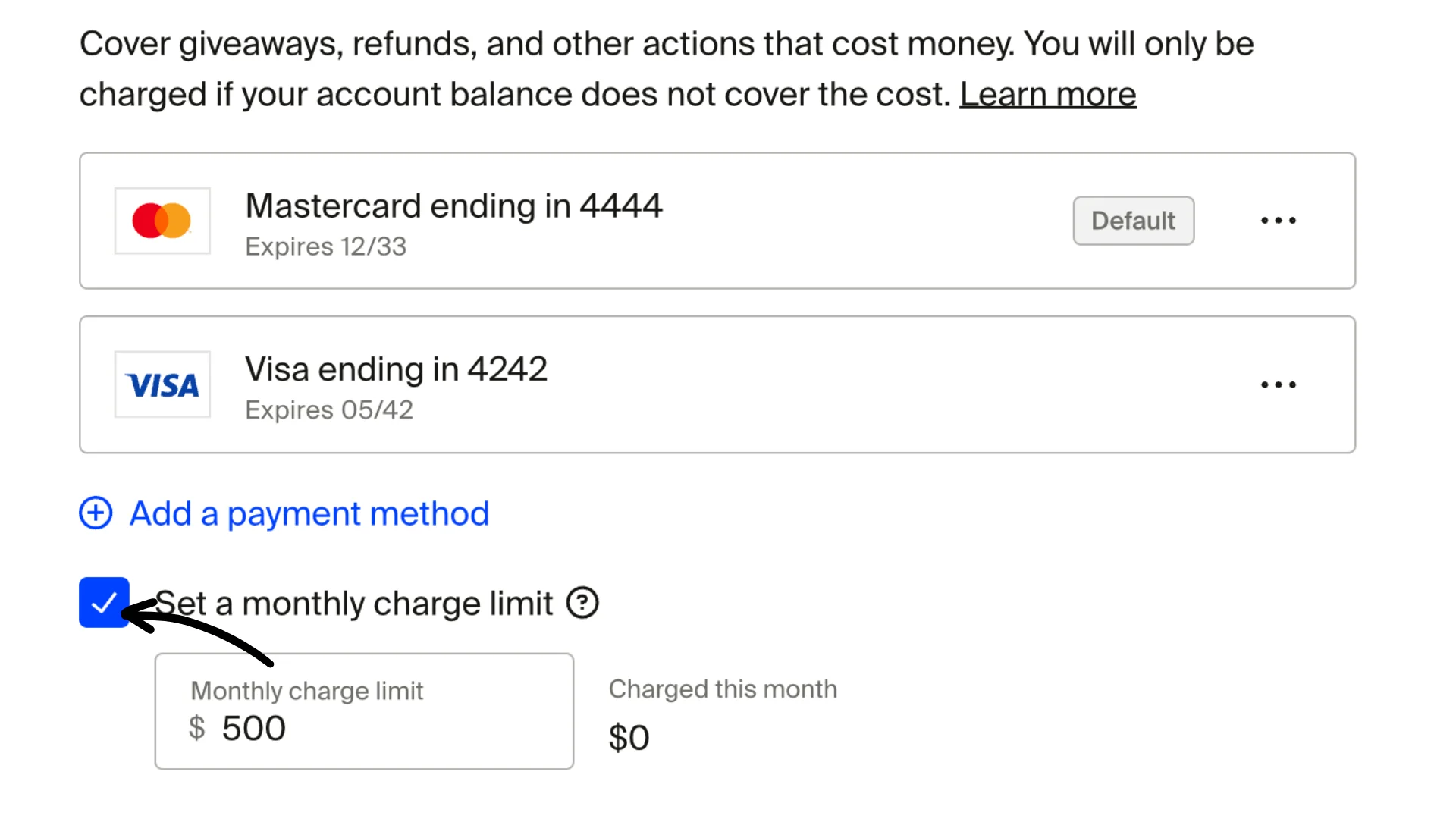
The monthly charge limit is the highest amount your card can be charged within a calendar month (12 AM UTC on the first of the month to 11:59 PM UTC on the last day of the month). The limit applies to charges for orders, cancellations and refunds. Inventory storage fees and payments for a paid Fourthwall plan aren't blocked by it. You can view the total amount charged to your card for the current month.
Warning: If you exceed your monthly charge limit, any transactions that result in a negative profit and cannot be covered by your account balance will be blocked.
You can unblock these transactions by:
- Raising your charge limit
- Earning enough profit to cover the negative amount
- Waiting until your charge limit resets the following month