Stripe Account Setup and Issues
Updated May 17, 2026
Set up Stripe Connect, manage your bank details, and resolve common payout account issues
Fourthwall uses Stripe Connect to process and send your payouts. Here's how to set up your account, switch banks, complete required tax forms, and fix common issues like account restrictions and blocked payouts.
Set up Stripe Connect
To receive payouts, you need to connect a Stripe account to your Fourthwall dashboard.
Step 1: Go to Settings > Billing and payouts > Set up your payouts.
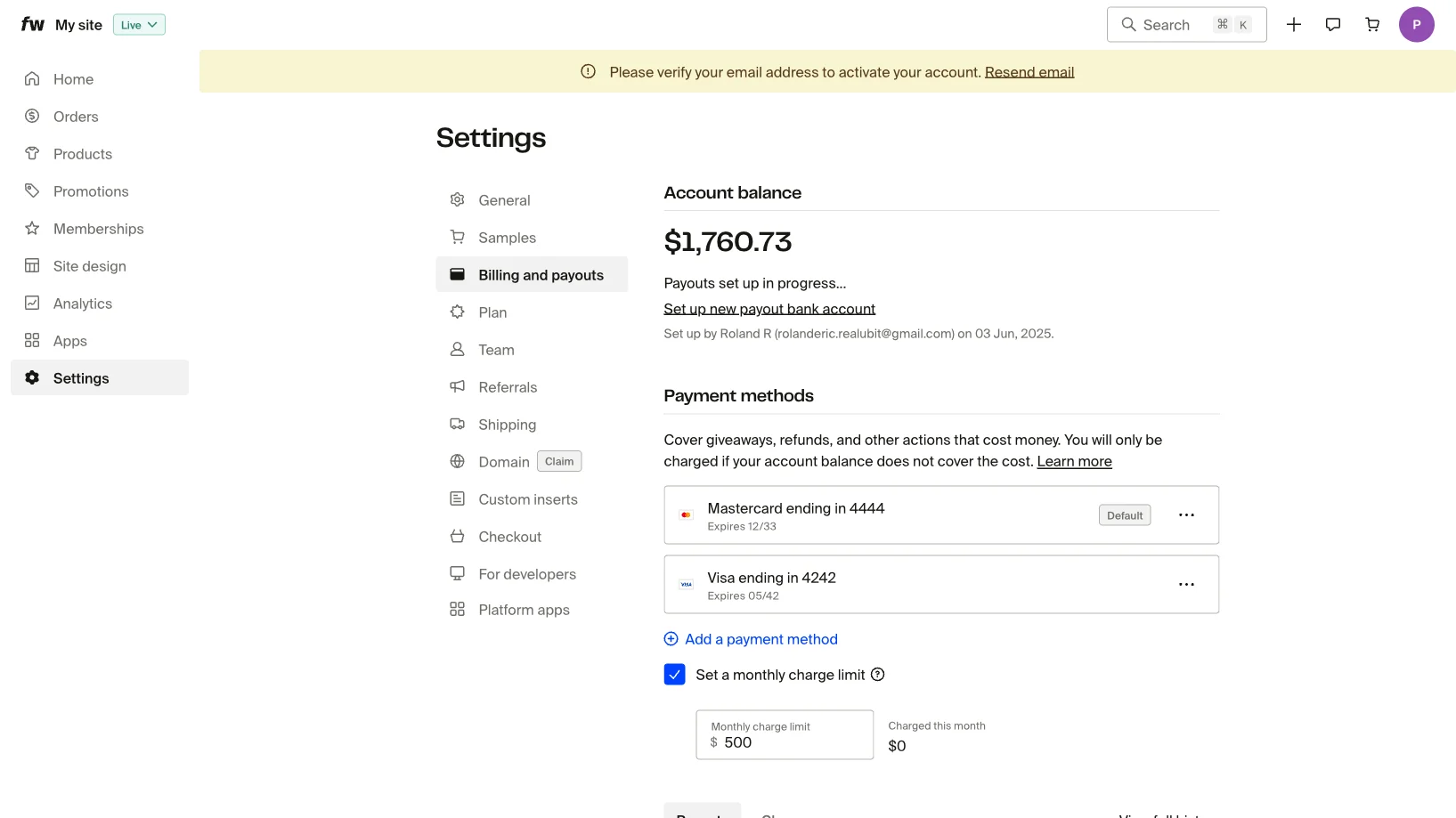
Step 2: Follow the on-screen prompts to enter your personal and business details.
Select the correct country from the drop-down at the start of the process. Your country must match where you and your bank are located. If you select the wrong country, you'll need to contact support to archive your Stripe account and start over.
What Stripe may ask during setup
Stripe collects information to verify your identity, meet tax and banking rules, and confirm contact details. Have these ready before you start so you don't get stuck mid-flow:
- Personal details: legal name, date of birth, and home address.
- Identity verification: government-issued photo ID (passport, driver's license, or national ID).
- Tax information: last 4 digits of your SSN or full SSN for US creators, or a W-9 or W-8BEN form depending on your tax status.
- Bank account details: routing number and account number, or a debit card.
- Email confirmation: Stripe sends a verification link to confirm your email address.
- Phone number verification: Stripe sends a code by SMS or call to confirm your phone number.
- Business information (business accounts only): business name, EIN, and registered address.
If Stripe asks for something not on this list, it usually means extra verification is needed for your account type or country. Submit the requested item, then continue with the next step.
Step 3: Connect your bank account or debit card. You can select your bank directly or enter your routing and account numbers manually.
Step 4: Review your details and click Submit.
Step 5: Confirm your email with Stripe. Once confirmed, you're ready to receive payouts.
Fourthwall does not store your payment or personal information. All payout details are stored securely within Stripe.
Switch to a new bank account
If you need to change the bank account linked to your payouts, follow these steps:
- Log into your Stripe Connect account. You can access it from Settings > Billing and payouts or directly at connect.stripe.com/express_login.
- Add your new bank account.
- Set the new bank account as your default payout method.
Important: If you're unable to remove the old bank account from Stripe, contact support@fourthwall.com and ask them to archive it. Include your shop URL (for example, yourshop.fourthwall.com) in your message, or send the request from the email address associated with your shop. Support verifies ownership before archiving anything on your account. Do not leave the old account set as default, or your payouts will continue going to it.
Complete your W-9 or W-8BEN tax form
US-based creators must complete either a W-9 or W-8BEN form within Stripe. Without a completed tax form, Stripe will block your payouts.
To complete your tax form:
- Log into your Stripe Connect account from Settings > Billing and payouts.
- Look for any tax form prompts or alerts in your Stripe dashboard.
- Fill out the required form (W-9 for US citizens and residents, W-8BEN for non-US individuals receiving US-sourced income).
- Submit the form directly in Stripe.
Once your tax form is submitted, Stripe typically processes it within a few hours, though it may take up to 1 business day. After processing, Stripe will re-enable your payouts automatically. If your payouts remain blocked more than 1 business day after submitting, contact support@fourthwall.com.
Fix account restrictions
Stripe may restrict your account if it needs additional verification. This typically happens when:
- Your identity has not been fully verified
- Stripe requires updated documentation (government-issued ID, proof of address)
- There is a mismatch between your account details and submitted documents
To resolve restrictions:
- Log into your Stripe Connect account.
- Check for any alerts or verification requests on the dashboard.
- Upload the requested documents (government-issued photo ID, bank statements, or other proof).
- Wait for Stripe to review your submission. This usually takes 1 to 3 business days.
If Stripe continues to restrict your account after completing verification, contact support@fourthwall.com with a description of the issue, and we'll investigate on our end.
Understand your statement descriptor
When customers purchase from your shop, the charge on their bank or credit card statement shows FW * {your shop name}, for example "FW * Cool Merch Shop". The shop name portion is trimmed to fit within 22 characters total.
When you receive a payout from Fourthwall, the descriptor on your bank statement shows FW {your shop name}. If you have multiple shops with consolidated payouts, the descriptor shows Fourthwall Shops.
One-time membership payments may appear as "recurring" on your customers' statements. This is a known Stripe behavior and does not mean the customer has been enrolled in a subscription. The charge is still a one-time payment.
Payout currency and your Stripe Connect country
Your payout currency is determined by the country you selected when setting up Stripe Connect. You receive payouts in the currency of that country, and you cannot change payout currency without resetting your Stripe account.
For example, if you selected the United States during setup, your payouts are in USD. If you selected the United Kingdom, your payouts are in GBP.
If you need to change your payout currency:
- Contact support@fourthwall.com and request a Stripe Connect account reset. Include your shop URL (for example,
yourshop.fourthwall.com) in your message, or send the request from the email address associated with your shop. Support verifies ownership before resetting your account. - Once your old account is archived, set up a new Stripe Connect account with the correct country selected.
Important: Resetting your Stripe account means all existing payout settings are removed. Make sure any pending payouts have cleared before requesting a reset.
Frequently Asked Questions
How do I reset my Stripe Connect account?
Contact support@fourthwall.com with your request. Include your shop URL (for example, yourshop.fourthwall.com) or send the message from the email address associated with your shop so support can verify ownership before archiving the account. The support team will then archive your current Stripe account so you can set up a new one. This is required if you selected the wrong country, need to switch from individual to business, or want to change your payout currency.
Why are my payouts blocked?
The most common reasons are an incomplete tax form (W-9 or W-8BEN), unverified identity, or incorrect bank details. Log into your Stripe Connect account to check for alerts, then follow the steps in the sections above to resolve.
Can I have multiple bank accounts connected to Stripe?
Yes. You can add multiple bank accounts in Stripe, but only one can be your default payout method. Payouts are always sent to the default account.
What does "FW *" mean on my customer's statement?
Charges processed through Fourthwall display FW * {shop name} as the statement descriptor, where the shop name is the name of the creator's shop. This applies to product purchases, memberships, and other transactions. You cannot customize this descriptor.
My Stripe account was set up with the wrong country. What do I do?
Contact support@fourthwall.com to archive your current Stripe account. Include your shop URL (for example, yourshop.fourthwall.com) or send the message from the email address associated with your shop so support can verify ownership. You can then set up a new one with the correct country. See What If My Country Is Not Supported by Stripe? for a list of supported countries.
What do I do if I need to update my payout debit card but no longer have the old card?
Stripe sends an external-account-update verification code by email to the account holder for this exact situation. Check the inbox for the email address on your Stripe Connect account and follow the instructions in the email to replace the card without entering the old card number. Fourthwall support cannot generate or resend this code, since it comes directly from Stripe.
If you have any questions, do not hesitate to contact us at support@fourthwall.com.