Navigate the Creator Dashboard
Updated October 16, 2026
Learn where everything lives in your Fourthwall Creator Dashboard so you can find settings, switch stores, and manage your account without hunting around.
The home tab and Eli AI input
The Home tab is the first thing you see when you open your dashboard. At the top is a large AI input that connects you to Eli, the Fourthwall AI chatbot. Eli greets you by name ("What can I help with, [your name]?") and shows rotating prompt suggestions to get you started quickly.
Type a question and press Enter to open the full-screen Eli view, where you can get help with your shop, find settings, or ask about features.
Below the input, Eli shows recommendation pills based on your shop activity. These change based on signals like recent orders, products you've created, and other activity in your account.
The sidebar
The sidebar is the main navigation panel on the left side of your dashboard. It collapses on its own the moment you move your cursor away, keeping your workspace clear while still giving you quick access to every section.
To bring the sidebar back, hover over the left edge of the screen. It expands again so you can reach every section, including the profile menu at the bottom.
On large screens (4K and above), the sidebar stays expanded by default.
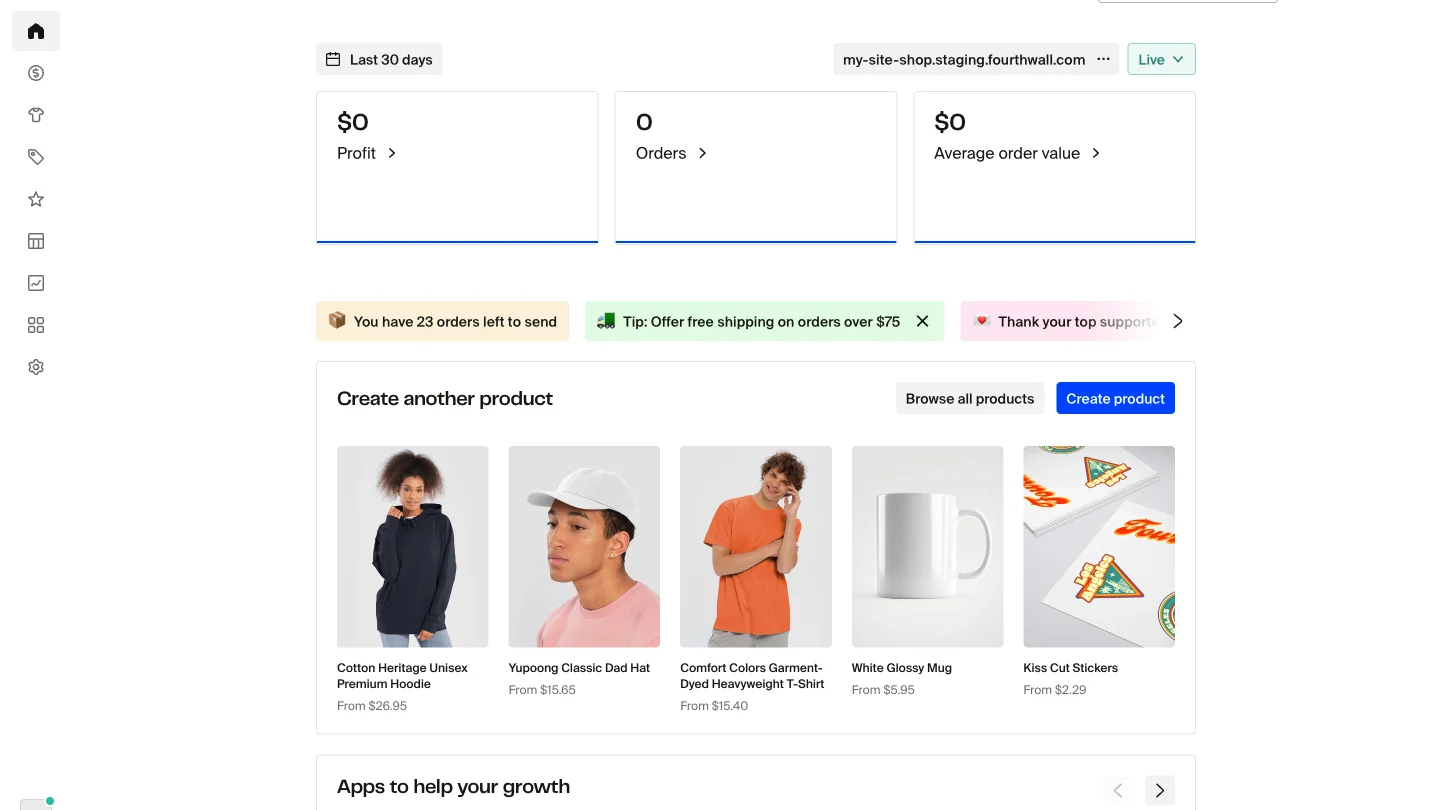
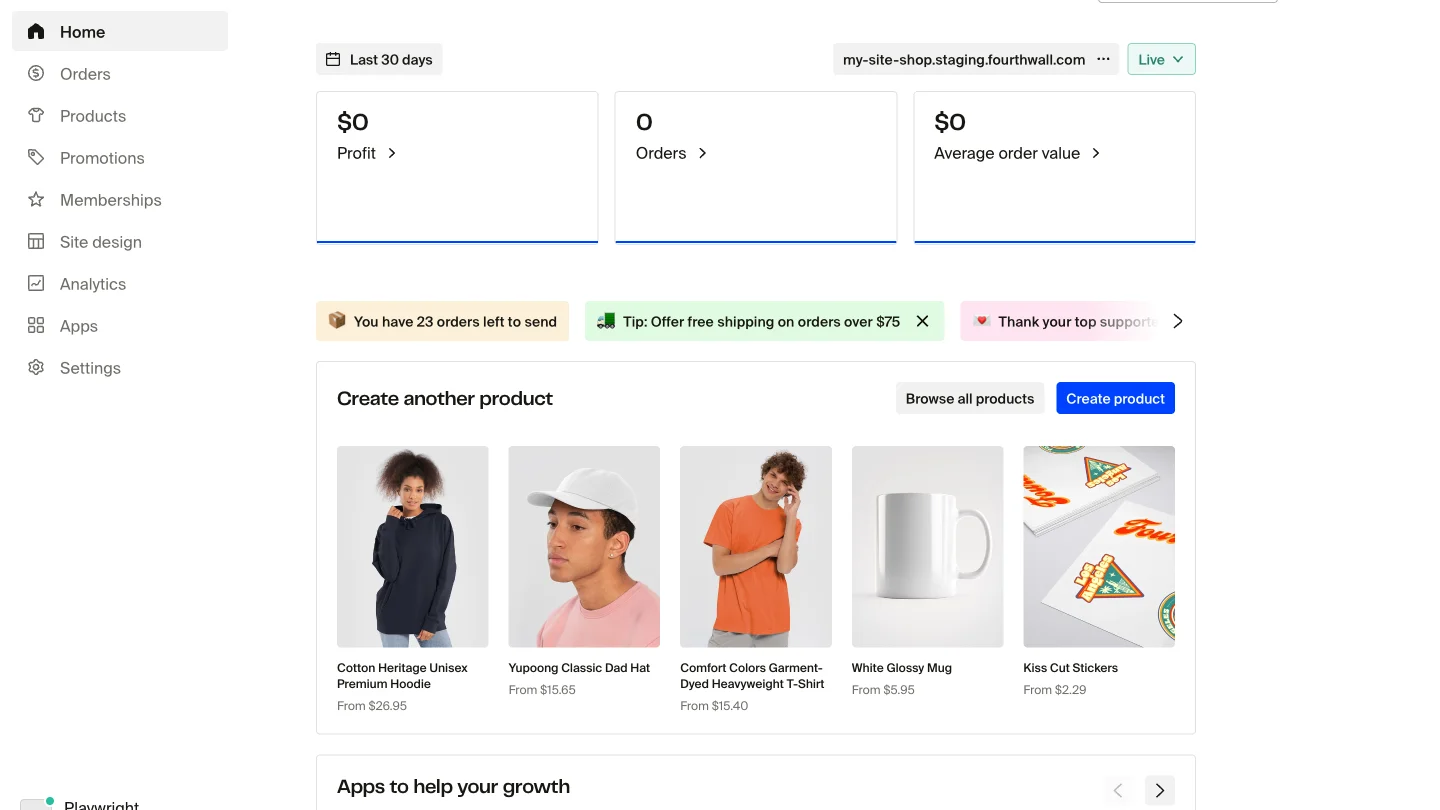
Navigation is direct. Most sections are one click away, with no redundant intermediate screens.
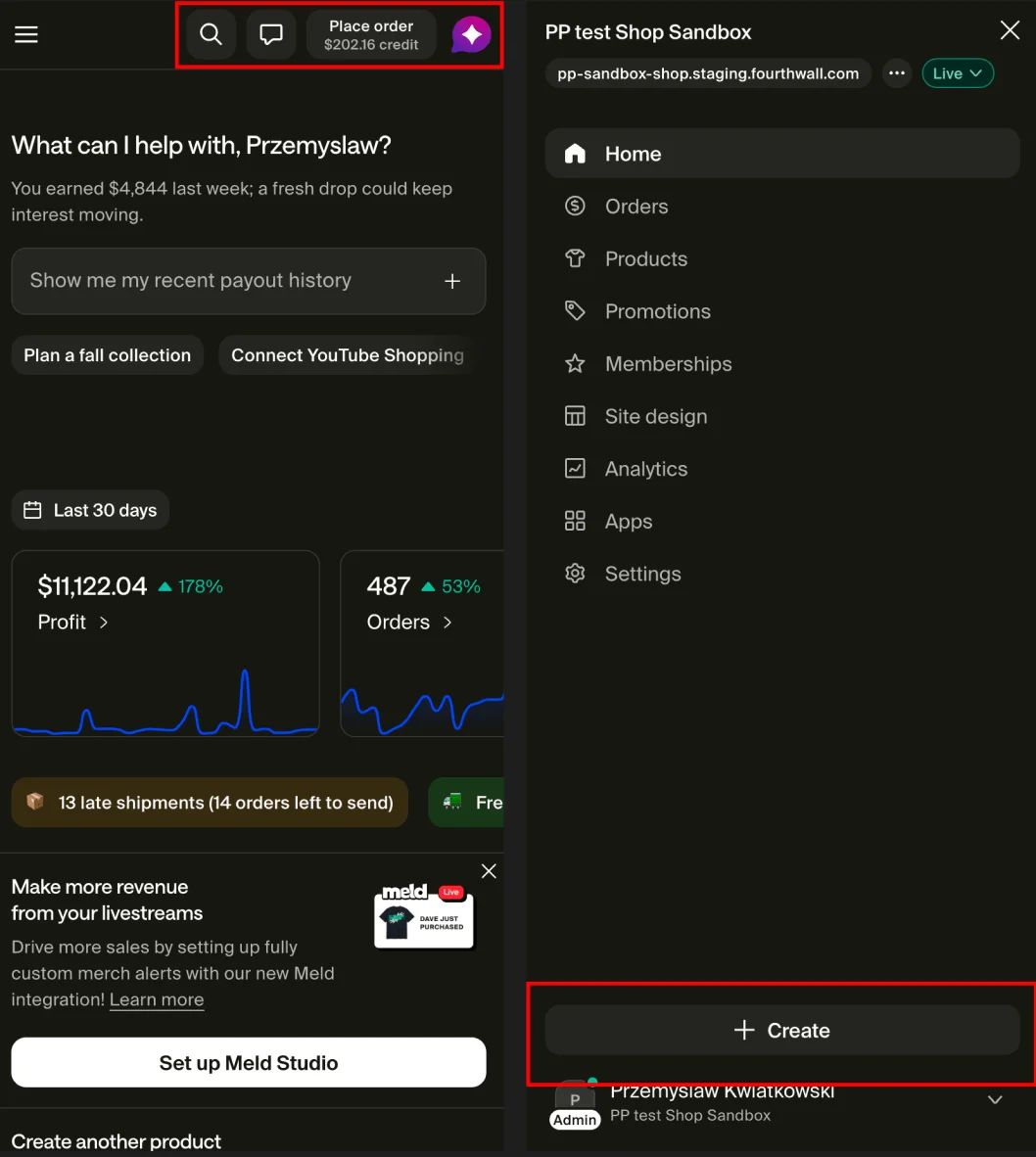
At the bottom of the sidebar, above the profile menu, the Create button (a plus icon) opens a dropdown of quick creation actions:
- Place an order: order products for yourself.
- Add post: create content to engage your members.
- Create new product: design a new product or list something you own.
- Launch promotion: set up a promotion to increase your sales.
The profile menu
The profile menu sits at the bottom left of the sidebar. Click it to open a popover with your account details.
If you don't see the profile menu, the sidebar is probably collapsed. Hover over the left edge of the screen to expand it, then look at the bottom-left corner.
Inside the profile menu:
- User account button: shows your name, avatar, and email address. Click it to open your Account settings.
- Visit shop: opens your live shop in a new tab so you can see it the way customers do.
- Copy shop URL: copies your shop link to the clipboard for quick sharing.
- Appearance: opens the site designer where you can customize your shop's look.
- Help center: links to the Fourthwall Help Center.
- Current shop: switch between stores and see the status of each using the colored status dots. Click your shop name to open the Your shops list, then click + Create a new shop to add another storefront. See Manage multiple storefronts on Fourthwall for full instructions.
- Admin Mode: for internal Fourthwall accounts, toggle Admin Mode from this menu.
- Logout: signs you out of the Creator Dashboard.
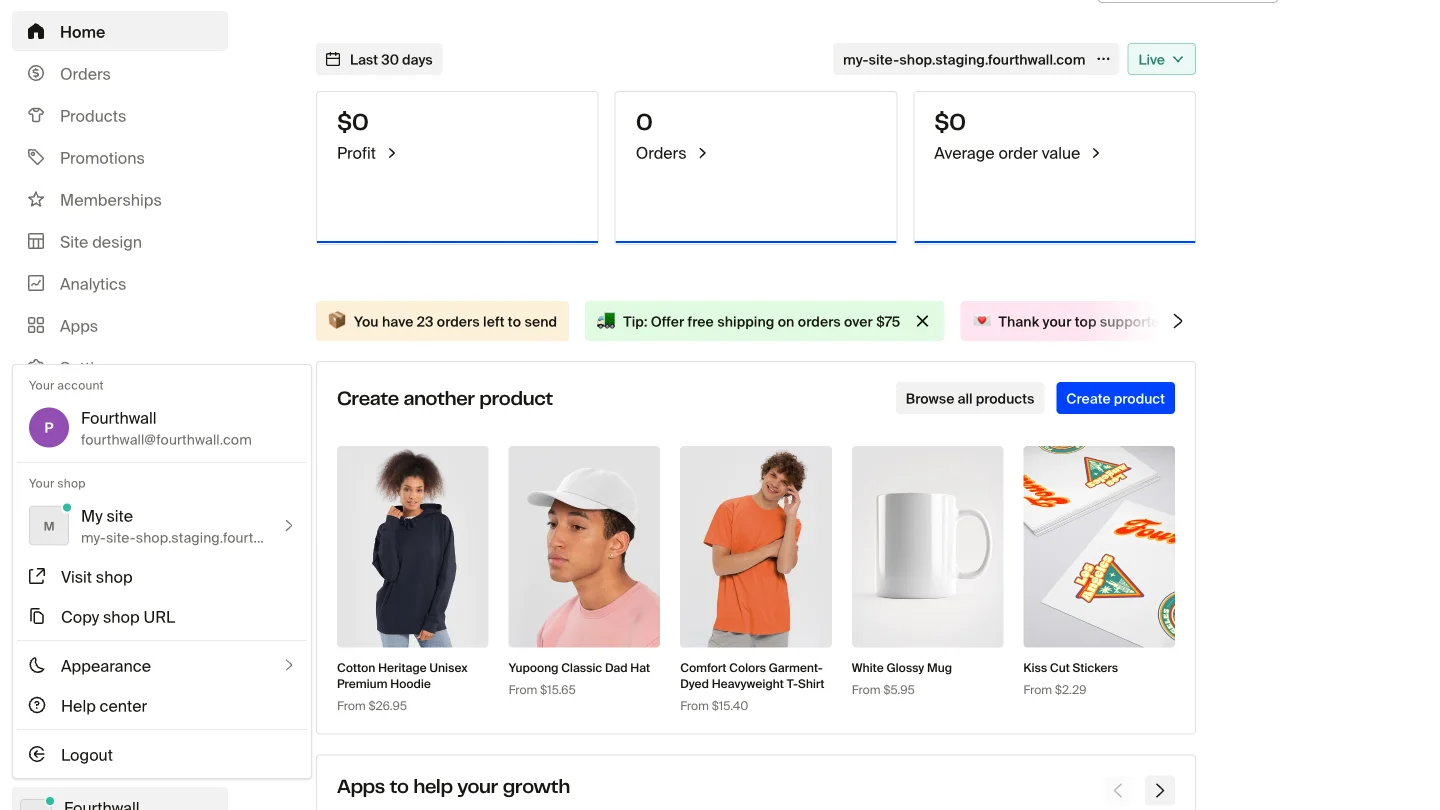
If the sidebar still stays hidden after you hover over it, scroll down inside the expanded sidebar. The profile menu is pinned to the very bottom, so it can sit below the fold on shorter screens.
Find your shop URL and visit your store
Fastest path: click your shop name or logo at the bottom left of the sidebar, then click Visit shop.
The button showing your shop name and logo at the bottom left of the sidebar is the profile menu. It doesn't say "Menu" or "Profile", it shows your own shop name and logo, so it's easy to miss. Click that button to open the menu with everything you need to view and share your store.
To open your live shop in a new tab, click Visit shop. This shows your store the way customers see it.
To copy your shop link instead, click Copy shop URL. A toast message confirms the copy: "Shop URL copied to clipboard." Your shop domain also appears in the menu row below your shop name.
If your shop opens to a "Coming Soon" page instead of your products, your site is not live yet. See Change your site's status to publish it.
How to log out
To log out, open the profile menu at the bottom left of the sidebar, then click Logout. If the sidebar is collapsed, hover over the left edge of the screen to expand it first, then scroll to the bottom to find the profile menu.
Store management and switching
If you manage more than one Fourthwall store, the profile menu is where you switch between them. Each store shows a colored status dot so you can see at a glance whether a store is live, in coming soon mode, or offline without opening it.
To switch stores:
- Click the profile menu at the bottom left of the sidebar.
- Under Current shop, click your shop name to open the Your shops list.
- Click the store you want to switch to.
If a shop you expect to see is not showing up in the switcher list, see the troubleshooting section in Manage multiple storefronts on Fourthwall.
The navbar
The top navbar has a minimal design focused on the current page context, giving you more vertical space to work with content.
On the right side of the top bar, the Place order button opens your cart so you can order products for yourself. When your shop credit balance is above zero, the available amount shows directly on the button, for example "$202.16 credit."

Mobile navigation
On mobile, the dashboard navigation is optimized for one-handed use. Key actions are reachable without deep menu navigation, and the layout adapts to smaller screens.