Manage multiple storefronts on Fourthwall
Updated August 1, 2026
Learn how to run multiple storefronts on Fourthwall by creating additional shops from your dashboard or using domain redirects
Creators often want to manage multiple storefronts for different product lines, audiences, or brands. Fourthwall supports this directly: you can create additional shops from your dashboard in a few clicks.
Can I run multiple storefronts under one account?
Yes. You can create and manage multiple storefronts under a single account, and switch between them from your dashboard. Each storefront operates as its own shop, with separate settings, payouts, and product catalogs.
You can create up to 5 shops per account. If you need more, contact support@fourthwall.com.
How to create another storefront
Create another storefront directly from your dashboard. All you need to provide is a name for the new shop. It's created right away, and your dashboard switches over to it.
Create a new shop from your dashboard
Step 1: In your dashboard, click your profile menu at the bottom left of the sidebar.
Step 2: Under Current shop, click your shop name to open the Your shops list.
Step 3: At the bottom of the list, click + Create a new shop.
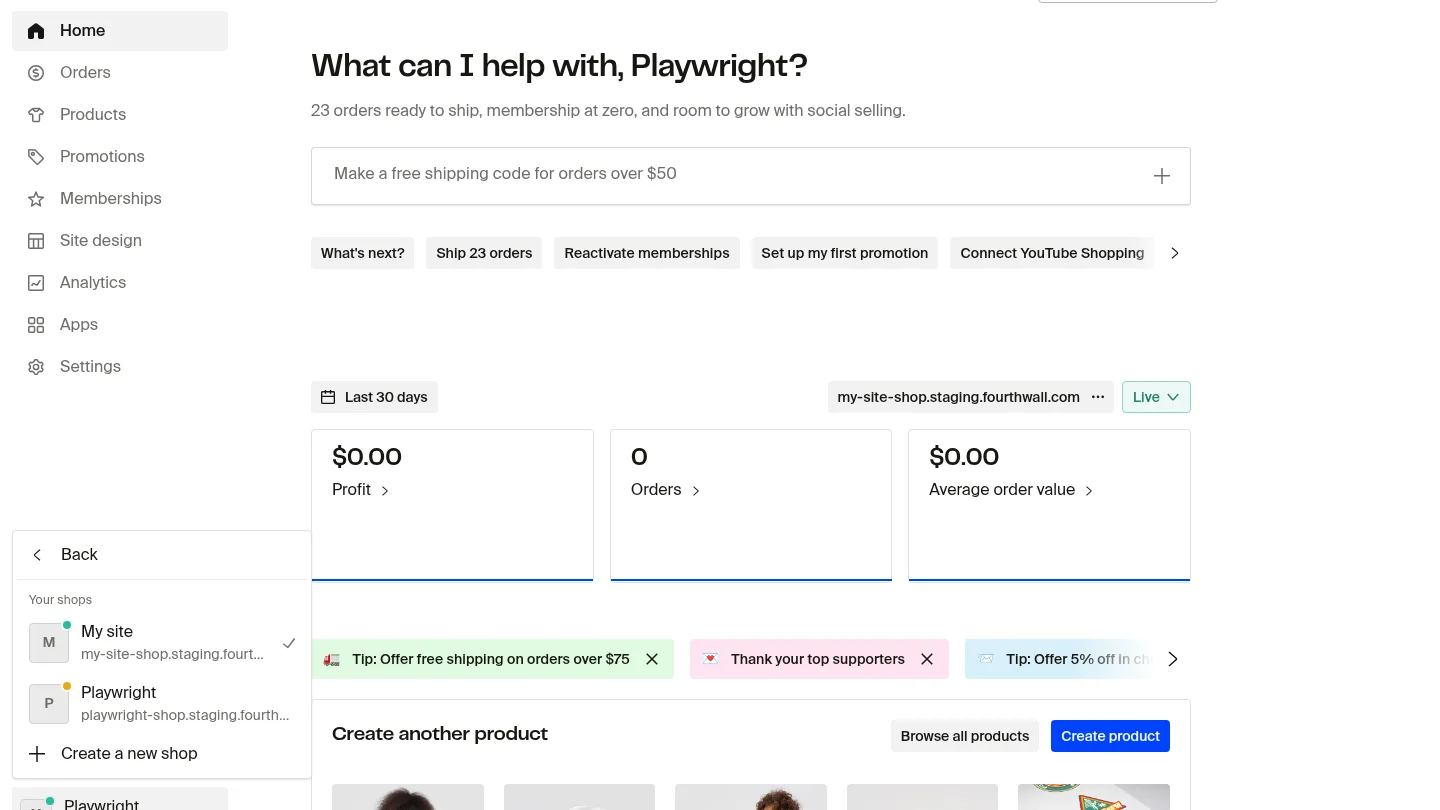
Step 4: Enter a name for your new shop, then click Create. If you're an agency or partner setting this up on someone else's behalf, check the This site is for someone else box first.

Your new shop is created immediately, and your dashboard switches over to it. To switch between storefronts, open your profile menu at the bottom left of the sidebar, then open the Your shop submenu to see every shop tied to your login. It's not a top-left icon. For a full tour of the sidebar and profile menu, see Navigate the Creator Dashboard.
Common issue: Google sign-in redirects to existing store
This applies only if you add a shop by signing up again on the Fourthwall website instead of using Create a new shop in your dashboard. Creating a shop from your dashboard avoids this issue entirely.
If you use Google sign-in (OAuth) to log in, clicking Start now may redirect you back to your existing storefront instead of showing the new store setup flow. This happens because Google OAuth automatically authenticates your session and routes you to the store already linked to your Google account, so the new-shop signup flow never gets a chance to load.
Signing in with email and password gets around this. Manual login lets the system see that you're creating a second storefront on your existing login, so it presents the new shop setup flow instead of dropping you into your existing dashboard.
How to fix it
- Use email and password login. Instead of clicking the Google sign-in button, enter the same email and password from your existing Fourthwall login. This gives the system a chance to present the new store setup flow rather than auto-routing you to your existing shop.
- Use an incognito or private browser window. Open a private window, go to Fourthwall.com, click Start now, and log in with email and password. This prevents your existing Google session from interfering.
- Contact support. If the redirect persists after trying both methods above, reach out to support@fourthwall.com. The team can help set up your second storefront directly.
My shop isn't appearing in the switcher
You created a second shop, but it's missing from the Your shop submenu in your profile menu. What happens next depends on which email you used to create it.
Case 1: You created the shop with the same email, but it's not in the switcher. The shop switcher lists every shop attached to your login, so a shop created with your existing email should appear there automatically. If it doesn't, the shop wasn't linked to your account on the backend. This is an account association issue that you can't fix yourself. Contact support@fourthwall.com and the team can connect the shop to your login.
Case 2: You created the shop with a different email. A shop on a different email lives on a separate account, so it will never show up in your switcher on its own. You can't merge the two accounts, but you can access both from one login with a Super Admin team invite. See the steps below.
Already have two shops on separate accounts?
If you already created your shops on two different email addresses, you can't merge them into one login. Instead, use a Team Invite to access both dashboards from a single login: from the dashboard of one shop, invite the email address tied to your other shop as a Super Admin. Once accepted, that login can switch between both dashboards from the profile menu.
For step-by-step instructions, see Manage team roles and permissions in Fourthwall.
Important Notes:
- Payouts: each shop will need to be set up with its own Stripe Connect account for payouts. You can use the same bank/card details, but Stripe Connect accounts will be different.
- Plans are per store: Benefits, product limits, and Pro features apply to each shop individually. Upgrading one store does not upgrade all stores under your login.
- Separate branding and products: Each storefront can have its own design, URL, and catalog.
Alternatives to running multiple storefronts
If you would not like to juggle separate stores, you can use these approaches:
- Single store with multiple categories: Keep your products under one store, but organize them into collections (e.g., "Courses," "Prints," "Merch") accordingly.
- Multiple domains in one store: You can connect one primary custom domain to your Fourthwall store. Additional domains can be set up to redirect to the primary domain through your domain provider.Example:
- artbyaustin.shop - Primary store
- austinprints.com - Redirects to primary store
- austincourses.com - Redirects to primary store
Here is a general process:
- Access your domain management console: Log in to the control panel of your domain registrar (e.g., GoDaddy, Namecheap) or hosting provider (e.g., Hostinger, DreamHost).
- Locate the redirect tool: Look for a section called "Domain Redirects," "URL Forwarding," or similar.
- Start a redirect: Click on the option to create a new redirect or add a redirect.
- Configure the redirect:
- Source domain/path: Specify the domain or the specific URL path you want to redirect.
- Destination URL: Enter the full URL (e.g., https://newdomain.com) to which visitors should be sent.
- Redirect type: Choose between a 301 redirect for permanent moves or a 302 redirect for temporary situations.
- Save and confirm: Save your settings to activate the redirect.
This is a good option if you want to market different product lines under separate URLs but manage only one store backend.
When should you use multiple storefronts vs. redirects?
- Multiple storefronts are best if you want separate branding, distinct product lines, or different audiences. For example, one store for art, another for training courses.
- Redirects: Best if you want one central store, but promote it through different branded domains.