Mug design best practices
Updated June 2, 2026
Get the best print quality on your custom mugs by preparing your artwork files correctly and understanding how sizing works across different mug variants.
Artwork File Preparation
Your design's clarity depends on resolution, file format, and correct sizing. Follow these guidelines for sublimation printing on mugs:
| Format and Dimensions | Recommendation | Details |
|---|---|---|
| Resolution (DPI) | Minimum 300 Dots per inch (DPI) | Low DPI results in a blurry or pixelated design on the final product, especially if the image is scaled up. |
| File Format | PNG with transparent background | A transparent PNG prevents a white or colored "box" from printing around your design. |
| Color Mode | RGB (or sRGB) | Upload designs in RGB, the standard color space for monitors. The printing software converts to CMYK (Cyan, Magenta, Yellow, Key/Black) automatically, so start with RGB. |
| Dimensions (Canvas Size) | Start at 4500 x 2100 pixels (300 DPI) | This covers the widest wrap-around print area (15 oz mug). The product designer scales your art to fit each variant. Exact dimensions vary by mug size. |
Finding the exact print area dimensions
The product designer shows you the precise pixel dimensions for each mug variant. When you open a mug product in the designer and select a size (11 oz, 15 oz, or 20 oz), the template overlay displays the printable area width and height in pixels.
To check the dimensions for a specific mug size:
- Go to Products and open a mug product.
- Click Edit design to open the product designer.
- Select the mug variant you want to check (for example, 15 oz).
- Look at the template overlay, which displays the printable area dimensions in pixels.
For best results, start with a canvas at least 4500 pixels wide at 300 DPI. This covers the widest wrap-around print area across all mug sizes. The product designer will scale your artwork to fit each variant, so starting large gives you the sharpest print on every size.
Each mug size has a different printable area, so the pixel dimensions change when you switch between 11 oz, 15 oz, and 20 oz variants. Always confirm your artwork looks correct on each size before publishing.
Managing Color and Tone Expectations
The color printed on the mug will always be a bit different than the color you see on your screen. This is even more so for dark mugs.
The "Darker Print" Rule
- Screen vs. print: Ink transferred onto the mug surface (sublimation) tends to be darker and less saturated than it appears on a backlit screen.
- Compensate early: When designing, adjust your art to be slightly brighter and more vibrant than you want the final product to look. This offsets the natural darkening in the printing process.
- Dark backgrounds: If you use a dark background (black, navy, etc.), make sure text or light elements on top have enough contrast to stay readable.
Size and Variant Verification
Always double-check that the product variant selected matches your design expectation.
- Common variants: Review whether your design works well on 11 oz mugs versus 15 oz mugs. The same design gets resized for each variant, and this can affect the perceived clarity or size of the elements.
- Printable areas: Confirm that the design correctly fits the printable area of the specific mug style.
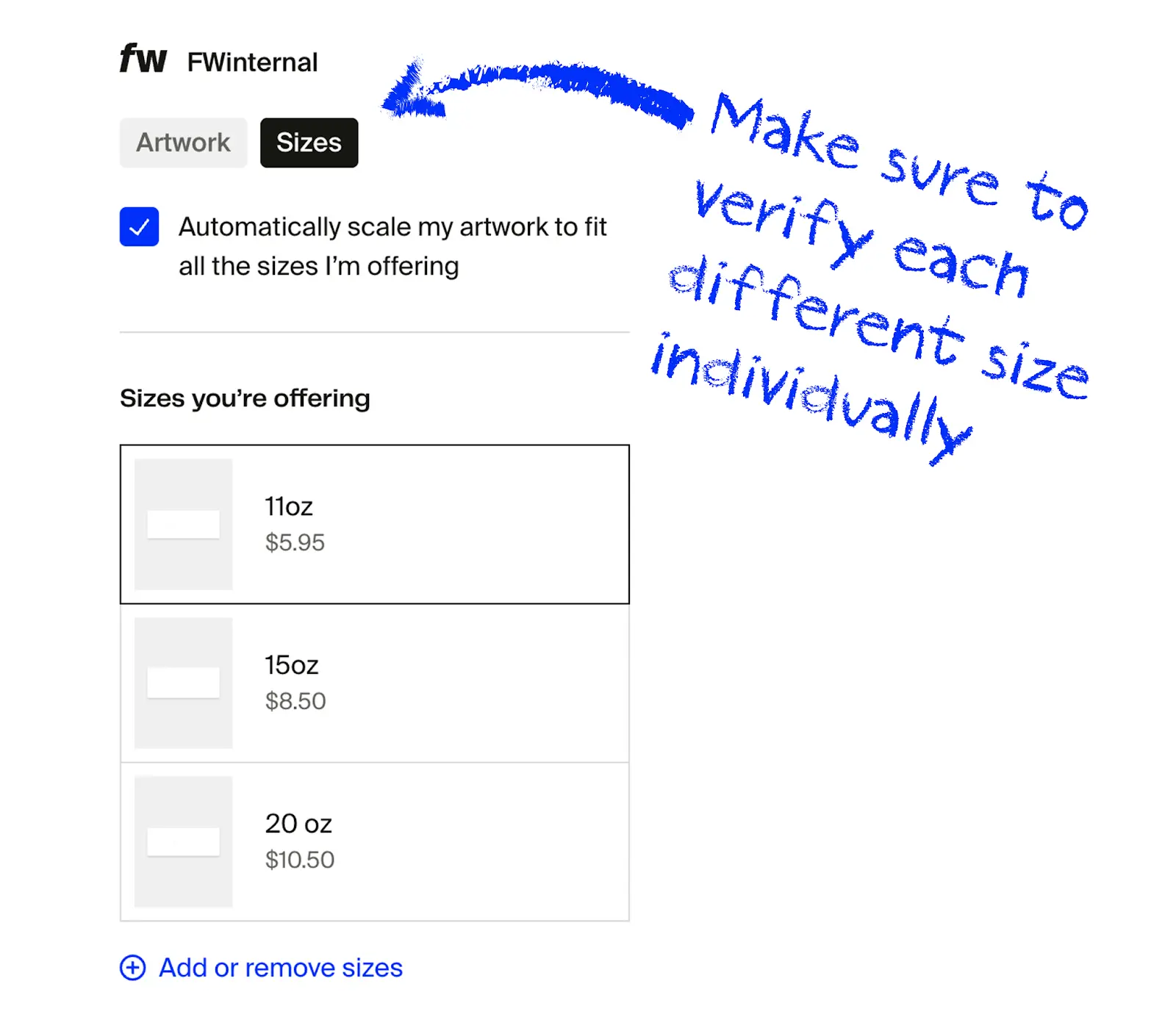
How do I verify my design across mug sizes?
When you offer multiple mug sizes, the product designer opens a Review your design on different sizes prompt before you can publish. Fourthwall auto-scales your art from the Medium size you designed to every other size, but each mug shape is slightly different, so you need to confirm placement on every variant.
Here is what to check inside the prompt:
- Scroll through every size preview. The Confirm button stays disabled until you have viewed all variant previews in the prompt.
- Use Edit design per size. Each variant has its own Edit design button so you can reposition or rescale art for that size without leaving the prompt.
- Watch for Bad quality warnings. A Bad quality indicator appears next to any variant where the print resolution is too low. Replace the artwork with a higher-resolution file or shrink the design until the warning clears before you confirm.
The prompt body reads: "We did our best to automatically scale your art from the Medium you designed to all other sizes, but because each size is a slightly different shape we recommend reviewing art placement before continuing."